
TL;DR:
- Most SMBs need an SSL certificate to build trust and prevent visitors from leaving due to security warnings. Proper installation involves domain validation, server configuration, permission setting, and automatic renewal to ensure continuous protection. Advanced configurations, like Cloudflare SSL modes and wildcard certificates, require careful setup to avoid security gaps and site disruptions.
Customers make split-second decisions about whether to trust your website. When Chrome flashes a "Not Secure" warning in the address bar, most visitors leave without a second thought, and that lost trust translates directly into lost revenue. An SSL certificate (Secure Sockets Layer, the technology that encrypts data between your server and your visitors' browsers) is no longer optional for any business that wants to compete online. This guide walks you through everything from choosing the right certificate type to installing, configuring, and troubleshooting SSL, without the jargon overload.
Table of Contents
- What you need to set up an SSL certificate
- Step-by-step: How to install an SSL certificate
- Special configurations: Cloudflare, Apple, and advanced needs
- Testing, troubleshooting, and pitfalls to avoid
- What most guides miss about SSL setup for SMBs
- Set up SSL: Secure your site and boost customer trust
- Frequently asked questions
Key Takeaways
| Point | Details |
|---|---|
| Choose the right SSL type | Pick between DV, OV, or EV based on your trust and verification needs. |
| Prepare before setup | Gather domains, server access, and select your SSL vendor before starting. |
| Follow verified steps | Use well-supported tools like Certbot or managed solutions for certificate installation and renewal. |
| Test and troubleshoot | Always verify your SSL setup, check for browser errors, and fix issues promptly. |
| Automation protects uptime | Automatic renewals prevent unplanned outages and keep your site trusted at all times. |
What you need to set up an SSL certificate
Before you can begin the actual installation, make sure you have everything ready. Here's what you'll need.
Domain ownership and hosting access are your two non-negotiable starting points. You need to prove you control the domain you're securing, and you need login credentials to your web server or control panel. If you're on a managed hosting plan, this might be as simple as clicking a button inside cPanel. If you're running your own Linux server, you'll need SSH access and root or sudo privileges.
You'll also need to understand the three main SSL certificate types so you pick the right one for your business:
| Certificate type | What it verifies | Best for | Typical issuance time |
|---|---|---|---|
| Domain Validation (DV) | Domain control only | Blogs, small business sites | Minutes |
| Organization Validation (OV) | Domain + business identity | E-commerce, professional services | 1 to 3 days |
| Extended Validation (EV) | Full legal business vetting | Financial, healthcare, enterprise | 1 to 5 days |
As DV, OV, and EV differ fundamentally in how deeply they vet your identity, DV certificates are fast and free (great for most SMBs), while OV and EV certificates signal a higher level of trust to customers in industries where credibility is everything.
Key files you'll handle during setup include:
- Certificate file (.crt or .pem): The actual certificate issued by the Certificate Authority (CA)
- Private key (.key): Generated on your server; never share this file
- Intermediate/chain certificates: Files that connect your certificate to the CA's root, completing the trust chain
- Certificate Signing Request (CSR): A block of text you generate on your server to request a certificate
Pro Tip: Before generating a CSR, make sure your server's hostname matches the domain you're securing. A mismatch here is one of the most common reasons SSL setups fail right out of the gate.
For most SMBs, securing Nginx with Let's Encrypt via Certbot is the most practical self-managed approach. Let's Encrypt is a free, automated CA, and Certbot is the tool that communicates with it, handles domain validation, installs your certificate, and sets up automatic renewal. If you're not on a server you manage directly, your hosting provider may offer a one-click SSL option that handles all of this behind the scenes.
Step-by-step: How to install an SSL certificate
With your requirements in hand, you're ready to install and set up your SSL certificate. Here's the process for most SMB scenarios.
-
Obtain your certificate. For Let's Encrypt, install Certbot on your server with "sudo apt install certbot python3-certbot-nginx
(Ubuntu/Debian) and then runsudo certbot --nginx -d yourdomain.com -d www.yourdomain.com`. For a paid certificate, generate a CSR from your server, submit it to your chosen CA, and download the issued certificate files. -
Install and configure on your web server. Certbot automatically edits your Nginx server block to point to the right certificate files. Certbot stores certificates under
/etc/letsencrypt/liveand updates your configuration file so your server knows where to find them. For paid certificates on Nginx, you'll manually specify thessl_certificateandssl_certificate_keypaths in your server block. -
Set correct file permissions. Your private key should be readable only by root or the web server process. Use
chmod 600on the key file and verify ownership withls -la. Loose permissions on the private key are a real security risk that's easy to overlook. -
Restart your web server. Run
sudo systemctl restart nginx(or Apache equivalent) to apply the changes. If the server fails to restart, the error output will usually point directly at the configuration line that's causing the problem. -
Enable HTTPS redirects. Add a redirect rule so visitors who type
http://yourdomain.comget automatically sent to the HTTPS version. In Nginx, this looks like a separate server block listening on port 80 that returns a 301 redirect to the HTTPS URL. -
Automate certificate renewal. Let's Encrypt certificates expire every 90 days. Certbot installs a cron job or systemd timer automatically, but you should verify it's working with
sudo certbot renew --dry-run. This simulated renewal confirms your automation is set up correctly without actually replacing the certificate.
| Step | Tool/Command | Notes |
|---|---|---|
| Obtain certificate | Certbot or CA portal | Let's Encrypt is free |
| Configure server | Edit nginx.conf or use Certbot auto-config | Check for syntax errors first |
| Set permissions | chmod 600 on private key | Never set to 644 |
| Enable redirects | 301 redirect in server block | Test with curl or browser |
| Automate renewal | certbot renew --dry-run | Confirm cron job exists |
Pro Tip: Most SMBs should start by obtaining a public CA certificate, often Let's Encrypt, or using their host's auto-SSL feature before attempting manual configuration. Managed auto-install eliminates the most error-prone steps entirely.
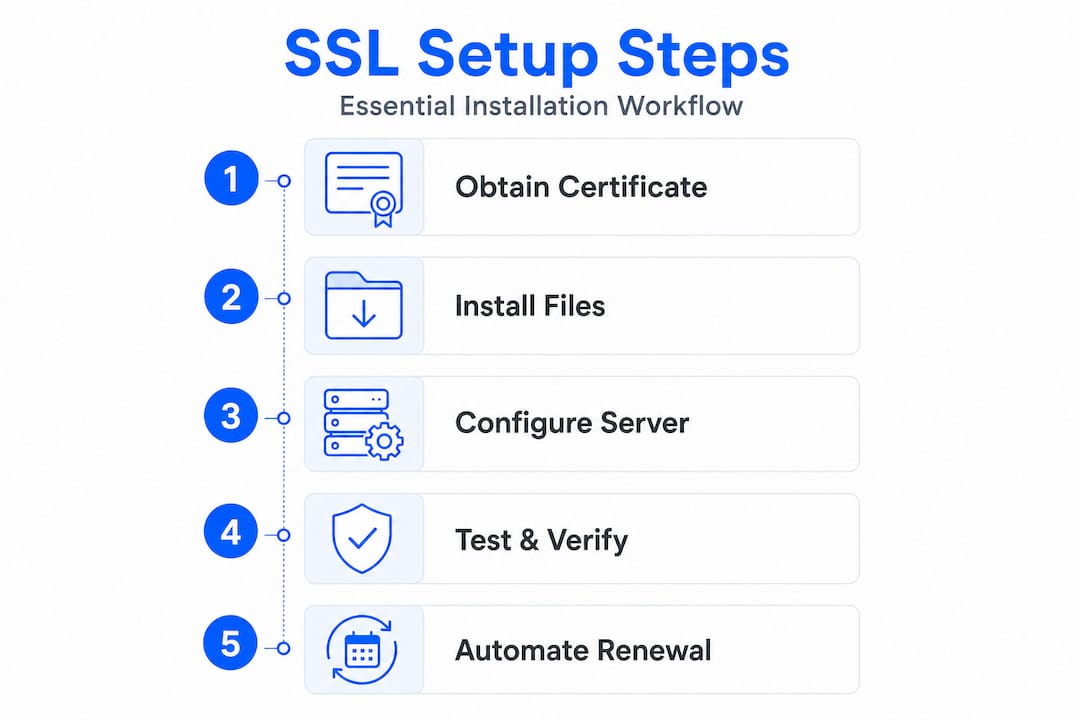
If you're on a shared hosting plan with cPanel, look for the "SSL/TLS" section or "Let's Encrypt SSL" option. Many providers, including platforms built for SMBs, offer one-click certificate installation that handles steps 1 through 6 automatically. For wildcard SSL certificates that cover all subdomains (like shop.yourdomain.com and blog.yourdomain.com), the process is slightly different and requires DNS-based domain validation rather than the standard HTTP challenge.
Understanding why secure hosting matters for your business goes beyond just installing a certificate. The hosting environment itself needs to support modern TLS versions and proper server configuration for SSL to be truly effective.
Special configurations: Cloudflare, Apple, and advanced needs
Standard installations work for most, but some SMBs have advanced needs. Here's how to handle the extra complexity.
Cloudflare SSL modes are a frequent source of confusion. When your domain runs through Cloudflare's proxy (the orange cloud in your DNS settings), Cloudflare sits between your visitors and your server, meaning there are actually two SSL connections to manage: one from the visitor to Cloudflare, and one from Cloudflare to your origin server.
Cloudflare offers several encryption modes:
- Flexible: Cloudflare talks to your origin over plain HTTP. Easy, but leaves your server connection unencrypted. Avoid this.
- Full: Cloudflare connects to your origin over HTTPS, but doesn't validate your certificate. Works with self-signed certs.
- Full (Strict): Cloudflare connects over HTTPS and validates that your certificate is trusted and valid.
Cloudflare recommends Full (strict) whenever possible, because it's the only mode that prevents a man-in-the-middle attack on your origin connection. To use Full (strict), your origin server needs a valid certificate, either from a public CA like Let's Encrypt or from Cloudflare's own Origin CA.
Common Cloudflare mistake: Switching from Flexible to Full (strict) while your origin doesn't have a valid certificate installed causes an immediate redirect loop. Always install and verify the origin certificate before changing the Cloudflare SSL mode.
Apple Verify with Wallet on the Web is a more specialized use case. If your business accepts Apple Pay or uses Apple Wallet passes, Apple requires Apple-issued certificates for domain verification. The Apple Wallet verification process involves generating a CSR through Apple's developer portal, receiving an Apple-issued certificate, and uploading the resulting PEM file to a specific path on your web server. This is completely separate from your standard HTTPS certificate.
Multi-server and proxy environments add another layer of complexity. If you're running a load balancer in front of multiple web servers, you typically install the SSL certificate on the load balancer itself (TLS termination), and the load balancer communicates with backend servers over your internal network. For more advanced setups, managing TLS across server stacks requires attention to certificate chain validation, OCSP stapling (a way to quickly verify that a certificate hasn't been revoked), and Server Name Indication (SNI), which allows a single IP to serve multiple domains with different certificates.
For WordPress-based SMBs, there's an excellent breakdown of security for WordPress SMBs that covers how SSL fits into a broader security strategy, including plugin configuration, server hardening, and backup practices.
Testing, troubleshooting, and pitfalls to avoid
Once SSL is set up, keeping it working and trustworthy is an ongoing effort. Here's how to test, troubleshoot, and stay secure.
Verifying a successful SSL setup is straightforward. Open your browser and check for the padlock icon. Click it to see certificate details including the issuer, expiration date, and the domain names it covers. For a more thorough check, use an online SSL testing tool like SSL Labs' Server Test, which grades your configuration and flags issues like weak cipher suites or incomplete certificate chains.
Common errors and what they actually mean:
- Expired certificate: The most avoidable error. Set calendar reminders and always verify your auto-renewal cron job is active.
- Certificate name mismatch / SAN error: Your certificate covers
yourdomain.combut your server is responding aswww.yourdomain.com, or you're accessing a subdomain not listed in the certificate's Subject Alternative Names (SANs). - Mixed content warnings: Your page loads over HTTPS, but some resources (images, scripts, stylesheets) still reference
http://URLs. Browsers block or warn about these. Audit your site with browser developer tools or a mixed content scanner. - Clock skew: If your server's system clock is significantly off, browsers may reject your certificate as "not yet valid" or "already expired." Use NTP (Network Time Protocol) to keep your clock synchronized.
Common SSL errors include clock skew, missing intermediate chain certificates, mixed content, and hostname/SAN mismatches. Most of these are fixable in under 30 minutes once you know what you're looking for.
Certificate chain problems deserve special attention. When you upload a certificate to Cloudflare or another proxy, correct key and certificate matching is critical. The private key you upload must correspond exactly to the certificate. A mismatch generates an error immediately. Also, most CAs issue an intermediate certificate that must be bundled with your main certificate to form a complete chain. Missing this intermediate is one of the most common reasons browsers show trust errors on otherwise correctly installed certificates.
Performance considerations are real but often overstated. SSL/TLS overhead is typically manageable for most small business sites. The initial TLS handshake adds a small amount of latency to the first connection, but modern protocols like TLS 1.3 reduce this significantly, and features like OCSP stapling (which lets your server cache certificate validity responses) and session resumption (which reuses an established TLS session) minimize the impact on repeat visitors.
Pro Tip: After installation, run curl -vI https://yourdomain.com from the command line. The output shows you exactly which certificate is being served, the TLS version being used, and whether the connection succeeds. It's one of the fastest ways to confirm your setup without needing a browser.
For ongoing maintenance, particularly if you're running WordPress on your site, make sure your site URL settings in WordPress reflect the HTTPS version and that any plugins, CDN integrations, or payment gateways are also configured to use HTTPS consistently.
For wildcard SSL troubleshooting specifically, remember that a wildcard certificate like *.yourdomain.com covers shop.yourdomain.com but not yourdomain.com itself. You typically need both in your certificate's SAN list, and Let's Encrypt will issue both together when you request them correctly.
What most guides miss about SSL setup for SMBs
Here's an uncomfortable truth: most SSL-related site outages have nothing to do with which certificate type you chose or which CA you paid for. They happen because of manual configuration errors, expired certificates no one noticed, and missing intermediate chain files. The certificate product itself almost never fails. The human process around it does.
Many small business owners spend hours agonizing over DV versus OV versus EV, when the far more important question is: does your renewal process actually work? A $300 EV certificate that expires silently because no one set up auto-renewal is far more dangerous to your business than a free DV certificate with a solid renewal automation and monitoring in place.
The security decisions that drive real hosting choices for growing businesses consistently point back to operational simplicity. A hosting environment that automates SSL issuance, renewal, and basic configuration testing removes most of the variables that cause failures.
Build yourself a simple SSL checklist: certificate issued and installed, chain complete, private key permissions set to 600, HTTPS redirect active, auto-renewal tested, calendar reminder set for 30 days before expiration. Run through it every time you touch a certificate. That checklist, followed consistently, will prevent 90% of the SSL problems SMBs actually encounter.
Set up SSL: Secure your site and boost customer trust
Ready to take the next step with your SSL journey? Getting your SSL configuration right is one of the highest-impact moves you can make for your business's credibility and security online.
At InSave Hosting, we make it straightforward. Our SSL certificate options cover everything from free DV certificates to premium EV certificates for businesses that need to signal the highest level of trust to their customers. Every certificate comes with expert support for configuration, troubleshooting, and renewal, so you're never stuck on your own with a cryptic error message. Pair your SSL with our affordable hosting plans, built on LiteSpeed and PHP8 for fast, secure performance, or go all-in on WordPress hosting solutions that include managed SSL, automatic updates, and one-click staging for worry-free site management.
Frequently asked questions
What's the difference between DV, OV, and EV SSL certificates?
DV only confirms domain control, while OV and EV verify your business identity with increasing rigor, as DV, OV, and EV differ in vetting depth. For most SMBs, DV is sufficient, but industries requiring higher trust may benefit from OV or EV.
My site shows HTTPS errors after installing SSL. What should I check?
Check your server time, certificate chain completeness, and whether any resources still load over http://, since common SSL errors include clock skew, missing intermediate chain, and hostname/SAN mismatches. Most of these issues are diagnosable in minutes with browser developer tools or a free online SSL checker.
How do I automate SSL certificate renewal?
Use Certbot or your host's automatic renewal tools, since the Let's Encrypt and Certbot approach includes renewal automation and a dry-run test you can run to confirm everything is working before a real expiration event.
What Cloudflare SSL setting should I use as a small business?
Full (strict) is the most secure option, though Cloudflare's Full (strict) mode requires that your origin server has a valid, trusted certificate installed before you switch modes to avoid redirect loops.
Does SSL slow down my website?
SSL/TLS adds minor handshake overhead, but SSL/TLS performance impact is typically small for most sites, especially when you enable OCSP stapling and run a modern protocol like TLS 1.3 that significantly reduces connection latency.