TL;DR:
- A WordPress site can quickly attract customers by improving online visibility, without needing a large budget.
- Proper planning, hosting choice, and security are essential for building a fast, secure, and professional website.
- Regular maintenance, optimized performance, and focused plugin use help ensure long-term online success.
Every day a potential customer searches for your product, lands on a competitor's site, and buys from them instead. Not because your business is worse, but simply because you weren't found. A WordPress site for small businesses can change that fast, and it doesn't require a big budget or a computer science degree. This guide walks you through everything, from picking your domain and hosting to launching a secure, professional site, so you can stop losing customers to businesses that simply showed up online first.
Table of Contents
- What you need before you start
- Choosing affordable WordPress hosting
- Step-by-step WordPress setup for your business
- Performance, security, and common pitfalls
- Launching and future-proofing your website
- What most small businesses get wrong (and how to win online)
- Ready to launch your business website?
- Frequently asked questions
Key Takeaways
| Point | Details |
|---|---|
| Start with clear basics | Gather your budget, domain, and hosting details before building your site. |
| Choose reliable hosting | Affordable hosting with SSD or NVMe, PHP 8.2+, and strong support is vital for performance and growth. |
| Set up with security | Install essential plugins, enable SSL, and use trusted themes to protect your business. |
| Maintain for long-term success | Regular audits, backups, and plugin updates keep your site fast, secure, and effective. |
What you need before you start
Before you touch a single setting, gather the right pieces. Think of this like prepping ingredients before cooking. Jumping in without a plan leads to wasted money, mismatched tools, and a lot of frustration.
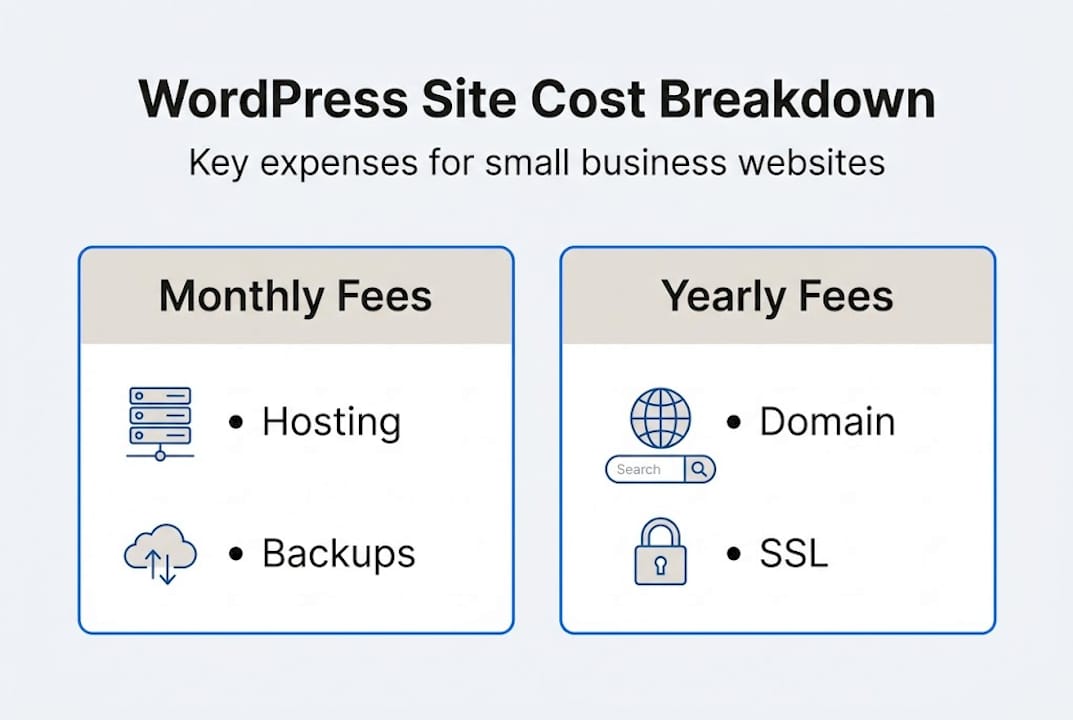
First, understand the real WordPress setup costs: hosting runs $3–10 per month, a domain name costs $10–20 per year, and a premium theme is a one-time fee of $30–60. Free themes exist, but a paid theme often saves you hours of customization. The WordPress software itself is always free.
Next, decide between shared hosting and managed hosting. Shared hosting puts your site on a server with other websites, which keeps costs low but means you share resources. Managed hosting costs more but handles updates, security, and performance tuning for you. For most brand-new sites, shared hosting is a smart, secure, affordable website starting point.
Here's a quick cost breakdown to set your expectations:
| Item | Estimated cost | Frequency |
|---|---|---|
| Web hosting | $3–$10/mo | Monthly or annual |
| Domain name | $10–$20 | Per year |
| Premium theme | $30–$60 | One-time |
| Security plugin | $0–$99 | Annual (many free) |
| SEO plugin | $0–$99 | Annual (many free) |
Before you sign up for anything, have these items ready:
- A domain name idea (your business name or a close variation)
- A working email address to register accounts
- A payment method for hosting and domain registration
- Basic content like your business description, contact info, and logo
Pro Tip: Register your domain and hosting with the same provider to simplify billing and DNS management, especially when you're just starting out with installing WordPress for the first time.
Choosing affordable WordPress hosting
With the right basics ready, the next step is picking hosting that's both dependable and affordable. Not all hosting is equal, and the wrong choice can slow your site down, cost you customers, and create security headaches.

When comparing providers, focus on these must-haves: NVMe or SSD storage, PHP 8.2 or higher, automatic backups, a free SSL certificate, built-in caching, and 24/7 support. These aren't luxury features. They're the baseline for a site that actually performs.
Performance numbers matter more than marketing language. TTFB under 400ms (Time to First Byte), LCP under 2.5 seconds, and uptime at 99.99% are the benchmarks to aim for. The reason is simple: 53% of visitors leave if a page takes more than 3 seconds to load. That's real revenue walking out the door.
Here's how a few popular options compare for small business use:
| Provider | TTFB | Uptime | Key feature |
|---|---|---|---|
| Hostinger | 223ms, 99.98% uptime | 99.98% | Budget-friendly, fast global CDN |
| InMotion | Fast NVMe storage | 99.98% | 40x WP performance boost |
| InSave Hosting | LiteSpeed + LSCache | 99.9%+ | Free SSL, CDN, 1-click WordPress |
One trap that catches many small business owners is renewal pricing. A host might advertise $2.99 per month, but that rate is only for the first term. Renewals can jump to $10–$15 per month. Always check the renewal rate before you commit.
"The cheapest plan today can be the most expensive mistake tomorrow if it can't handle your site's growth or security needs."
Pro Tip: When reviewing top WordPress hosts, filter by renewal price, not just introductory price. A slightly higher starting rate with a stable renewal often saves money over two years.
For deeper guidance on picking the right plan, the breakdown of types of web hosting for WordPress explains shared, VPS, and managed options side by side. And if you want a full checklist, the guide to choosing web hosting for small business covers every decision point.
Step-by-step WordPress setup for your business
Once hosting is secured, it's time to roll up your sleeves and set up your site. The process is more straightforward than most people expect.
Follow these steps to go from a blank hosting account to a working WordPress site:
- Install WordPress using your host's one-click installer in cPanel or the hosting dashboard. Most modern hosts make this a two-minute task.
- Log into your dashboard at yourdomain.com/wp-admin using the credentials you created during install.
- Set your permalink structure under Settings > Permalinks. Choose "Post name" for clean, SEO-friendly URLs.
- Install a lightweight theme like Astra or GeneratePress. These load fast and work well with page builders.
- Add essential plugins: a caching plugin (LiteSpeed Cache or W3 Total Cache), an SEO plugin (Yoast or Rank Math), a security plugin (Wordfence), and a contact form plugin (WPForms Lite).
- Create your core pages: Home, About, Services, and Contact. These four pages give visitors everything they need to trust and hire you.
- Configure basic SEO: fill in your site title, tagline, and meta descriptions using your SEO plugin.
The WordPress installation steps cover the technical details if you get stuck anywhere in this process. For security during setup, follow these WordPress security steps to avoid the most common vulnerabilities from day one.
A critical but often skipped step: set permalinks to Post name and configure caching, SEO, and security plugins before you publish anything. Building on a clean foundation is far easier than fixing a messy one later.
Pro Tip: Use the free Astra theme with the Starter Templates plugin to import a professional design in minutes. You get a polished look without hiring a designer or spending a dollar.
For additional guidance on WordPress setup details, several practical examples show how small businesses structure their sites effectively.
Performance, security, and common pitfalls
With the basics in place, extra attention to performance and security can make or break your site's long-term success. This is where many small business sites quietly fall apart.
Speed is money. Sites loading over 3 seconds lose more than half their visitors before a single word is read. Test your site speed regularly using Google PageSpeed Insights or GTmetrix. Aim for scores above 85 on both mobile and desktop.
Here are the most important actions to protect and speed up your site:
- Enable SSL on all pages, not just checkout. Modern browsers flag non-HTTPS sites as "not secure."
- Schedule automatic backups daily or weekly, stored off-server (cloud or remote location)
- Audit your plugins every quarter. Remove anything unused, outdated, or redundant
- Limit active plugins to under 20 to avoid conflicts, slowdowns, and security gaps
- Update WordPress core, themes, and plugins as soon as new versions release
"Hidden costs in web hosting aren't always in the invoice. They show up as downtime, hacked sites, and the developer you hire in a panic at midnight."
The traps that catch most beginners are predictable. "Unlimited" hosting plans sound great until you read the fine print and find throttling, inode limits, and resource caps. Plugin overload is another killer. Every plugin adds code that runs on every page load. More isn't better.
For more on avoiding these mistakes, the WordPress hosting performance tips guide covers speed and savings in detail. For a full picture of locking down your site, the small business security guide is worth a full read. You can also compare real-world setups in U.S. hosting comparisons to see how different providers handle these issues.
Launching and future-proofing your website
After setup and optimization, a professional site launch with ongoing care ensures lasting results. Don't just flip the switch and walk away.
Before you go live, run through this launch checklist:
- Test on mobile using your phone and a tablet. More than 60% of web traffic is mobile.
- Confirm SSL is active (green padlock in the browser bar).
- Test all contact forms by submitting a test message.
- Connect Google Analytics and Google Search Console to track performance from day one.
- Review all core pages for typos, broken links, and missing images.
- Enable and test backups before launch, not after.
Once live, a quarterly review keeps your site healthy. Quarterly plugin audits combined with checks on responsiveness, backups, and SSL are the minimum for ongoing success.
Here's a simple maintenance schedule:
| Task | Frequency |
|---|---|
| Update plugins and themes | Monthly |
| Review and remove unused plugins | Quarterly |
| Test forms and links | Quarterly |
| Check backup integrity | Monthly |
| Review Google Analytics data | Monthly |
| Refresh key page content | Every 6 months |
Small businesses that thrive online treat their website like a staff member, checking in regularly, giving it updates, and investing in its growth over time. For real-world examples of what this looks like in practice, read about hosting success examples from businesses that stayed consistent. You can also explore future-proof tech strategies to see how lean, well-maintained sites outperform overbuilt ones.
What most small businesses get wrong (and how to win online)
Here's the uncomfortable truth: most small business websites fail not from lack of effort, but from poor decisions made in the first 30 days. Owners chase "unlimited" plans that throttle performance, install 30 plugins chasing features they don't need, and then wonder why the site is slow and vulnerable.
Simplicity wins. A site with 12 focused plugins, a fast lightweight theme, and a reliable host will outperform a bloated site on a cheap shared plan every time. Shared hosting works fine for low-traffic sites, but managed hosting prevents noisy-neighbor slowdowns and saves over $2,000 per year in developer time by handling maintenance automatically.
We've seen it repeatedly: a local service business strips its site down to four pages, cuts plugins from 28 to 11, upgrades to a performance-focused host, and suddenly ranks on the first page of Google. Nothing fancy. Just clean, fast, and secure.
The importance of secure hosting isn't just about avoiding hacks. It's about building a foundation that lets you focus on your customers instead of your server. Start lean, stay consistent, and your site will grow with your business.
Ready to launch your business website?
You now have a clear roadmap from zero to a live, optimized WordPress site. The next step is putting the right tools in place so you're not figuring out hosting, domains, and security from scratch.
At InSave Hosting, we built our plans specifically for small businesses that want fast results without technical headaches. Our affordable WordPress hosting includes one-click installation, LiteSpeed performance, and 24/7 support. Start by registering your domain and securing your brand name today. Every plan comes with free SSL certificates included, so your site is trusted and protected from the moment it goes live.
Frequently asked questions
How much does it cost to set up a small business website with WordPress?
Expect to spend $3–10 per month for hosting and $10–20 per year for a domain; premium themes or plugins are optional extras that can be added as your budget grows.
What pages are essential for a small business website?
Every small business needs Home, About, Services, and Contact pages to communicate clearly and present a professional image to potential customers.
How do I keep my WordPress site secure?
Enable SSL, install Wordfence as your security plugin, and keep all themes and plugins updated on a regular schedule to close known vulnerabilities.
Is shared hosting good enough for a new small business website?
Shared hosting works well for low-traffic sites, but watch your TTFB and load times closely and plan to upgrade to managed hosting as your site becomes revenue-critical.
Recommended
- How to create a business website: secure, affordable steps
- How to Install WordPress: Step-by-Step Guide for Business Owners
- Types of web hosting: choose the best for WordPress in 2026
- Essential WordPress hosting tips for speed, security, savings
- The Ultimate Guide to a Website for My Business
- Pourquoi choisir WordPress : avantages clés pour PME - IT-Pascaud