TL;DR:
- WordPress sites are highly targeted, with a new attack occurring every 39 seconds.
- Regular updates, layered defenses, and proactive monitoring are essential for effective security.
- Managed hosting solutions with built-in security features can simplify protection for small businesses.
WordPress powers 43% of the web, making it the most targeted platform on the internet. A new attack hits a WordPress site every 39 seconds, and small businesses bear the brunt because they often lack dedicated IT staff. A single breach can wipe out customer trust, trigger regulatory fines, and cost you days of recovery time you cannot afford. This guide skips the theory and gives you concrete, field-tested actions to lock down your WordPress site, from your first vulnerability check all the way through ongoing monitoring.
Table of Contents
- Prepare your site: Assessing vulnerabilities and security basics
- Update and automate: Patch core, themes, and plugins
- Hardening WordPress: Secure configuration and file permissions
- Server-level security: HTTP headers, PHP settings, and network defenses
- Monitoring and ongoing maintenance: Logging, scanning, and audits
- Why most WordPress security advice falls short—and what actually works
- Ready to secure your WordPress site? Next steps with inSave Hosting
- Frequently asked questions
Key Takeaways
| Point | Details |
|---|---|
| Update everything regularly | Keeping WordPress core, plugins, and themes up to date neutralizes most threats quickly. |
| Harden config and permissions | Locking down wp-config.php and correcting file permissions blocks common attacks. |
| Use layered security | Combining server settings, plugins, and ongoing scans offers the best defense. |
| Monitor and review | Regular activity logs and audits help spot issues before they become breaches. |
| Choose secure hosting | Specialized WordPress hosting with proactive security greatly reduces risk and maintenance burden. |
Prepare your site: Assessing vulnerabilities and security basics
Now that you know what's at stake, let's start by pinpointing where WordPress sites are most vulnerable.
WordPress is popular precisely because it's flexible, but that flexibility is also its biggest risk. Thousands of plugins and themes mean thousands of potential entry points. 97% of vulnerabilities come from plugins and themes, and 40% of breaches are brute-force attacks on weak passwords. Understanding hosting security for small businesses is the first step before touching any settings.
Before you make any changes, run through this preparation checklist:
- Confirm your hosting plan includes a firewall and malware scanning
- Document every plugin and theme currently installed
- Note the last update date for each item
- Verify you have a working admin email for security alerts
- Review your current password strength across all user accounts
Pro Tip: Always take a full site backup before you start any security changes. One wrong file permission can break your site, and a fresh backup is your safety net.
Here is a quick overview of the most common threat types so you know where to focus:
| Threat type | Likelihood | Potential impact |
|---|---|---|
| Brute-force login attacks | Very high | Account takeover |
| Outdated plugin exploits | High | Full site compromise |
| SQL injection | Medium | Data theft |
| Cross-site scripting (XSS) | Medium | Malware injection |
| Phishing via compromised admin | Low | Credential theft |
Review WordPress hosting tips to make sure your hosting environment itself isn't the weak link. A solid host gives you a head start on WordPress security hardening before you even log in to your dashboard.
Update and automate: Patch core, themes, and plugins
With a foundation of awareness, it's essential to act on the simplest, most impactful defense layer: keeping everything updated.
Outdated software is the number one reason WordPress sites get hacked. When a vulnerability is published, attackers scan millions of sites within hours looking for unpatched versions. The fix is straightforward: automate updates wherever you can.
Here is how to enable automatic updates step by step:
- Go to Dashboard > Updates and enable automatic updates for WordPress core.
- In Plugins, click "Enable auto-updates" for each active plugin.
- In Appearance > Themes, enable auto-updates for your active theme.
- Install a staging environment to test updates before they go live on your production site.
- Set up email notifications so you know when an update runs or fails.
97% of exploits target plugins and themes, and Sucuri cleaned malware from over 60,000 sites in a single quarter of 2025. That number makes the case for automation better than any argument.
Not all plugins are equal. Stick to plugins from the official WordPress repository or well-known, vetted marketplaces. Check the last update date, the number of active installs, and user reviews before installing anything. A plugin with 200 installs and no updates in two years is a liability.
Fewer plugins also mean fewer attack surfaces. Audit your installed plugins and remove anything you are not actively using. Deactivating is not enough; delete unused plugins and themes entirely.
Pro Tip: Schedule a quarterly plugin audit. Set a recurring calendar reminder, go through every plugin and theme, and remove anything redundant. Pair this habit with a review of hosting features for WordPress to make sure your server environment supports the latest PHP versions your plugins require.
For a deeper look at locking down your installation, the guide to hardening WordPress covers advanced patching strategies worth bookmarking. Also revisit WordPress security essentials for a practical checklist you can run through alongside your updates.
Hardening WordPress: Secure configuration and file permissions
While updates close known vulnerabilities, these hardening steps help defend against sophisticated and zero-day attacks.
Your wp-config.php file is the most sensitive file on your entire server. It holds your database credentials, secret keys, and core configuration. Hardening wp-config.php means moving it above the web root directory so it cannot be accessed via a browser, setting its permissions to chmod 400 or 440, and rotating your security keys regularly.
File permissions control who can read, write, or execute files on your server. Correct file permissions follow this pattern: files set to 644, directories set to 755, and wp-config.php set to 400. Disabling XML-RPC is also part of this layer since it is a common vector for brute-force and DDoS amplification attacks.
Here is a comparison of default versus hardened settings:
| Setting | Default | Hardened |
|---|---|---|
| wp-config.php location | Web root | Above web root |
| wp-config.php permissions | 644 | 400 |
| Database table prefix | wp_ | Custom (e.g., xk7_) |
| File editing via dashboard | Enabled | Disabled |
| Security keys | Generic | Unique, rotated regularly |
Follow these steps to harden your configuration:
- Move wp-config.php one directory above your public_html or www folder.
- Set permissions using your hosting file manager or via SSH: "chmod 400 wp-config.php`.
- Generate fresh security keys using the WordPress secret key generator and paste them into wp-config.php.
- Add
define('DISALLOW_FILE_EDIT', true);to prevent theme and plugin editing from the dashboard. - Change your database table prefix from the default
wp_to something unique during installation or with a plugin.
Pro Tip: Change the default database table prefix to a custom value. Automated SQL injection scripts target the wp_ prefix by default, so a custom prefix stops a large percentage of automated attacks cold.
For a full walkthrough on file permissions for security, check our hosting security guide. More advanced configuration options are covered in the configuring WordPress securely reference.
Server-level security: HTTP headers, PHP settings, and network defenses
After securing the WordPress application itself, it's time to build strong defenses at the server and network level.
HTTP security headers are instructions your server sends to browsers, telling them how to handle your site's content. Most default hosting setups ship without them, which leaves your visitors exposed to clickjacking, content injection, and data sniffing. Server-level protections including headers, PHP 8.2+, and hiding your PHP version are all part of a complete defense.
Here are the key headers and settings to implement:
- Strict-Transport-Security (HSTS): Forces browsers to use HTTPS only, preventing downgrade attacks
- Content-Security-Policy (CSP): Controls which scripts and resources can load on your pages
- X-Frame-Options: Prevents your site from being embedded in iframes on malicious sites
- X-Content-Type-Options: nosniff: Stops browsers from guessing file types, blocking a class of injection attacks
- Referrer-Policy: Controls how much referral information is shared when users click links
"Most SMB WordPress sites run on default hosting configurations that expose PHP version numbers, allow XML-RPC by default, and ship without a single HTTP security header. Attackers use automated scanners to find these gaps in minutes."
Disable XML-RPC entirely unless you have a specific need for it. Add deny from all in your .htaccess for the xmlrpc.php file. Also disable dangerous PHP functions like exec, passthru, shell_exec, and system in your php.ini file.
Upgrade to PHP 8.2 or higher if you haven't already. Older PHP versions no longer receive security patches, and running them is like leaving a window open. The importance of secure hosting goes hand in hand with server-side configuration, so choose a host that lets you control these settings. For advanced configurations, the advanced WordPress server security guide covers .htaccess rules and PHP hardening in detail.
Monitoring and ongoing maintenance: Logging, scanning, and audits
With defenses in place, ongoing protection requires monitoring and rapid response when threats arise.
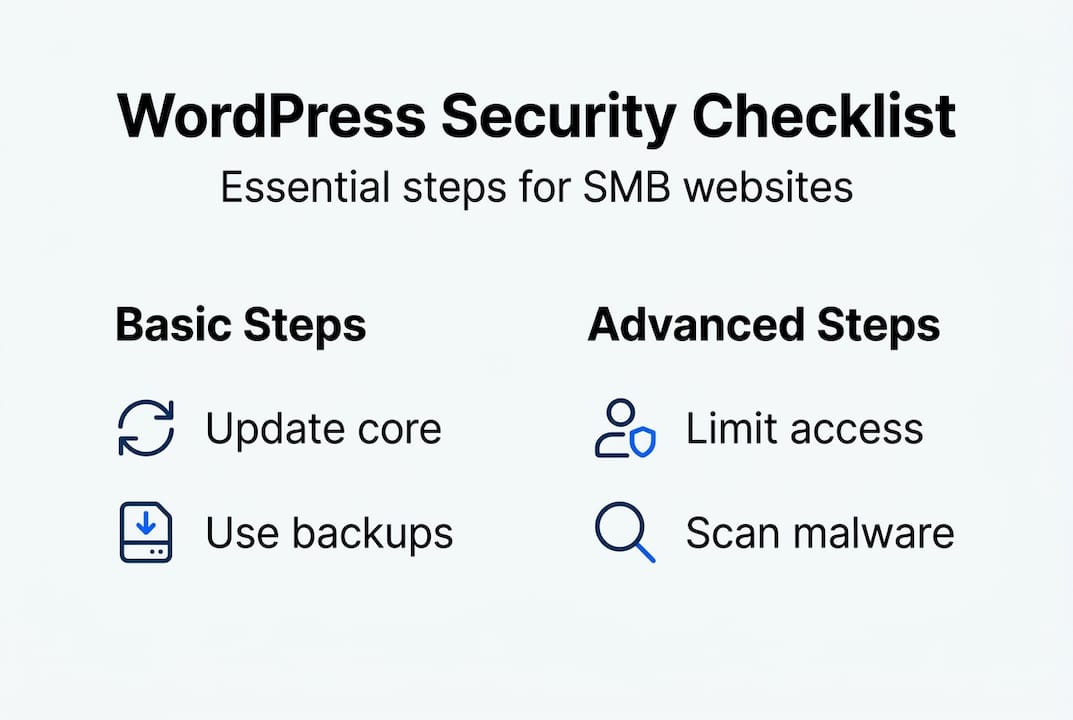
Security is not a one-time setup. Attackers adapt, new vulnerabilities emerge, and your own site changes over time as you add content and plugins. Active monitoring catches intrusions early, often before any real damage is done.
The right tools make monitoring manageable even for small teams:
- Wordfence: Provides a web application firewall, real-time malware scanning, and login protection
- Sucuri Security: Offers file integrity monitoring and remote malware scanning
- Activity Log plugins: Track every admin action so you can spot unauthorized changes
- Uptime monitors: Alert you the moment your site goes down, which can signal an attack
Monitoring and maintenance should include file integrity checks, activity logs, regular scans, uptime alerts, and quarterly audits to stay ahead of emerging threats.
Here is a practical maintenance schedule:
| Frequency | Task | Recommended tool |
|---|---|---|
| Daily | Uptime and performance check | 360 Monitoring |
| Weekly | Malware and file integrity scan | Wordfence or Sucuri |
| Monthly | Review activity logs and user accounts | Activity Log plugin |
| Quarterly | Full plugin/theme audit and permission review | Manual + WP-CLI |
Avoid running two full security plugins simultaneously since they can conflict and slow your site. Pick one primary scanner and supplement it with targeted tools. Use WordPress backup solutions to automate daily backups so recovery is fast if something does slip through. A complete WordPress security audit checklist gives you a structured way to run your quarterly reviews.
Why most WordPress security advice falls short—and what actually works
Here's something most security guides won't tell you: installing a security plugin and calling it done is the most common mistake small business owners make. Plugins are useful, but they cannot compensate for weak hosting, poor file permissions, or outdated software.
There's also a persistent myth called "security through obscurity." Renaming your login page sounds clever, but automated scanners find it anyway. Real security comes from layered defenses, not hiding.
No single tool suffices. Defense-in-depth is required, and the average breach costs $4.88 million while prevention typically runs under $1,000 per year. That math should motivate every SMB owner to invest in the right habits now.
Sustainable security means automating what you can, building quarterly review habits, and choosing hosting for security from the start rather than retrofitting it later. The businesses that stay secure are the ones that treat it as an ongoing practice, not a project with a finish line.
Ready to secure your WordPress site? Next steps with inSave Hosting
You've worked through the full security playbook. Now the question is: does your hosting environment actually support all of it?
At inSave Hosting, our managed WordPress hosting includes automatic updates, daily backups, and built-in malware protection so the technical heavy lifting is handled for you. Every plan comes with free SSL certificates to enforce HTTPS across your site. Add 360 Monitoring and you get real-time uptime alerts and performance tracking around the clock. If you're serious about protecting your business online, start with a hosting foundation that's built for security from day one.
Frequently asked questions
What is the single most important step to secure a WordPress site?
Regularly updating plugins, themes, and the WordPress core closes more than 90% of vulnerabilities, since 97% of exploits target outdated plugins and themes.
How often should I run security scans on my WordPress site?
Scanning weekly and after every major update helps you detect threats early. Activity logs and regular scans are the backbone of a reliable monitoring routine.
Do I need both security plugins and server-level protections?
Yes. Defense-in-depth means combining plugin-based scanning with server-level configuration changes for a multi-layered shield that covers gaps neither approach handles alone.
Can I secure my WordPress site without technical expertise?
Absolutely. Most of the steps in this guide use plugin settings or simple dashboard controls, and managed hosting takes care of the advanced configuration automatically.
How much does a WordPress security breach cost compared to prevention?
Prevention costs under $1,000 per year on average, while an average breach is estimated at $4.88 million, making proactive security one of the highest-return investments a small business can make.