TL;DR:
- Setting up a website can be overwhelming for beginners, but a simple, straightforward approach ensures success.
- Buying a domain and hosting plan within a $50 to $200 first-year budget makes launching affordable and manageable.
Setting up your first website feels like being handed a puzzle with no picture on the box. You search for answers, run into acronyms you've never heard of, and find guides that assume you already know what "DNS propagation" or "cPanel" means. The result? Paralysis. You close the browser and push the project to next week. This guide exists to stop that cycle. We'll walk you through every decision in plain language, from picking your domain name to checking your site security, so you can get a professional small business website online without burning a weekend or blowing your budget.
Table of Contents
- What you need before you start
- Step-by-step setup: From purchase to WordPress install
- Essential setup checks: Security, speed, and SEO basics
- Troubleshooting and common beginner mistakes
- What to expect after launch and next steps
- The truth most guides don't tell you about beginner website setup
- Ready for launch? Simplify your setup with inSave Hosting
- Frequently asked questions
Key Takeaways
| Point | Details |
|---|---|
| Keep it simple | Start with the basics—domain, shared hosting, and a clean WordPress theme for best results. |
| Prioritize security and speed | Strong passwords, SSL certificates, and load times under three seconds protect your site and visitors. |
| Avoid common mistakes | Don’t overload plugins or skip mobile checks—small oversights can cost traffic and trust. |
| Test before launch | Double-check on mobile, use analytics, and ensure all pages load fast before inviting visitors. |
| Support is available | You don’t have to go it alone—choose reliable hosting for help and guidance when you need it. |
What you need before you start
Before touching a single setting, you need to understand what you're buying and why. Most beginners skip this phase and end up paying for the wrong tools or doubling their workload later.
Your two most important purchases are a domain name and a hosting plan. The domain is your website address (like yourbusiness.com), and hosting is the server where your website files live. Think of it like renting a mailbox (domain) and an apartment (hosting) for your business on the internet.
Here's what a typical first-year budget looks like:
| Item | Estimated cost (Year 1) |
|---|---|
| Domain name (.com) | $10 to $15 |
| Shared hosting plan | $40 to $120 |
| SSL certificate | Often free with host |
| Premium theme (optional) | $0 to $60 |
| Total | $50 to $200 |
The core steps for beginner website setup confirm that most first-time owners fall comfortably within that $50 to $200 range for year one, making this one of the most affordable ways to establish your business online.
Before you click "buy," run through this checklist:
- Domain name: Choose something short, easy to spell, and memorable. A .com extension is still the most trusted by customers. Avoid hyphens and numbers.
- Hosting plan: Shared hosting at $3 to $10 per month is the smart starting point. It's plenty of power for a new site. Learn more about choosing web hosting to find the plan that fits your needs.
- Email address: A professional email (you@yourbusiness.com) builds credibility and usually comes with your hosting.
- Time commitment: Expect 6 to 8 hours total for a basic site. Block that time in advance.
- Content: Have your logo, business description, and photos ready before you start building.
Pro Tip: Register your domain name through your hosting provider when possible. Keeping both under one account simplifies billing and makes managing your DNS settings much easier.
Step-by-step setup: From purchase to WordPress install
With everything ready, here's how you get your website online, one step at a time.
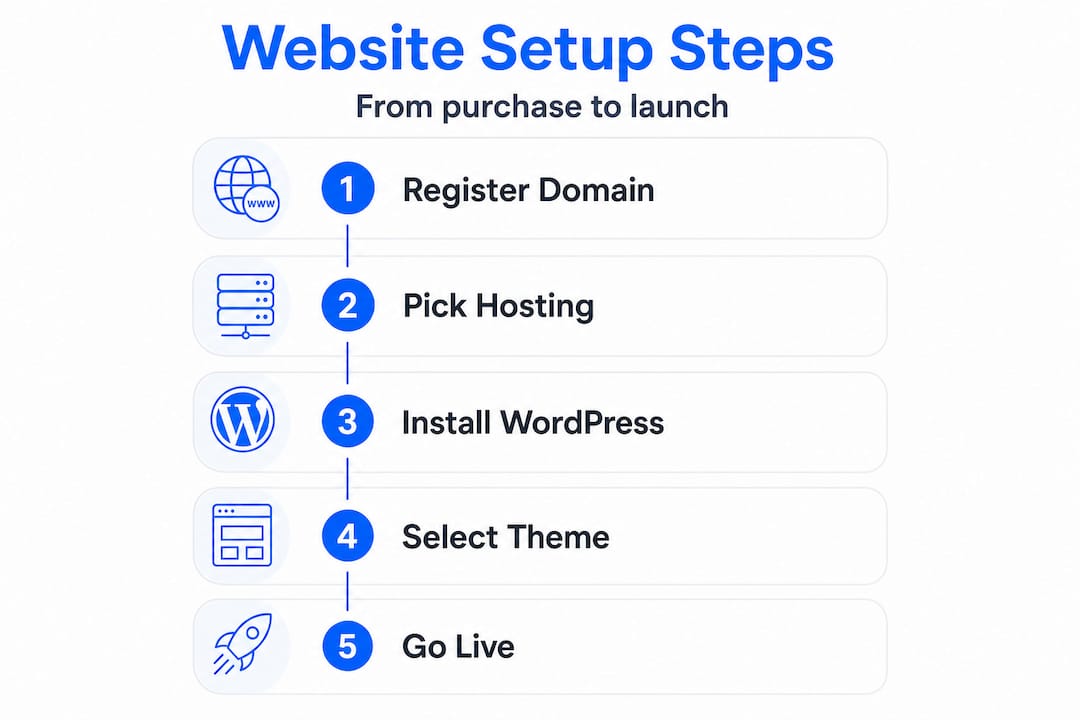
Step 1: Register your domain. Visit your hosting provider's website and search for your preferred domain. If your first choice is taken, try adding your city name or a short descriptor. Avoid creative spellings that make it harder for customers to find you by memory.
Step 2: Choose and purchase your hosting plan. For a new small business site, a shared hosting plan is the right call. It keeps costs low while offering enough resources to handle hundreds of visitors per day. Look for a host that offers free SSL, one-click WordPress install, and at least 99.9% uptime.
Step 3: Install WordPress. This is where most beginners expect a steep technical climb. It's actually one of the easiest steps. Most modern hosts include a WordPress auto-installer right in your control panel. Check the full WordPress installation steps if you want a visual walkthrough. The process typically takes under ten minutes.
A quick but important note: self-hosted WordPress.org is the recommended platform for small businesses, not WordPress.com. The self-hosted version gives you full ownership of your site, the freedom to install any plugin, and significantly lower costs over time. Use WordPress hosting options designed for this setup from the start. For more details, the WordPress installation guide covers every variation you might encounter.
Step 4: Configure your basic site settings. After logging into your WordPress dashboard, go to Settings and update:
- Your site title and tagline
- Your permalink structure (choose "Post name" for clean, readable URLs)
- Your reading settings, particularly whether the site is visible to search engines
Step 5: Choose a theme. Your theme controls how your site looks and performs. For beginners, lightweight themes like Astra or GeneratePress are excellent choices because they load fast and work well on mobile without extra setup.
Here's a quick comparison to help you decide:
| Feature | Free theme | Premium theme |
|---|---|---|
| Design options | Limited | Extensive |
| Support | Community forums | Dedicated support |
| Mobile-ready | Usually yes | Yes, optimized |
| Cost | $0 | $30 to $79 |
| Best for | Starting out | Established businesses |
Pro Tip: Don't spend hours on theme selection. Pick a clean, fast, mobile-ready theme and spend that energy on your content instead. You can always change themes later without losing your posts or pages.
Essential setup checks: Security, speed, and SEO basics
After launching your site, don't miss these mission-critical checks before you go live.

Getting WordPress installed is a milestone, but a site that's insecure or slow will hurt your business more than having no site at all. These checks take less than an hour and protect everything you've built.
Security basics:
- Never use "admin" as your username. It's the first thing bots try when attempting to break into a WordPress site.
- Use a strong, unique password. A password manager makes this easy to maintain.
- Install a security plugin like Wordfence or Solid Security to monitor for threats automatically.
- According to a complete website setup checklist, DNS propagation, strong passwords, HTTPS activation, and backups are the four areas that trip up most beginners.
SSL and HTTPS:
Your SSL certificate encrypts the connection between your website and your visitors. Most reputable hosts include a free SSL certificate. Once activated, your site URL will start with "https://" instead of "http://", and visitors will see a padlock icon in their browser. This builds trust fast.
HTTPS is also a confirmed Google ranking signal. Skipping SSL doesn't just create a security risk; it hurts your chances of showing up in search results.
"A site without SSL will display a 'Not Secure' warning in Chrome, which causes roughly 85% of visitors to leave immediately." Activating your SSL certificate is the single fastest way to protect your credibility.
Speed and mobile:
Over 60% of web traffic now comes from mobile devices. If your site looks broken on a phone, you're losing more than half your potential customers before they even read a word. Test your site on an actual phone, not just a desktop browser with a smaller window.
For speed, target a page load time under 3 seconds. Use Google PageSpeed Insights to get a free report. Install a caching plugin like LiteSpeed Cache or W3 Total Cache to dramatically improve your load times without touching a line of code.
Core pages to add:
Check out this essential plugins list and the WordPress security tips guide to understand which tools you actually need versus which ones are just noise.
Every small business site needs at minimum:
- Home: Your first impression. Clear headline, what you do, and a call to action.
- About: Who you are and why customers should trust you.
- Services: What you offer and how to hire you.
- Contact: A form, phone number, and email. Make it easy to reach you.
Troubleshooting and common beginner mistakes
Even with careful setup, challenges pop up. Let's make sure you know what to watch out for.
DNS propagation delay: After registering your domain or moving your site, it can take anywhere from 2 to 48 hours for the new settings to appear globally. This is completely normal. Don't panic if your site doesn't appear immediately after purchase. Grab a coffee and check again later.
Plugin overload: Adding too many plugins is one of the most common pitfalls beginners fall into. Every plugin adds code that your server has to process. Twenty mediocre plugins will slow your site more than two well-chosen ones. Keep your plugin count under 15 and audit them every few months.
Forgetting backups: Before any major update, whether that's a new WordPress version, a plugin update, or a theme change, create a full backup. Something as simple as a plugin conflict can take your site offline for hours. A backup lets you restore in minutes.
"Most beginners learn the importance of backups only after they've lost something important. Set up automated daily backups from day one so you never have to learn that lesson."
Skipping mobile and SSL tests: These two are the most skipped and the most costly. A site that doesn't pass both these tests loses traffic and trust simultaneously. Run them before you announce your launch to anyone.
Painful migrations from WordPress.com: If you started on WordPress.com and want to move to a self-hosted setup, WordPress migration advice is worth reading before you start. Migrations are possible but require careful planning to avoid losing content, SEO rankings, or your existing subscribers. Also review essential hosting features so you know exactly what to look for in your new host before you switch.
What to expect after launch and next steps
Having dodged the most common issues, here's how to ensure your website keeps performing after you go live.
Launch day feels like the finish line, but it's actually the starting line. Your site needs ongoing attention to stay fast, secure, and visible in search results.
In your first week:
- Install Google Analytics or connect Google Search Console. Both are free and give you real data about who is visiting and how they found you.
- Check that all your links work and that forms actually send messages to your inbox.
- Ask a friend or family member to visit the site and give honest feedback about navigation.
Monthly maintenance habits:
- Update WordPress core, themes, and plugins when updates are available. Most security vulnerabilities come from outdated software.
- Review your site speed score and look for anything that's gotten slower.
- Check your backup system is running correctly.
- Add new content regularly. Even a short blog post or a project update signals to search engines that your site is active.
Growing your site over time:
The how to test and launch with analytics advice is clear: don't wait until your site is "perfect" to start collecting data. Launch with what you have, learn from real visitor behavior, and improve from there. A small tweak based on actual data is worth more than a redesign based on guesswork.
Pro Tip: Schedule a 30-minute monthly "website health check" in your calendar. Review your small business setup guide as a reference and tick through your site's speed, backups, and plugin updates every month without fail.
When to ask for help: If you run into an issue you can't resolve in 30 minutes, contact your hosting provider's support team. Good hosts offer 24/7 support via live chat. Don't spend four hours fighting a technical issue that a support agent can fix in ten minutes.
The truth most guides don't tell you about beginner website setup
Here's the perspective that rarely shows up in beginner guides: the biggest threat to your website is not hackers, slow servers, or complicated code. It's over-complication by the person building the site.
We see this constantly. A first-time business owner finds a flashy demo, tries to replicate it, installs 30 plugins, adds animations to every section, and then wonders why the site loads in 8 seconds and breaks on mobile. The site looks impressive in theory and fails in practice.
The websites that outperform expectations for small businesses are almost always the simpler ones. Fast loading, clean layout, clear call to action, easy navigation. That's it. Every fancy add-on you skip is a performance problem you avoid and a distraction you remove for your visitor.
There's also a realistic conversation to have about time and maintenance. Most guides make website management sound effortless. In reality, a small business website requires roughly 2 to 4 hours per month to keep secure, updated, and fresh. That's a modest investment, but it needs to be scheduled rather than assumed.
The smarter approach is to avoid plugin overload from day one, launch with four essential pages, and add features only when a real business need demands them. Small, smart improvements made consistently will outpace any dramatic overhaul you plan but never quite finish.
Your first website does not need to be your best website. It needs to be live, fast, secure, and easy to find. That is the version that starts generating real results.
Ready for launch? Simplify your setup with inSave Hosting
Everything we've covered here takes on a whole new level of ease when your hosting provider genuinely supports beginners at every stage.
InSave Hosting brings together everything a small business owner needs in one place: affordable pricing, free SSL certificates, one-year free domain registration, and one-click WordPress installation powered by LiteSpeed technology. You don't need a technical background to get started, and you won't hit a wall when it's time to grow. Explore website hosting and domains to find a plan that fits your budget, check out managed WordPress hosting for an even more hands-off experience, or start by securing your domain name solutions today. Your launch is closer than you think.
Frequently asked questions
How much does it cost to set up a beginner website with WordPress?
Most first-time owners pay $50 to $200 for domain and hosting costs during year one, which includes a $10 to $15 domain and $40 to $120 for hosting, with optional extras like a premium theme on top.
What is the difference between WordPress.com and WordPress.org for beginners?
WordPress.org gives you full control and lower long-term cost, while WordPress.com is simpler but more limited. WordPress.org is 70 to 80% cheaper than the WordPress.com Business plan when comparing equivalent features for small business use.
How long does it take to set up a basic small business website?
Most beginners need 6 to 8 hours to go from domain purchase to launch with WordPress and essential pages ready, assuming content is prepared in advance.
What mistakes do first-timers make when setting up a website?
The most common beginner pitfalls include using weak passwords, installing too many plugins, skipping mobile responsiveness tests, and failing to activate an SSL certificate before launch.
What should I do if my website takes a long time to show up after setup?
Website address changes can take between 2 and 48 hours due to DNS propagation delays, which is completely normal for new domains or recently updated nameserver settings.