
Picking the right WordPress host is one of the most consequential decisions you'll make for your business website. Get it wrong and you're looking at slow load times, security breaches, and support teams that vanish when you need them most. Get it right and your site becomes a reliable, fast, and secure asset that works for your business around the clock. This article gives you a practical, expert-backed framework to evaluate your options, tighten your security, boost performance, and launch your WordPress site with confidence from Day 1.
Table of Contents
- Set your hosting criteria: what really matters
- Security done right: hosting protections you can't skip
- Performance hacks: speed up your WordPress site
- Best-fit options: comparing top WordPress hosting types
- Quick wins: must-do setup steps for business WordPress sites
- Why your hosting choice is the linchpin of online business success
- Get expert WordPress hosting support with inSave Hosting
- Frequently asked questions
Key Takeaways
| Point | Details |
|---|---|
| Choose must-have features | Focus on uptime, speed, security, and reliable support when selecting WordPress hosting. |
| Prioritize robust security | Automated updates, strong passwords, firewalls, and SSL certificates keep your site safe from attacks. |
| Supercharge site speed | Select hosts with updated PHP, caching, CDN, and image optimization for faster load times. |
| Pick the right hosting type | Review shared, managed, and VPS options to find the best fit as your traffic grows. |
| Use a step-by-step setup | Follow a launch checklist to maximize performance, security, and uptime from day one. |
Set your hosting criteria: what really matters
Before you compare plans or pricing, you need a clear checklist of what actually matters. Too many business owners pick a host based on a flashy headline price and regret it six months later when their site crawls or goes offline during a product launch.
Here are the core criteria every business WordPress site needs:
- Uptime guarantee: Look for 99.9% or higher. Even a 0.1% gap means roughly 8 hours of downtime per year.
- Time to First Byte (TTFB): This is how fast your server responds. A TTFB under 200ms is the target for competitive sites.
- SSL certificate: Non-negotiable. It protects data and signals trust to both visitors and search engines.
- Daily backups: Automated, off-site backups are your insurance policy against data loss.
- Firewall and malware scanning: These should come standard, not as expensive add-ons.
- Support quality: Test response times before you commit. Live chat with real technicians beats ticket-only systems.
On the shared vs. premium hosting question, the answer depends on your traffic. Empirical hosting speed data shows that shared hosting is viable for sites under 50,000 monthly visits, but premium hosts deliver more consistent TTFB performance. If you're growing fast, factor that into your budget now.
Understanding the types of web hosting available helps you match your current needs to the right plan without overpaying. Also review the essential hosting features that matter most for WordPress sites specifically.
Pro Tip: Ask your shortlisted hosts for their average TTFB data and uptime logs from the past 90 days. Any reputable provider will share this without hesitation.
Security done right: hosting protections you can't skip
With your selection criteria in mind, let's zero in on a non-negotiable area: keeping your business website and customer data secure.
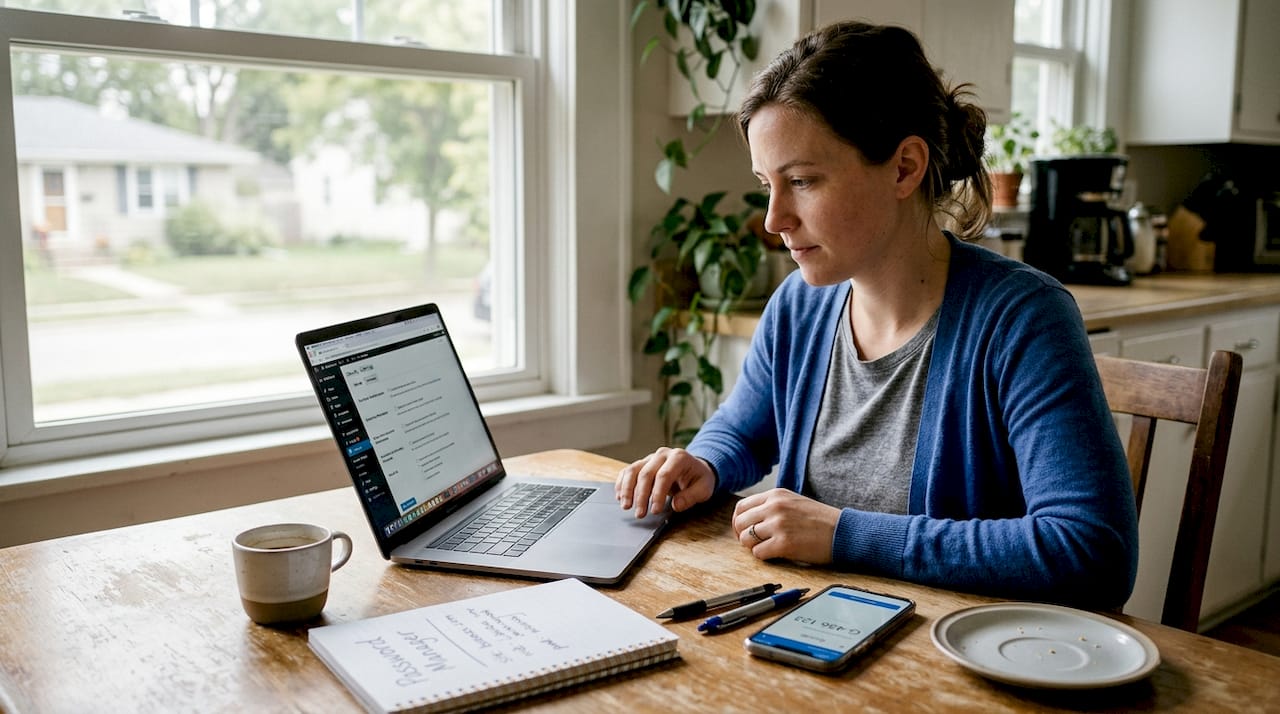
WordPress powers over 40% of the web, which makes it a prime target. Your host is your first line of defense, but you also control several critical settings yourself.
Must-have security features to require from your host:
- Automatic WordPress core and plugin updates to close vulnerabilities fast
- Web Application Firewall (WAF) to filter malicious traffic before it reaches your site
- DDoS mitigation to keep your site online during targeted attacks
- Free SSL certificate included in every plan
- Regular automated backups with one-click restore
On your end, the security best practices you should implement immediately include strong passwords combined with two-factor authentication, limiting login attempts to block brute force attacks, changing your database prefix from the default "wp_", setting file permissions to 755 for directories and 644 for files, and adding HTTP security headers.
Key insight: Most WordPress hacks don't exploit core WordPress. They exploit outdated plugins and weak login credentials. Those two areas alone account for the majority of breaches.
For a deeper look at protecting your site, the small business hosting security guide walks through each layer of defense. You can also review why secure hosting matters for your business reputation and customer trust.
Pro Tip: Run a quick test at securityheaders.com on any site you're considering migrating to. It shows in seconds whether a host has HTTP security headers properly configured.
Performance hacks: speed up your WordPress site
Once your security foundation is solid, it's time to supercharge your site with these proven speed and performance strategies.
Page speed is not just a user experience issue. It directly affects your search rankings, bounce rate, and conversion rate. A one-second delay in page load can reduce conversions by up to 7%. That's real revenue walking out the door.
Here's a prioritized list of performance upgrades to tackle:
- Upgrade to PHP 8.2+. Older PHP versions are significantly slower. Many hosts still default to PHP 7.x unless you manually change it.
- Switch to Nginx with PHP-FPM. Compared to Apache, this combination handles concurrent requests more efficiently and reduces server load.
- Enable object caching with Redis. This stores database query results in memory, so repeat requests don't hammer your database.
- Compress and lazy load images. Images are usually the heaviest assets on a page. Tools like ShortPixel or your host's built-in optimizer handle this automatically.
- Minify CSS and JavaScript files. Removing unnecessary whitespace and comments from code files reduces their size.
- Run regular database cleanups. Post revisions, spam comments, and transient data pile up and slow queries over time.
The performance optimization best practices confirm that combining PHP 8.2+, Nginx with PHP-FPM, and object caching produces the most significant speed gains for WordPress sites.
For a full breakdown of hosting-level tweaks, the website speed optimization guide covers both server-side and plugin-level improvements.
Pro Tip: The single most overlooked hosting setting is PHP version. Log into your hosting control panel right now and check. If you're on anything below PHP 8.1, upgrading takes two minutes and can shave hundreds of milliseconds off your load time.
Best-fit options: comparing top WordPress hosting types
Choosing between different hosting types is the final puzzle piece. Here's how each compares so you can pick what fits your business now and adapts as you grow.
| Hosting type | Best for | Avg. monthly cost | Scalability | Maintenance level |
|---|---|---|---|---|
| Shared | Startups, low traffic | $3 to $10 | Low | Minimal |
| Managed WordPress | Growing SMBs | $20 to $60 | Medium | Very low |
| VPS | High-traffic SMBs | $20 to $80 | High | Moderate |
| Dedicated | Large businesses | $80 to $300+ | Very high | High |
Shared hosting puts your site on a server with many others. It's affordable and easy to manage, but a traffic spike from a neighboring site can slow yours down. As noted in WordPress hosting speed tests, shared hosting is a solid starting point for sites under 50,000 monthly visits, provided you monitor performance closely.
Managed WordPress hosting removes most of the technical burden. Updates, backups, and security patches are handled for you. It costs more but saves significant time.
VPS hosting gives you a dedicated slice of server resources. You get more control and consistent performance without the full cost of a dedicated server.
Key signals that tell you it's time to upgrade:
- Your site regularly hits 50,000+ monthly visits
- Page load times are creeping above 3 seconds
- You've had two or more downtime incidents in a quarter
- Your business depends on e-commerce or lead generation
For a side-by-side breakdown, see dedicated vs. shared hosting to understand the tradeoffs in detail. You can also browse reliable hosting examples to see how real businesses match hosting types to their needs.
Quick wins: must-do setup steps for business WordPress sites
Finally, here's a step-by-step checklist to lock in all your gains and start your business WordPress site strong from Day 1.
- Update WordPress core immediately after installation. Never run a default or outdated version.
- Activate your SSL certificate and force HTTPS across the entire site.
- Enable automated daily backups and confirm the restore process works.
- Install a caching plugin (WP Rocket or LiteSpeed Cache) and configure it for your server stack.
- Optimize all images before uploading and enable lazy loading.
- Set strong admin passwords and activate two-factor authentication for all admin accounts.
- Set up uptime monitoring using a free tool like UptimeRobot to get instant alerts if your site goes down.
The security checklist reinforces that auto updates, strong credentials, and WAF protection are the three highest-impact actions. For performance, the complete optimization guide recommends pairing PHP 8.2+ with object caching as your fastest route to measurable speed gains.
| Setup step | Impact area | Time to complete |
|---|---|---|
| Update WordPress core | Security | 2 minutes |
| Activate SSL | Security, SEO | 5 minutes |
| Enable backups | Data protection | 5 minutes |
| Configure caching | Speed | 10 minutes |
| Optimize images | Speed | 15 minutes |
| Enable 2FA | Security | 5 minutes |
| Set up uptime monitoring | Reliability | 10 minutes |
The WordPress setup checklist gives you additional detail on each of these steps, including which plugins and settings work best for small business sites.
Why your hosting choice is the linchpin of online business success
Here's an insider truth every growth-focused entrepreneur should know: most small businesses treat hosting as an afterthought. They pick the cheapest plan, set it up once, and forget about it until something breaks. That's usually the worst possible moment to realize your host can't handle the load or doesn't offer real support.
We've seen businesses lose days of sales and months of SEO progress because their site went down during a peak season and their host took 48 hours to respond. That $5 per month they saved cost them thousands.
The contrarian view worth hearing is this: your hosting plan is not an expense. It's infrastructure. You wouldn't run a retail store with a broken front door. Don't run a business website on a host that can't guarantee uptime, security, and fast support.
Long-term reliability and quality of support consistently outperform headline pricing as success factors for business websites. Browse real-world hosting examples to see how businesses that made hosting a strategic priority outperformed those that didn't. Treat your hosting decision like you'd treat hiring a key team member. Vet it carefully, and invest appropriately.
Get expert WordPress hosting support with inSave Hosting
Ready to put these WordPress hosting tips into action? The right provider makes the difference between a site that performs and one that constantly needs attention.
At InSave Hosting, we've built our WordPress hosting plans around exactly what growing businesses need: 99.9% uptime, free SSL, LiteSpeed technology, built-in caching, and expert support that actually responds. Whether you're launching your first site or migrating an established one, our shared hosting packages give you a fast, secure foundation at a price that makes sense. Explore all hosting solutions and find the plan that fits your business today. Your site deserves a host that treats performance and security as priorities, not upsells.
Frequently asked questions
What is the most important security feature for WordPress hosting?
Regular auto core and plugin updates combined with two-factor authentication are the highest-impact protections you can put in place for any WordPress site.
Does shared hosting work for business WordPress sites?
Shared hosting is viable for small businesses under 50,000 monthly visits, but you should monitor performance closely and plan to upgrade as your traffic grows.
How can I quickly speed up my WordPress site?
Upgrading to PHP 8.2+, enabling server-side caching, and compressing images are the three fastest ways to see a measurable improvement in load time.
What does a managed WordPress host provide that others don't?
Managed WordPress hosting handles updates, backups, and security patches for you automatically, which means your team spends less time on maintenance and more time on your actual business. Premium managed hosts also deliver more consistent performance than standard shared plans.