TL;DR:
- Most business owners should use one-click WordPress installers for quick, hassle-free setup.
- Reliable hosting features like SSL, backups, and strong support are crucial for a smooth launch.
- Manual installation offers control but is usually unnecessary and time-consuming for straightforward sites.
Setting up a business website shouldn't cost you a full day of frustration, yet countless entrepreneurs find themselves stuck halfway through a WordPress install, staring at a blank screen or a cryptic error message. WordPress powers 43% of all websites worldwide, making it the most practical choice for small and medium-sized businesses. But getting it live is where many people lose momentum. This guide cuts through the confusion and walks you through every stage of the process, from picking the right tools to logging into your brand-new dashboard, so you can focus on running your business instead of wrestling with tech.
Table of Contents
- What you need before you start
- The step-by-step WordPress install process
- Troubleshooting and mistakes to avoid
- What to expect once installed
- A business owner's perspective on installing WordPress
- Launch your WordPress site hassle-free with inSave Hosting
- Frequently asked questions
Key Takeaways
| Point | Details |
|---|---|
| Start with the right host | Choose a reliable hosting provider that offers one-click WordPress installs for a frictionless experience. |
| Gather your essentials | Secure your domain and hosting plan before beginning the WordPress installation. |
| Follow clear install steps | Use this guide’s sequence to set up WordPress efficiently—no technical background required. |
| Get help if stuck | Most common install errors are quickly solved using your hosting provider’s support resources. |
| Focus on your business | Let technology simplify your website setup, so you can invest more time in your actual business. |
What you need before you start
Before touching any install button, you need two non-negotiable assets in place. A self-hosted WordPress installation typically starts with choosing hosting and a registered domain name. Without both, the process stalls before it even begins. Think of your domain as your storefront address and your hosting as the physical building that holds everything together.
WordPress.org is explicit that you can download and install WordPress yourself if you have hosting and a domain, or you can use a recommended hosting provider for a simpler setup. For most business owners, that second option is the smarter route. We'll explain why in a moment.
Hosting types worth considering
Not all hosting is equal, especially for a business that needs reliability. Here's a quick comparison of the most common options for small and medium-sized businesses:
| Hosting type | Best for | Average cost | Typical performance |
|---|---|---|---|
| Shared hosting | New sites, tight budgets | $2 to $10/month | Good for low traffic |
| Managed WordPress | Non-technical owners | $15 to $50/month | Optimized, faster |
| VPS (Virtual Private Server) | Growing sites, more control | $20 to $80/month | High flexibility |
Shared hosting is the most affordable entry point and works well when you're just getting started. Managed WordPress hosting takes things a step further by handling updates, security patches, and performance tuning on your behalf. VPS hosting sits in the middle ground: more power and control, but also more responsibility on your end.
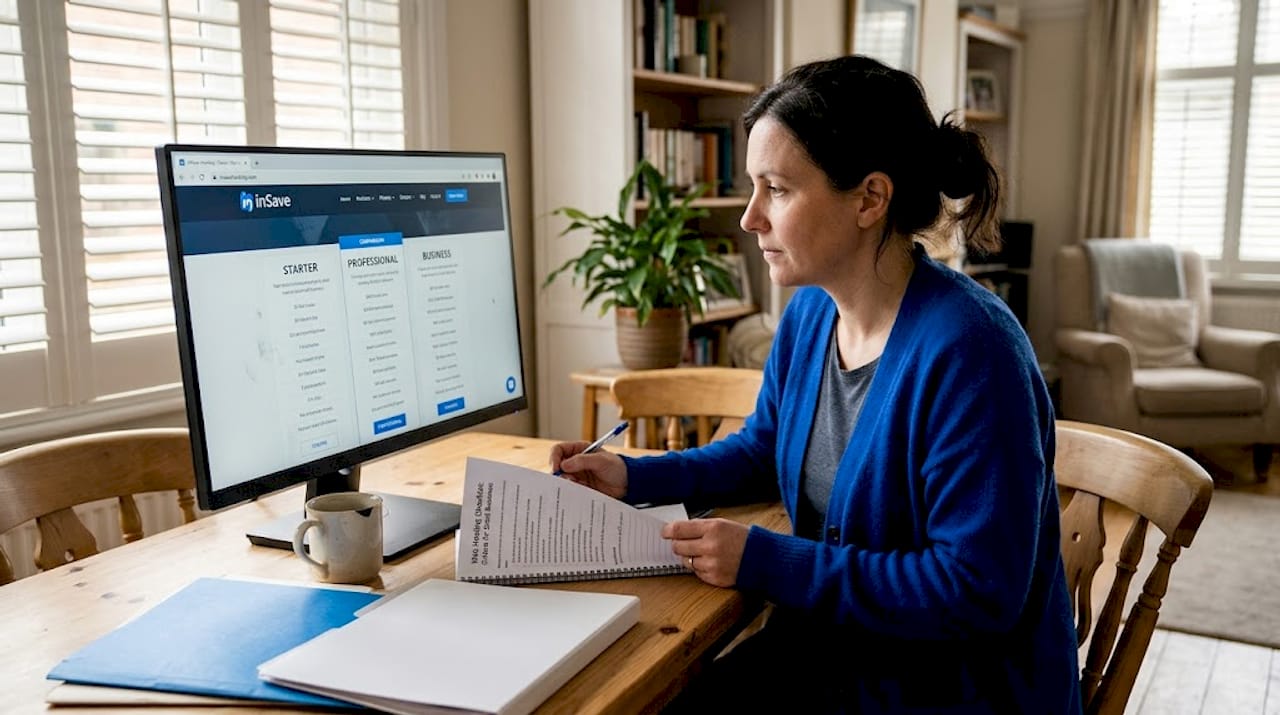
When you're choosing WordPress hosting for your business, the plan you pick shapes your experience for months or years ahead. Don't just shop on price alone.
Features that actually matter
Once you know which hosting type fits your business, check for these essential hosting features before committing to any plan:
- Free SSL certificate: Protects customer data and boosts your Google ranking. Sites without SSL now show a "Not Secure" warning in most browsers.
- Automated backups: Daily or weekly backups mean a single mistake won't wipe out your work.
- One-click WordPress installer: Saves hours compared to manual setup.
- 24/7 customer support: When something breaks at 11 p.m., you need help fast.
- 99.9% uptime guarantee: Downtime costs you customers. Period.
Pro Tip: Before you register your domain, check whether your hosting provider includes a free domain for the first year. Many do, and it's one less purchase to manage separately.
The step-by-step WordPress install process
With your essentials ready, here's the precise process to install WordPress step by step. You'll find two paths here: the one-click method (recommended for most business owners) and the manual method (for those who want full control or have specific server requirements).
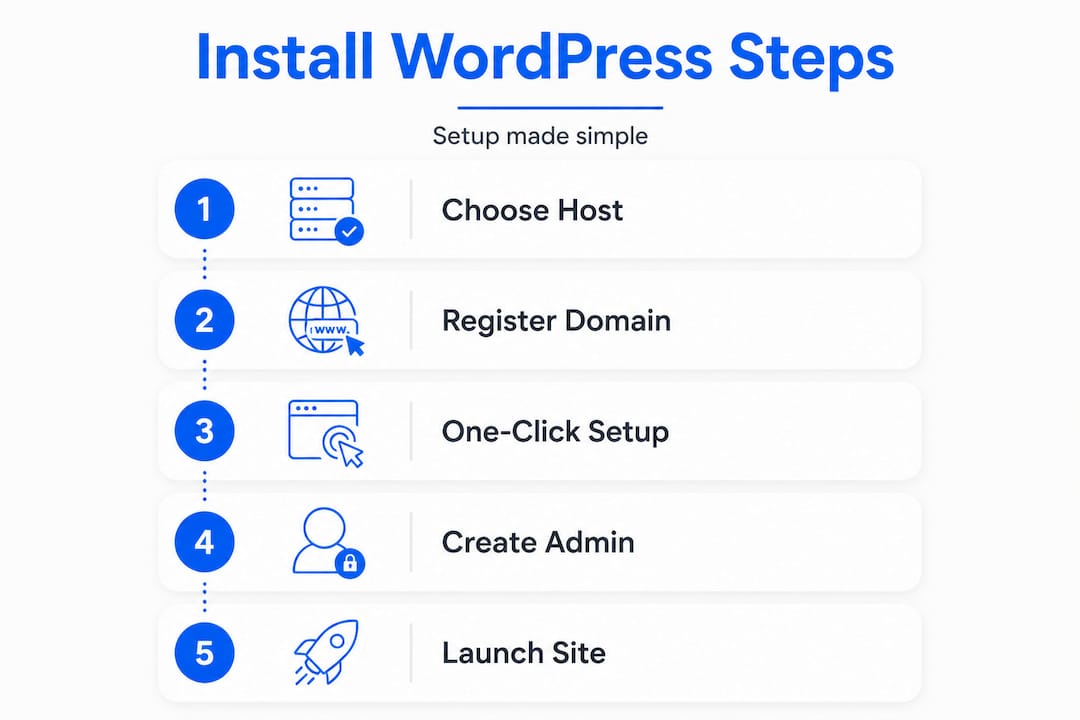
Option 1: One-click installation (recommended)
Most reputable hosts offer a tool like Softaculous, Fantastico, or their own custom installer built into the control panel. The typical one-click install workflow looks like this:
- Log into your hosting dashboard. This is usually accessed at your host's website after you sign up. Look for a control panel link, often labeled cPanel or a custom branded dashboard.
- Find the WordPress installer. Search for "WordPress" or look under a section labeled "Auto Installer" or "Apps." Softaculous is the most common tool you'll encounter.
- Select your domain. If you registered multiple domains under one account, choose the correct one from the dropdown menu.
- Fill in your site details. Enter your site title (this can be changed later), a strong admin username, a secure password, and your email address.
- Click Install. The process takes anywhere from 30 seconds to two minutes.
- Log in at yourdomain.com/wp-admin. Use the credentials you just created to access your dashboard.
That's genuinely the entire process for most business owners. Six steps, no server knowledge required.
"Choosing a hosting provider that offers a one-click installer is the fastest and most reliable way for small business owners to get WordPress running without technical headaches." — zerotowp.com
A quick note on your admin username: never use "admin" as your username. It's the first thing automated bots attempt when trying to break into WordPress sites. Use your name, your business name, or a combination that isn't obvious. Pair it with a password that's at least 16 characters long and includes a mix of letters, numbers, and symbols.
Option 2: Manual installation
WordPress.org distinguishes between downloading WordPress yourself (for people comfortable managing hosting and a domain) versus using a hosting provider for the simplest start. If you prefer the manual route or your host doesn't offer an auto-installer, here's how it works:
- Download WordPress from wordpress.org and unzip the folder on your computer.
- Create a MySQL database in your hosting control panel. Give it a clear name and note the database name, username, and password.
- Upload the WordPress files to your server using an FTP client like FileZilla. Files go into the root directory (often labeled public_html or www).
- Run the install script by visiting your domain in a browser. WordPress will guide you through connecting to your database.
- Complete the setup wizard. Enter your site title, admin credentials, and email address, then click Install.
For a much more thorough breakdown of both methods, the detailed WordPress install steps at our blog cover every screen and setting you'll encounter. If you're evaluating hosting before you start, WordPress-optimized hosting is worth a close look.
| Method | Time required | Technical skill needed | Recommended for |
|---|---|---|---|
| One-click installer | Under 5 minutes | None | Most business owners |
| Manual FTP install | 30 to 60 minutes | Moderate | Developers, custom setups |
Pro Tip: Screenshot or save your database credentials immediately after creating them. Many installation failures happen because people lose these details mid-process and have to start over.
Troubleshooting and mistakes to avoid
Once installation is complete, you might still face common hang-ups. Here's how to get past them quickly.
The most frequent problems fall into a few predictable categories. Understanding them ahead of time means you won't panic when something looks wrong.
Common installation errors
- "Error establishing a database connection": This almost always means your database name, username, or password was entered incorrectly during setup. Double-check each field.
- Files uploaded to the wrong directory: WordPress files should sit in your root directory (public_html), not inside a subfolder. If your site loads at yourdomain.com/wordpress instead of yourdomain.com, this is likely the issue.
- Permission errors: WordPress needs specific file permissions to work correctly (755 for directories, 644 for files). Your host's support team can fix this in minutes.
- White screen of death: Usually triggered by a plugin conflict or insufficient memory. Access your site via FTP, rename the plugins folder to deactivate them all, then reload.
- Can't log into wp-admin: If your password isn't working, reset it through your hosting panel's phpMyAdmin tool by editing the wp_users table directly.
"Using a hosting provider for the simplest WordPress start helps you avoid configuration headaches entirely." — wordpress.org
WordPress.org recommends using a hosting provider for the simplest start, specifically because it eliminates most of the scenarios above before they can happen. This is practical advice, not just marketing.
When an issue persists, don't spend hours searching forums alone. Check your host's knowledge base first. Most major providers document the ten most common WordPress errors with step-by-step fixes. If the knowledge base doesn't resolve it, contact support directly. A good host resolves technical issues in under an hour.
Follow these WordPress hosting tips to reduce the chance of issues from day one, and read up on site security tips once your site is live to protect it from common threats.
Pro Tip: Before going live, run your site through a free tool like GTmetrix or Google PageSpeed Insights to catch any obvious performance problems. Fixing them early is far easier than retrofitting a live, trafficked site.
What to expect once installed
With installation done and common problems covered, let's look at what you can do next to start building your business presence online.
First login and dashboard orientation
After installation, log into yourdomain.com/wp-admin and you'll land on the WordPress dashboard. It looks like a lot at first, but the layout follows a logical structure. The left sidebar holds everything you need: Posts, Pages, Appearance, Plugins, and Settings.
Your first actions should be quick wins that set the foundation for everything else:
- Set your site title and tagline under Settings > General. This appears in browser tabs and search results.
- Choose a theme under Appearance > Themes. WordPress comes with a few free defaults. For a business site, look at free themes like Astra or Kadence, which are lightweight and well-supported.
- Install essential plugins. At minimum, add a security plugin (Wordfence is popular and free), an SEO plugin (Yoast SEO or Rank Math), and a caching plugin if your host doesn't already provide one.
- Delete unused themes and plugins. Default installations include themes and plugins you won't use. These can become security vulnerabilities if left inactive.
- Set your permalinks under Settings > Permalinks. Choose "Post name" for cleaner URLs that search engines prefer.
Monitoring uptime and early security
Once your site is live, set up basic uptime monitoring. Free tools like UptimeRobot check your site every five minutes and email you if it goes down. This matters because hosting performance directly impacts how visitors and search engines perceive your site.
A study from Google found that 53% of mobile visitors abandon a site that takes longer than three seconds to load. Speed isn't just a nice-to-have for a business site. It's a conversion factor. Choose a host with built-in caching, a content delivery network (CDN), and modern server technology like LiteSpeed to start strong.
A business owner's perspective on installing WordPress
Let's step back for a business-first take on why simpler really is smarter.
Here's something most tech guides won't say plainly: manual WordPress installation is almost never worth it for a business owner. The people who benefit from manual installs are developers building custom server configurations or agencies managing dozens of sites simultaneously. For a business owner launching a website, the manual route adds risk, time, and frustration without a meaningful payoff.
We've watched business owners spend entire weekends setting up WordPress manually, wrestling with FTP clients and database configurations, convinced that doing it "the right way" would give them some advantage. It rarely does. The end result is the same WordPress dashboard you would have reached in five minutes with a one-click installer.
The real lesson isn't about technical skill. It's about where your energy goes. Every hour you spend deciphering server settings is an hour you're not spending on your product, your customers, or your marketing. WordPress was built to be accessible. Lean into that.
Now, there are moments when manual installation or more hands-on hosting management genuinely makes sense. If you're building a staging environment to test changes before they go live, or if you're migrating a large, complex site with specific database requirements, knowing the manual process gives you useful flexibility. But for your first site or your next straightforward business launch? Use the one-click installer, pick solid hosting, and get moving.
The other place business owners trip up is confusing technical complexity with quality. A host that requires you to configure everything manually isn't more powerful. It just requires more of your time. The better signal of hosting quality is reliability, support responsiveness, and performance metrics like uptime and page load speed. When you're evaluating WordPress hosting choices, look at those numbers first, not the list of settings you're allowed to change.
Support matters more than you think. When a plugin breaks your site the night before a product launch, you don't want to be reading documentation alone. You want a support team that picks up the chat in under a minute and knows WordPress cold. That's the investment worth making.
Launch your WordPress site hassle-free with inSave Hosting
If you're ready for a smooth WordPress launch, here's how inSave Hosting can help.
At inSave Hosting, we've built our platform specifically for business owners who want WordPress running fast without technical headaches. Every plan includes a one-click WordPress installer, free SSL certificate, and 99.9% uptime backed by LiteSpeed server technology that keeps your site loading quickly from day one.
Whether you're starting fresh or migrating an existing site, pairing your WordPress hosting plans with our domain registration service keeps everything under one roof. That means less juggling between providers and more time focused on your business. Need something more budget-friendly to start? Our affordable shared hosting plans give you the same reliable foundation at an entry-level price. Explore your options today and get your WordPress site live without the stress.
Frequently asked questions
What is the easiest way to install WordPress for my business?
Most hosting providers offer one-click WordPress installers. A self-hosted WordPress install typically starts with choosing hosting and a domain, then using your host's installer for the fastest setup.
Can I install WordPress without any technical skills?
Yes, absolutely. WordPress.org confirms you can use a recommended hosting provider for a simpler setup, which means no coding or server knowledge is needed when you choose the right host.
What do I need before installing WordPress?
You need a registered domain name and an active web hosting account. As the standard install process shows, those two items are the starting point for every WordPress setup.
How do I access my new WordPress site after installing?
Visit yourdomain.com/wp-admin and log in with the username and password you created during setup. The wp-admin login page is your gateway to the entire site.
What if my install fails or I see an error?
Check your hosting provider's knowledge base first, then contact their support team directly. WordPress.org recommends using a hosting provider for the simplest start, largely because good hosts resolve these errors quickly for you.