
TL;DR:
- Many SMBs rely on incomplete backups that lack database copies, risking failure during restoration. Regular testing, automation, and adherence to the 3-2-1 rule are essential for effective website backup strategies. Using professional solutions with offsite storage and restore verification ensures reliable recovery and mitigates costly data loss.
Picture this: you wake up Monday morning to a flood of messages from customers saying your website is down. You log in, and it's worse than you thought. Your site was hit by a malicious attack over the weekend, and all your content is gone. You reach for your backup, only to discover it's three weeks old, missing your entire database, and won't restore correctly. That nightmare is completely avoidable, and this guide will show you exactly how.
Table of Contents
- Understand the basics: Why website backups matter
- Step-by-step website backup process: What SMBs actually need
- Backing up files and databases: Avoid incomplete recoveries
- Restore testing and common website backup mistakes
- Why backup verification matters more than backup frequency
- Secure your site with professional backup solutions
- Frequently asked questions
Key Takeaways
| Point | Details |
|---|---|
| Layered backup strategy | Using automation, offline storage, version history, and regular restore tests ensures website data resilience. |
| Files and database coverage | Both website files and database must be backed up for complete restorability, especially for CMS sites. |
| Restore testing prevents surprises | Regularly test backups in a staging environment to confirm they work before facing a real emergency. |
| 3-2-1 rule reduces risk | Keeping three copies, using two media types, and storing one copy offsite greatly improves recovery options. |
| Verification is key | Monitoring backup jobs and recovery tests provides the real peace of mind—not just running backups. |
Understand the basics: Why website backups matter
A website backup is a saved copy of your site's files and data that you can use to restore your site after a problem. For small and medium-sized businesses (SMBs), a strong backup process is not a nice-to-have. It's the difference between a two-hour fix and a two-week catastrophe.
Many business owners assume their hosting provider handles everything. Sometimes that's partially true. But relying on a single source for backups is like keeping your only house key inside your locked house. The real goal isn't just making backups. It's making backups you can actually restore from.
Here's what a reliable process protects you against:
- Accidental deletion of content, pages, or settings
- Malware or ransomware that corrupts or encrypts your files
- Failed plugin or theme updates that break your site
- Hosting server failures or unexpected data loss
- Human error during development or content editing
"A practical SMB website backup process should be layered: automate frequently, keep version history, store copies offsite, and test restores regularly."
One of the most dangerous misconceptions is that a file backup alone is enough. If your site runs on a content management system (CMS) like WordPress, your content, user data, and settings all live in a database, not in the files. As one resource on WordPress backup practices puts it, file-only backups often cannot fully restore your site. You need both.
Understanding the types of website backups available to you helps you build a multi-layered system that covers all your bases. And recognizing the benefits of reliable hosting backups early on prevents you from making expensive decisions based on false confidence.
Step-by-step website backup process: What SMBs actually need
Once you understand why layered backups matter, the next step is building the actual workflow. The good news is that this doesn't have to be complicated. The key is to be systematic and consistent.
The 3-2-1 backup rule is the industry-standard starting point. According to the US Chamber of Commerce, the rule means maintaining three copies of your data, storing them on two different media types, and keeping at least one copy offsite. For an SMB website, that might look like: one backup on your hosting server, one on a cloud storage service like Google Drive or Dropbox, and one downloaded locally to your office computer.
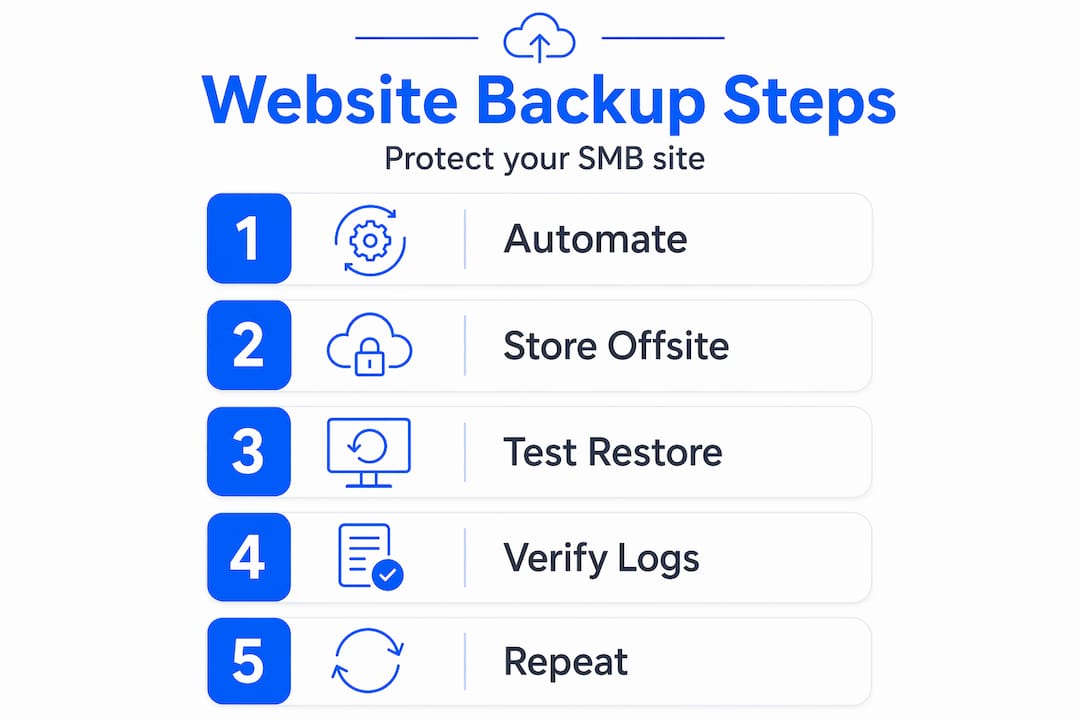
Here's a practical step-by-step workflow you can follow:
- Choose a backup tool that supports both files and database exports (plugins like UpdraftPlus or built-in hosting tools work well for WordPress).
- Set up automated daily or weekly backups depending on how often your content changes.
- Configure offsite storage so backups are sent to a cloud destination automatically.
- Enable version history so you can roll back to an earlier clean state, not just the most recent backup.
- Schedule monthly restore tests using a staging environment to verify your backups actually work.
- Monitor backup job logs to confirm they complete successfully, not just that the job ran.
Automated website backups remove the risk of forgetting or skipping a step. Manual backups sound fine in theory, but when things get busy, they're the first thing that gets skipped.
Here's a comparison of backup approaches for SMBs:
| Backup method | Automation | Offsite storage | Version history | Best for |
|---|---|---|---|---|
| Hosting control panel backup | Partial | Rarely included | Limited | Basic protection |
| WordPress backup plugin | Yes | Configurable | Yes | WordPress sites |
| Manual FTP + database export | No | Manual only | None | Developers only |
| Managed hosting with backups | Yes | Often included | Usually yes | SMBs wanting simplicity |
Understanding must-have backup hosting features before you choose a hosting plan saves you from discovering gaps when it's already too late.
Pro Tip: Don't just check that your backup ran. Check that the backup file size looks right. A 5MB backup of a 500MB website is a red flag that something didn't complete properly.
Backing up files and databases: Avoid incomplete recoveries
This is where many SMBs make their most costly mistake. They back up the files, feel good about it, and stop there. Then a problem hits, and the restore fails because the database is missing.
For any CMS-based website, including WordPress, Joomla, and Drupal, there are two distinct parts you must capture in every backup:
Website files include:
- Your theme and child theme folders
- All installed plugins
- Uploaded media (images, PDFs, videos)
- Configuration files like "wp-config.php`
- The
.htaccessfile
Database includes:
- All your pages, posts, and product listings
- User accounts and passwords
- Site settings and options
- WooCommerce orders and customer data (if applicable)
- Form submissions and comments
File-only backups cannot fully restore a CMS site because the database holds the actual content your visitors see. The files are just the engine. The database is the fuel.
Here's a breakdown of what each backup type protects:
| Backup component | What's included | Restore impact if missing |
|---|---|---|
| Website files | Themes, plugins, media, config | Site design and functionality lost |
| Database | Content, users, settings, orders | All content and data lost |
| Combined (full backup) | Everything above | Complete, reliable restoration |
For WordPress specifically, most WordPress site essentials guides recommend packaging a database dump together with selected site folders into a single compressed archive. Tools that follow this approach, as described in resources like the cloudscale-backup framework, allow you to schedule execution and define a clear restore workflow before you ever need it.
Schedule recommendations based on site activity:
- eCommerce or high-traffic sites: Daily full backups, with real-time database backups if possible
- Content-heavy blogs or news sites: Daily backups before publishing schedules
- Small business brochure sites: Weekly backups minimum, with a manual backup before any major update
The goal is never to lose more than one day's worth of work if something goes wrong. For an eCommerce site processing orders, even one hour of lost data can mean real revenue impact.
Restore testing and common website backup mistakes
You can run backups every single day for a year and still be completely unprotected if those backups don't actually work when you need them. This is the part most SMBs skip, and it's the part that matters most.

Restore testing is a non-optional step. Backups can be incomplete, corrupted, or simply formatted in a way that the restore process can't handle. The only way to know your backup works is to restore it in a controlled environment before an emergency forces your hand.
Here's a restore testing process you can run quarterly, or monthly for high-stakes sites:
- Set up a staging environment separate from your live site (most quality hosting providers offer this).
- Pull your most recent backup from your offsite storage location.
- Restore the backup to the staging environment completely, including files and database.
- Check critical pages and features: homepage, product pages, checkout, contact forms, and login.
- Confirm the database loaded correctly by checking that recent posts or orders appear.
- Note any errors and adjust your backup configuration if anything is missing.
Using a WordPress staging environment for restore testing keeps your live site completely safe during the process. It also gives you a chance to practice the restore workflow so you're not learning it for the first time under pressure.
There's also a less obvious edge case worth knowing. If your site uses a proxy or CDN service like Cloudflare, you may need to temporarily disable or adjust those settings during a restore. As noted in the UpdraftPlus documentation, proxy services can cause timeouts or routing issues during the restoration process that make it appear the restore has failed when it hasn't.
"Cloud-hosted WordPress restoration edge case: proxy services may need temporary disabling or adjustment during restore to avoid timeouts."
Common backup mistakes SMBs make:
- Running file-only backups and skipping the database entirely
- Storing all backups on the same server as the live site (one failure wipes everything)
- Never testing restores until a real crisis hits
- Setting up automation once and never checking that it's still running
- Ignoring version history and keeping only the single most recent copy
- Forgetting to back up before major updates, plugin changes, or redesigns
Pro Tip: Set a calendar reminder every month to spot-check your backup logs. It takes five minutes and could save you five days of recovery work.
Why backup verification matters more than backup frequency
Here's an opinion you won't hear from everyone: running a daily backup is nearly worthless if you've never verified that it restores. Yet most advice focuses almost entirely on how often to back up, not on whether those backups actually work.
We've seen too many SMB owners discover the hard way that their backups were silently failing for months. The job log said "complete," the files were there, but when they tried to restore, half the database was missing or the archive was corrupted. The backup had the appearance of success with none of the substance.
The real insurance isn't backup frequency. It's monitoring backup jobs and confirming restores work on staging regularly. A business that backs up weekly and tests restores monthly is in a far better position than one backing up daily with no verification at all.
Treating backup success as verification success is the mindset shift that separates businesses that recover smoothly from those that lose weeks of work. Every backup system should answer two questions, not one. Not just "did the backup run?" but "can we actually restore from it?"
Build restore testing into your regular operations. Make it a non-negotiable quarterly task at minimum. For any business where the website drives revenue, treat it like a fire drill. Nobody thinks they'll need it, right up until they do.
Secure your site with professional backup solutions
After working through the backup fundamentals, the next logical move is choosing a hosting partner that doesn't make you piece everything together manually.

At InSave Hosting, we've built our plans with SMBs in mind from day one. Our daily automated backup services take care of the layered, scheduled backup workflow for you, with offsite storage included so you're covered under the 3-2-1 rule without extra configuration. For WordPress users especially, our specialized WordPress hosting plans include integrated backup tools, staging environments for restore testing, and managed security features that work alongside your backup process. You get the protection without the complexity, so you can focus on running your business instead of managing server configurations.
Frequently asked questions
How often should SMBs back up their websites?
Match your backup frequency to how often your content changes. Daily automation is recommended for active sites with frequent updates, while weekly backups may suit smaller brochure-style sites with minimal changes.
What is the 3-2-1 backup rule?
The 3-2-1 rule means keeping three copies of your data on two different media types, with at least one copy stored offsite to protect against localized failures.
Why do backups sometimes fail to restore a website?
Backups can miss critical files, exclude the database, or become corrupted during storage. Restore testing on staging is the only reliable way to confirm your backup is actually usable before a crisis forces the issue.
Do I need to back up my website's database as well as files?
Absolutely. Both files and database must be captured together for a complete recovery, especially with WordPress or any other CMS where all your content lives in the database.
What's a common mistake in SMB website backup processes?
The most dangerous mistake is never running an actual restore test. Assuming backup success without verification can give you false confidence that crumbles exactly when you need it most.