
TL;DR:
- Staging environments allow safe testing of website updates before going live.
- They reduce risks, improve security, and prevent downtime during site changes.
- Managed hosting offers integrated, one-click staging and deployment for ease of use.
Pushing an update directly to your live WordPress site feels routine, until it isn't. One bad plugin conflict, one misconfigured theme file, or one botched database change can take your site offline in minutes, costing you traffic, trust, and revenue. Staging environments exist precisely to prevent this. A WordPress staging site is a private, identical copy of your live website where you test every change before it ever touches real visitors. This guide walks you through what staging means, why it matters for security and performance, how it actually works, and which setup method fits your situation best.
Table of Contents
- What is a WordPress staging environment?
- Why use a staging environment? Top benefits for WordPress sites
- How WordPress staging works: Step-by-step process
- Staging options: Manual, plugins, and managed hosting
- Best practices and common mistakes with WordPress staging
- The truth about WordPress staging: What most guides don't mention
- How inSave Hosting helps you stage, test, and secure your WordPress site
- Frequently asked questions
Key Takeaways
| Point | Details |
|---|---|
| Staging environments defined | They let you test site changes without putting your live site at risk. |
| Major benefits | Staging boosts security, prevents downtime, and safeguards your website reputation. |
| Getting started is easy | Most leading WordPress hosts offer simple, integrated staging options. |
| Use best practices | Keep staging private and always back up your site before pushing changes live. |
What is a WordPress staging environment?
A staging environment is a separate, hidden version of your WordPress site that mirrors your live site exactly. It includes your theme, plugins, database, content, and settings, but it runs in a protected location that real visitors can't access. Think of it as a dress rehearsal: you run through every change, fix what breaks, and only go live when everything works perfectly.
To understand staging, it helps to know three terms you'll encounter often:
- Production: This is your live website, the one real visitors see and interact with every day.
- Staging: The private testing copy where you try changes before they go live.
- Development: Sometimes a third environment, used by developers to write code before it even reaches staging.
Most small and medium-sized businesses only need two environments: staging and production. The value is enormous even at that simple level.
"A staging environment lets you replicate your live site completely, so you can safely make and test changes without any risk to your actual visitors or business operations."
When you read setup guides for staging, one theme appears repeatedly: the biggest mistakes happen when site owners skip staging and go straight to editing a live site. One wrong line in a functions.php file can produce a white screen of death. One incompatible plugin can crash your WooCommerce store. Staging removes those outcomes from the equation entirely.
Why use a staging environment? Top benefits for WordPress sites
Now that you understand what staging is, let's explore why it's an essential tool for maintaining a secure and high-performing WordPress site.
The advantages aren't just theoretical. Here's what staging actually delivers:
- Risk reduction: Changes that would break a live site are contained in staging. You see the problem, fix it, and only push what works.
- Security protection: Experimenting with new plugins or code on a live site exposes real user data to potential vulnerabilities. WordPress security tips consistently emphasize that limiting live-site exposure is one of the fastest ways to reduce your attack surface.
- Safer plugin and theme testing: WordPress has over 59,000 plugins in its official repository. Not all of them play nicely together. Staging lets you install, activate, and test a plugin before it ever runs where customers can see it.
- Zero downtime for visitors: When changes are ready and tested, pushing them live is a clean, fast process. No experimental fumbling in front of real users.
- Faster troubleshooting: When something goes wrong on staging, you can investigate freely without pressure. No one is waiting for your site to come back online.
Here's a quick look at how staging compares across the factors that matter most to site owners:
| Factor | Without staging | With staging |
|---|---|---|
| Risk of live site breakage | High | Very low |
| Time to fix errors | Longer (under pressure) | Shorter (no pressure) |
| Security exposure | Higher | Minimized |
| Visitor impact | Potential downtime | None |
| Confidence before updates | Low | High |
Following WordPress hosting best practices, staging environments are now a standard feature offered by quality managed WordPress hosts. If your current host doesn't offer it, that's worth noting when you evaluate your options.
Pro Tip: Schedule a dedicated "testing window" each week. Push all pending plugin updates and theme changes to staging at once, review the results together, and then do a single clean push to production. This batching approach saves time and keeps your live site stable.
A real-world example: imagine you run a small e-commerce site and WordPress releases a major core update. Without staging, you update live and cross your fingers. With staging, you clone your site, apply the update, run through checkout flows, test all payment methods, and confirm nothing broke. Then you push live with confidence. That's not a luxury process; it's basic risk management.
How WordPress staging works: Step-by-step process
With the benefits in mind, let's break down how to practically implement a WordPress staging process in a typical workflow.
The process follows a clear and repeatable pattern:
- Clone your live site: Your hosting control panel or a staging tool creates an exact copy of your production site, including the database, media files, and all configuration settings.
- Access your staging URL: The staging site typically lives on a subdomain like staging.yourdomain.com or a temporary URL assigned by your host.
- Make your changes: Install new plugins, update existing ones, edit theme files, or adjust settings, all within staging.
- Test thoroughly: Check every major function: contact forms, login pages, checkout flows, mobile responsiveness, and page load speed.
- Review and iterate: If something breaks, fix it in staging. Repeat until the site behaves exactly as expected.
- Push to live: When testing passes, use your host's one-click deploy tool to push the staged changes to production.
Modern hosting platforms, including those that follow SMB WordPress hosting features best practices, integrate staging directly into their dashboards. This means no command-line work and no manual file transfers.
Here's a direct comparison between live editing and proper staging:
| Scenario | Live editing | Staging workflow |
|---|---|---|
| Plugin update causes error | Site goes down immediately | Error caught in staging |
| Theme customization breaks layout | Visitors see broken design | Caught and fixed before going live |
| New feature testing | Risky and visible to all | Private and safe |
| Rollback options | Limited, stressful | Easy, no visitor impact |
| Developer collaboration | Difficult on live | Clean handoff process |
One important technical note: staging environments use advanced hosting technology to replicate the full server stack, including PHP version, database type, and caching behavior. This matters because a change that works in one PHP version might fail in another. A good staging setup mirrors your live server environment precisely, so what you test is truly what you'll deploy.
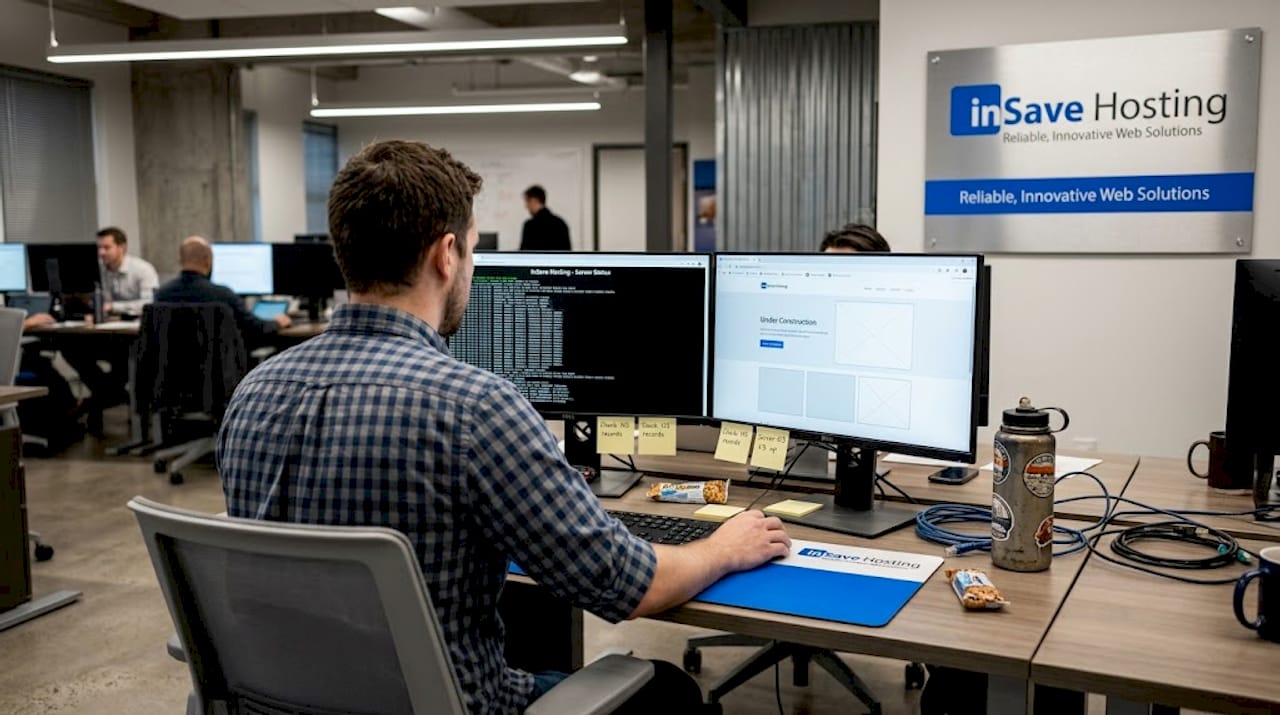
Staging options: Manual, plugins, and managed hosting
Knowing the process, you'll want to choose the right approach for your specific WordPress environment. Here's how the top options compare.
Manual staging
The manual approach means copying your WordPress files to a subdirectory or subdomain via FTP, then exporting and importing your database using phpMyAdmin, and finally updating configuration files to match the new location. It works, but it's time-consuming and easy to get wrong. One missed database prefix update or an incorrect file path can make the staging site behave differently from your live site. This method is best reserved for developers who are comfortable with server administration.
Staging plugins
Plugins like WP Staging and Duplicator offer a middle ground. They automate most of the cloning process within the WordPress admin dashboard. The downside is compatibility: some plugins don't handle complex custom setups well, and if your live site uses advanced caching layers or custom server configurations, the staging clone may not fully replicate those conditions. Always verify that what you see in staging matches what you'd get on production.
Managed hosting with built-in staging
This is the most reliable option for the majority of site owners. WordPress hosting with staging built into the control panel removes the technical friction entirely. One click creates a fully synchronized staging environment. Another click pushes changes live when you're done. The host handles environment matching, so the PHP version, caching rules, and server settings are identical between staging and production.
When choosing between these WordPress hosting types, consider your technical comfort level and how often you make changes. If you update your site regularly, managed hosting with integrated staging pays for itself quickly in time saved and problems avoided.
- Manual: Best for experienced developers; requires server knowledge.
- Plugins: Good for intermediate users; check compatibility carefully.
- Managed hosting: Best for most users; fast, reliable, and fully integrated.
Pro Tip: Even if you're technically capable of setting up staging manually, use your host's built-in tool when available. It's faster, it mirrors your environment perfectly, and it eliminates a category of human error that even experienced developers encounter.
Best practices and common mistakes with WordPress staging
To get the most out of staging, it's critical to follow proven strategies and avoid typical missteps website owners make.
Done poorly, staging can give you a false sense of security. Here's how to use it correctly:
- Keep staging private: A staging site should never be publicly accessible. Block it from search engines using a noindex tag, and use password protection or IP restrictions so only your team can access it. Exposing a staging site can create live site security risks if the environment isn't as hardened as production.
- Always backup before pushing live: Even with a perfect staging workflow, always create a fresh backup of your production site right before you deploy changes. If something unexpected happens post-deployment, you can restore quickly.
- Test all core functions after every round of changes: Don't just check that a new plugin activates. Test the things that matter: user login, contact forms, product pages, checkout, and any custom functionality your business relies on.
- Sync your staging environment regularly: If your staging site is weeks out of date, it won't accurately represent your live site. Pull a fresh clone from production before each major testing cycle.
- Don't use real customer data in staging: If your live site contains customer emails, payment info, or personal data, sanitize the database before it goes into staging. This protects customer privacy and keeps you compliant with data regulations.
- Keep plugins and tools updated in staging too: Testing on an outdated staging environment doesn't tell you how changes will behave on your current live setup.
One commonly overlooked mistake is treating staging as a one-time thing. The best site owners build staging into every update cycle, not just for major launches. Even a small theme tweak or a routine plugin update deserves a staging check.
The truth about WordPress staging: What most guides don't mention
Here's something worth sitting with: most guides tell you what staging is and how to set it up, but very few address why experienced WordPress users still skip it. The answer isn't ignorance. It's confidence bias. When you've successfully updated your site twenty times without a problem, the twenty-first time feels just as safe. Until it isn't.
One corrupted update can undo hours of careful design work. One plugin conflict can take a revenue-generating page offline during peak hours. The risk doesn't decrease with experience; if anything, experienced sites become more complex, with more plugins and more custom code, making conflicts more likely, not less.
The other misconception is that staging is only worth the effort for large sites or enterprise operations. It isn't. A personal portfolio site, a local business homepage, or a small blog all benefit from staging just as much. The cost of a broken site, even briefly, is real regardless of size. Lost credibility, missed inquiries, and lower search rankings don't care how big your site is.
We've seen site owners invest weeks into building secure, affordable sites, only to erase days of progress with a single untested update. Staging isn't overhead; it's insurance that actually pays out. And once you build it into your routine, the extra step takes minutes, not hours. The real time cost is in not using it.
How inSave Hosting helps you stage, test, and secure your WordPress site
With a strong grasp on WordPress staging, here's how you can put it to work using the right hosting partner.
At inSave Hosting, staging isn't an afterthought bolted onto a basic plan. It's built into the WordPress hosting experience from day one. You get a fully integrated staging environment that mirrors your live site exactly, powered by the same LiteSpeed, LSCache, and PHP8 stack that drives production.
Managed WordPress hosting at inSave gives you one-click staging, one-click deploy, and a full backup system so every change you test is safe, reversible, and ready for prime time. Whether you're a solo site owner or managing multiple WordPress sites for clients, you get the tools to test confidently and go live without surprises. Explore all of inSave's web hosting solutions and find the plan that fits your site's size, goals, and budget. Reliable hosting and safe staging go hand in hand.
Frequently asked questions
Does using WordPress staging affect my SEO?
A staging site has no impact on your SEO when it's kept private and blocked from search engines using noindex tags or password protection. Only your live production site should be publicly indexed.
Can I create a WordPress staging site without technical skills?
Yes. Most managed WordPress hosts offer one-click staging environments that require no coding, no FTP, and no database management to set up or use.
What happens if I make a mistake in the staging environment?
Staging mistakes are completely contained. They don't affect your live site at all, and you can reset, adjust, or start fresh as many times as needed until everything is working correctly.
How do I push changes from staging to live on WordPress?
Most quality hosts provide a direct "push to live" button in your dashboard. Before you click it, always confirm your backup is current so you have a restore point if anything unexpected happens post-deployment.