
For most small and medium businesses, the right move is managed email tied to your own domain, hosted either with your web provider or a dedicated email platform. If you want site and email under one roof, inSave Hosting is the recommended integrated option: you get professional mailboxes, 99.9% uptime, free SSL, and daily backups without juggling two separate vendors. If your team lives in shared documents and video calls, Google Workspace or Microsoft 365 will serve you better. Need something free to start? Zoho Mail has a usable free tier. Privacy-first? Proton Mail is the answer.
Quick shortlist:
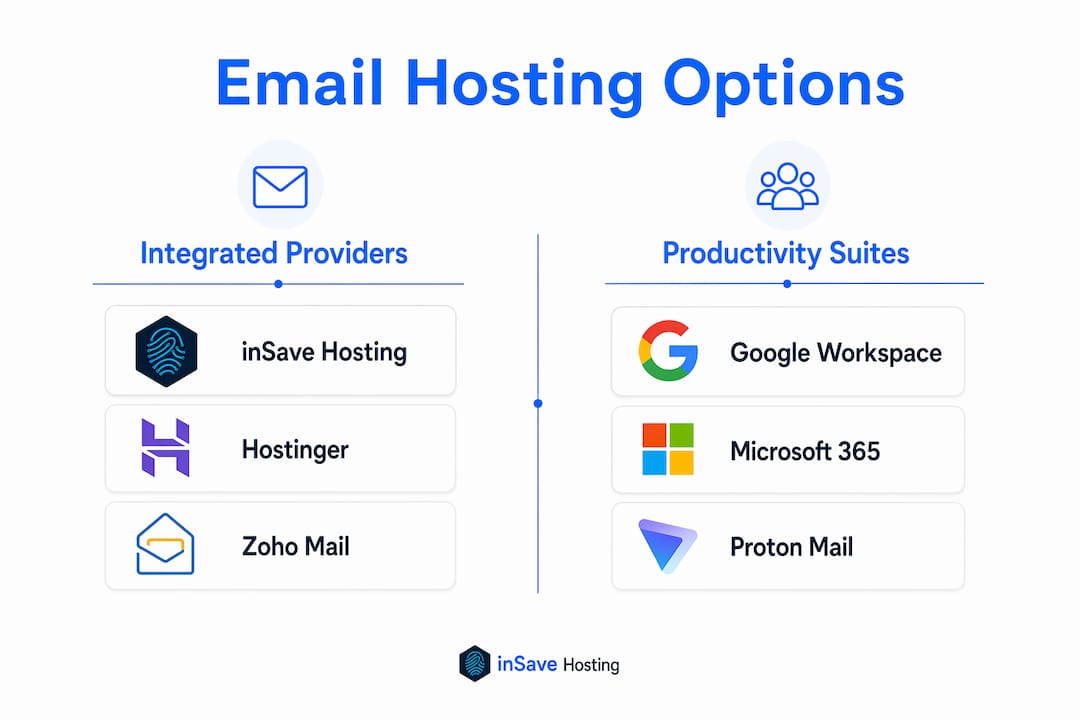
- inSave Hosting — Best integrated web + email for SMBs hosting their own site
- Google Workspace — Best cloud productivity suite (Gmail, Drive, Meet)
- Microsoft 365 — Best for teams already on Windows/Office
- Zoho Mail — Best low-cost or free starting point for small teams
- Hostinger — Best budget bundle for basic needs
- Proton Mail — Best for privacy-sensitive workflows
One thing to set up from day one: keep transactional email (order confirmations, password resets, automated notifications) on a dedicated transactional service separate from your primary inbox. Mixing them risks deliverability failures and IP blacklisting. Every provider below should support SPF, DKIM, DMARC, and 2FA as baseline standards.
Table of Contents
- How do the top web host email options compare?
- What does each provider actually give you?
- How do you choose the right email hosting for your business?
- How do you set up professional email for your domain?
- How do you migrate existing mailboxes to a new host?
- What security and privacy features should you require from an email host?
- How were these recommendations chosen?
- Why is inSave Hosting a strong integrated choice for web host email?
- Key Takeaways
- The case for keeping it simple
- Professional email hosting with inSave Hosting
- Sources and further reading
- FAQ
How do the top web host email options compare?
The table below covers the dimensions that actually move the needle for SMBs: price shape, storage, security, admin tools, and what you get for migration help.
| Provider | Best for | Price shape | Storage/user | Security highlights | Domain/hosting integration | Admin tools | Migration support | Support/SLA | Extras |
|---|---|---|---|---|---|---|---|---|---|
| inSave Hosting | Integrated web + email | Bundled with hosting plans | Included with plan | Free SSL, anti-phishing, intrusion protection, SPF/DKIM/DMARC, 2FA | Native: mailboxes included with hosting | User provisioning, aliases, unified dashboard | Free migration included | 99.9% uptime SLA | LiteSpeed, CDN, daily backups, one-click WordPress |
| Google Workspace | Cloud productivity teams | Paid per user/month (no free tier for business) | 30 GB pooled (Business Starter) | TLS, 2FA, S/MIME, advanced phishing filters | Domain required; no bundled web hosting | Full admin console, groups, aliases | Google Workspace Migrate tool | 99.9% SLA | Drive, Meet, Docs, Calendar |
| Microsoft 365 | Windows/Office-centric teams | Paid per user/month | 50 GB mailbox (Business Basic) | TLS, 2FA, S/MIME, Defender anti-phishing | Domain required; no bundled web hosting | Exchange admin center, groups, aliases | Migration tools in admin center | 99.9% SLA | Teams, SharePoint, OneDrive, Office apps |
| Zoho Mail | Budget-conscious small teams | Free tier available (5 users, 5 GB/user); paid plans from low per-user rate | 5 GB free / more on paid | TLS, 2FA, SPF/DKIM/DMARC, ad-free | Domain required; no bundled web hosting | Admin panel, aliases, groups | IMAP import tool | Email/chat support; uptime SLA on paid plans | Zoho suite integration (CRM, Docs) |
| Hostinger | Budget web + basic email bundle | Bundled with web hosting plans at low per-month rates | Varies by plan | TLS, SPF/DKIM/DMARC, basic spam filter | Native: email bundled with hosting | Basic admin panel | Limited migration help | Standard uptime SLA, ticket/chat support | hPanel control panel, webmail |
| Proton Mail | Privacy-sensitive workflows | Free tier (1 GB); paid business plans | 1 GB free / up to 15 GB+ paid | End-to-end encryption, zero-access encryption, 2FA, no ad scanning | Domain required; no bundled web hosting | Admin panel, aliases | IMAP migration tool (paid plans) | Email support; uptime SLA on paid plans | Proton Drive, Proton Calendar, Swiss data centers |
Pricing note: Exact per-user monthly rates change frequently. Always verify current pricing directly on each provider's site before committing. The table reflects plan shapes (free tier, bundled, or paid per-user), not locked-in figures.
What does each provider actually give you?
inSave Hosting
inSave Hosting bundles professional email directly into its shared hosting plans, so you manage your website and mailboxes from a single dashboard. That matters more than it sounds: when DNS, SSL, and email all live in one place, troubleshooting a delivery issue takes minutes instead of an afternoon of cross-vendor finger-pointing.
The platform runs on LiteSpeed with LSCache, PHP8, and free CDN integration, which keeps both your site and webmail access fast. Anti-phishing and incoming email filtering are built in, along with free SSL and daily backups. Migration is free, and the 99.9% uptime SLA applies to the full stack.
Pros: Native web + email integration, free migration, daily backups, anti-phishing built in, single dashboard, free SSL, strong uptime SLA. Cons: Collaboration extras (shared docs, video calls) require third-party tools; not the right fit if your team needs a full productivity suite.
Best for: SMBs hosting their own site who want email and web under one roof without paying for two separate platforms.
Google Workspace
Google Workspace is the right choice for most SMBs that run their business on shared documents, video calls, and cloud storage. Gmail's interface is familiar to almost everyone, the admin console is genuinely powerful, and Google Workspace Migrate handles mailbox moves from most sources.

The tradeoff is cost: there is no free business tier, and per-user pricing adds up as your team grows. Storage is pooled across the organization on newer plans, which helps larger teams but can confuse smaller ones expecting per-user buckets.
Pros: Best-in-class admin console, Google Meet/Drive/Docs included, excellent spam filtering, strong migration tools, 99.9% SLA. Cons: No bundled web hosting, per-user cost scales up, no end-to-end encryption by default (S/MIME available on higher tiers).
Best for: Teams that collaborate heavily in shared documents and need video conferencing built in.
Microsoft 365
Microsoft 365 pairs Exchange Online with the full Office application suite. The 50 GB mailbox on Business Basic is generous, and Microsoft Defender's anti-phishing layer is among the strongest available. If your team already uses Word, Excel, and Teams, the integration is seamless in practice.
The admin center has a steeper learning curve than Google's, and licensing tiers can get confusing fast. Like Google Workspace, there is no bundled web hosting.
Pros: 50 GB mailbox, Office apps on higher tiers, Defender anti-phishing, Teams integration, strong compliance tools (useful for HIPAA/regulated industries), 99.9% SLA. Cons: Admin complexity, no bundled hosting, cost per user on full-featured plans.
Best for: Windows-centric offices and teams that need Office apps or have compliance requirements.
Zoho Mail
Zoho Mail's free tier covers up to 5 users at 5 GB per user with no ads and no mail scanning, which is a genuinely useful starting point for a new business. Paid plans unlock more storage, additional users, and deeper integration with Zoho's CRM and productivity suite.
The interface is clean, IMAP import handles basic migrations, and SPF/DKIM/DMARC are all supported. Where Zoho falls short is support responsiveness on free plans and the fact that the broader Zoho ecosystem, while capable, takes time to learn.
Pros: Free tier for small teams, ad-free, privacy-respecting, integrates with Zoho CRM and Docs, affordable paid plans. Cons: Support is limited on free tier, collaboration tools less polished than Google/Microsoft, migration tooling is basic.
Best for: Solo operators and small teams that want a free or very low-cost professional address without committing to a paid suite.
Hostinger
Hostinger bundles basic email with its web hosting plans at competitive per-month rates, making it a reasonable choice if you need a simple inbox alongside a starter website. The hPanel control panel is beginner-friendly, and setup takes under 30 minutes.
The ceiling is low, though. Admin features are basic, migration support is limited, and there are no built-in collaboration tools. For a freelancer or a very small team with simple email needs, that is fine. For a growing business, you will likely outgrow it.
Pros: Low cost, easy setup, bundled with web hosting, beginner-friendly panel. Cons: Limited admin tools, minimal migration help, no collaboration extras, storage varies by plan.
Best for: Freelancers and micro-businesses that need a professional address alongside a starter site and have no complex admin requirements.
Proton Mail
Proton Mail stores messages with end-to-end encryption and zero-access encryption at rest, meaning even Proton cannot read your mail. Data centers are in Switzerland, which adds a legal layer of privacy protection. Business plans support custom domains, aliases, and IMAP access.
The tradeoff is real: end-to-end encryption only works when both sender and recipient use Proton, and the collaboration suite (Proton Drive, Proton Calendar) is less mature than Google's or Microsoft's. Migration tooling exists on paid plans but is not as polished.
Pros: End-to-end encryption, zero-access at rest, no ad scanning, Swiss data centers, strong 2FA. Cons: E2E encryption limited to Proton-to-Proton messages, collaboration tools less mature, higher cost for business plans, migration tooling basic.
Best for: Legal, healthcare, or financial workflows where message confidentiality is non-negotiable.
Pro Tip: If you handle sensitive client data but also need collaboration tools, consider pairing Proton Mail for external client communication with an internal tool like Notion or a private Slack workspace for team collaboration.
How do you choose the right email hosting for your business?
The decision comes down to four questions: Do you need email and web hosting bundled? Do you need a full productivity suite? Is privacy a legal or operational requirement? And what is your real budget per user per month?
Must-have features before you sign up
- SPF, DKIM, and DMARC support — without these, your email will land in spam or get rejected outright.
- 2FA on all accounts — non-negotiable for any business sending contracts or invoices.
- IMAP and SMTP access — lets you use any desktop or mobile client (Outlook, Apple Mail, Thunderbird).
- Admin controls — user provisioning, alias creation, and the ability to reset passwords without calling support.
- Backups and retention — know how long deleted mail is recoverable and whether backups are automatic.
- Spam and anti-phishing filtering — check whether it is built in or an add-on.
- Uptime SLA — 99.9% is the baseline; anything lower is a red flag for business use.
Questions to ask every vendor
- What is your migration process, and do you assist with IMAP transfers?
- Where are your data centers, and do you offer data residency options?
- What is the maximum attachment size and per-mailbox storage cap?
- Is transactional email (automated notifications) supported, or do I need a separate SMTP relay?
- What is your support channel and average response time?
Red flags to walk away from
- No IMAP or POP3 support (locks you into webmail only)
- No published SLA or uptime history
- No SPF/DKIM/DMARC configuration options
- Support only via ticket with multi-day response times
- Vague or absent backup and data retention policies
Choosing your category
Integrated web + email: Choose inSave Hosting or a similar bundled provider when you are launching or running a site and want a single vendor, single dashboard, and free migration. The tradeoffs between hosting email with your web host versus a dedicated provider are worth reading before you decide.
Full productivity suite: Choose Google Workspace or Microsoft 365 when your team collaborates heavily in shared documents, needs video conferencing, or has compliance requirements that benefit from enterprise-grade admin tools.
Low-cost or free start: Choose Zoho Mail when budget is the primary constraint and your needs are simple. Upgrade later when you outgrow the free tier.
Privacy-first: Choose Proton Mail when message confidentiality is a legal or contractual requirement, and you can accept the collaboration tradeoffs.
How do you set up professional email for your domain?
Getting email working on your own domain takes about 30–60 minutes if you have access to your DNS settings. Here is the full sequence.
Step-by-step setup
- Register your domain if you do not already have one. inSave Hosting offers domain registration for .com, .org, .net, and many other TLDs.
- Choose your email provider and create your account. Note the MX record values they give you.
- Log in to your DNS manager (usually your domain registrar or hosting control panel).
- Add MX records pointing to your email provider's mail servers.
- Add a SPF TXT record to authorize your provider to send on your domain's behalf.
- Add a DKIM TXT record using the public key your provider generates.
- Add a DMARC TXT record to set your policy for failed authentication.
- Wait for DNS propagation (typically 15 minutes to 48 hours; most changes take effect within an hour).
- Send a test message from your new address to an external inbox and verify it lands in the inbox, not spam.
- Configure your email client (Outlook, Apple Mail, Thunderbird, or mobile) using IMAP and SMTP settings from your provider.
Sample DNS records
| Record type | Host/Name | Value (example) | TTL |
|---|---|---|---|
| MX | @ | mail.yourdomain.com (priority 10) | — |
| TXT (SPF) | @ | v=spf1 include:mail.yourdomain.com ~all | — |
| TXT (DKIM) | selector._domainkey | v=DKIM1; k=rsa; p=[public key] | — |
| TXT (DMARC) | _dmarc | v=DMARC1; p=none; rua=mailto:dmarc@yourdomain.com | — |

Start your DMARC policy at p=none to collect reports without blocking mail. Once you confirm legitimate mail passes, move to p=quarantine, then p=reject.
Pro Tip: Use MXToolbox (mxtoolbox.com) to verify your MX, SPF, and DKIM records are live and correctly formatted before sending your first business email. It catches typos that would otherwise cause silent delivery failures.
For a full walkthrough with screenshots, the step-by-step email setup guide covers every screen in detail.
Troubleshooting common issues
- Mail bouncing: Check MX record priority values and confirm the hostname resolves.
- Landing in spam: Verify SPF and DKIM are both passing; check DMARC reports.
- Client can't connect: Confirm IMAP port (993 with SSL) and SMTP port (587 with STARTTLS or 465 with SSL) are correct.
- Propagation delay: Use
dig MX yourdomain.comor an online DNS checker to confirm records are live before troubleshooting further.
How do you migrate existing mailboxes to a new host?
Migration is where most businesses lose time. A realistic plan prevents data loss and minimizes downtime.
Migration steps
- Audit your mailboxes. List every address, alias, shared mailbox, and distribution list. Note mailbox sizes.
- Back up everything. Export PST files (Outlook) or use an IMAP backup tool before touching anything.
- Set up a test account on the new provider and verify it receives mail correctly.
- Run the migration using IMAP sync (most providers support this) or the provider's migration tool. For Google Workspace, use Google Workspace Migrate. For Microsoft 365, use the Exchange admin center migration wizard.
- Update MX records once migration is confirmed complete. Lower the TTL to 300 seconds a day before the switch to speed up propagation.
- Monitor delivery for 48–72 hours after the MX change. Watch for bounces, delayed messages, and spam classification.
- Decommission old accounts only after confirming all mail is flowing correctly to the new host.
Timeline estimates
- 1–5 mailboxes, under 5 GB each: A few hours total, including DNS propagation.
- 10–25 mailboxes: Plan for one to two days, especially if mailboxes are large or contain shared calendars.
- Larger teams: Stagger migration in batches; expect a week or more for a full cutover with testing.
Migration checklist
- IMAP access enabled on the old provider (required for most migration tools)
- All users have current passwords or admin can reset them
- Shared calendars and contacts exported separately (they do not migrate via IMAP)
- Archive folders identified and included in the migration scope
- Auto-responders and forwarding rules documented before migration
Common gotchas
- Gmail labels vs. folders: Gmail uses labels, not folders. IMAP migration maps labels to folders, which can create duplicates or unexpected folder structures on the new host.
- Large mailboxes: A 20 GB mailbox can take hours to sync over IMAP. Plan accordingly.
- Shared drives and calendars: IMAP migration moves email only. Google Drive files and shared calendars require separate export and re-creation.
- Delegated access: Mailbox delegation settings do not transfer automatically; reconfigure them on the new host.
What security and privacy features should you require from an email host?
Security features like anti-phishing and admin controls are not optional for businesses sending contracts or invoices. A compromised business email account can expose client data, trigger wire fraud, and destroy the trust you have built.
Security checklist
- TLS in transit: All mail should travel over TLS 1.2 or higher between servers.
- Encryption at rest: Stored messages should be encrypted on disk.
- 2FA on all accounts: Authenticator apps (Google Authenticator, Authy) are stronger than SMS.
- SPF, DKIM, DMARC configured: These three records are your primary defense against spoofing.
- Anti-phishing and spam filtering: Should be built in, not a paid add-on.
- Per-user access controls: Admins should be able to revoke access instantly if an account is compromised.
- Anomaly detection: Alerts for unusual login locations or sending volumes.
For deeper coverage of email-level security, inSave Hosting's email services page details its anti-phishing and intrusion protection features. The broader web hosting security guide covers the full stack.
Privacy considerations
Ask every provider three questions before signing: Does the platform scan email content for advertising? Where are the data centers, and can you choose a region? How long does the provider retain deleted messages, and can you set your own retention policy?
Proton Mail's zero-access encryption means even the provider cannot read stored messages. Google Workspace and Microsoft 365 do not scan mail for ads on paid business plans, but they do process content for spam filtering and compliance features. Zoho Mail is ad-free and does not scan for advertising purposes.
Compliance for U.S. SMBs
HIPAA: If you handle protected health information (PHI), your email provider must sign a Business Associate Agreement (BAA). Google Workspace and Microsoft 365 both offer BAAs on qualifying plans. Proton Mail offers a BAA on business plans. Confirm before you send a single patient-related message.
GDPR: If you have customers in the EU, data residency and retention policies matter. Google Workspace and Microsoft 365 offer EU data residency options. Proton Mail's Swiss data centers provide strong privacy protections under Swiss law.
Verification: Check for SOC 2 Type II or ISO 27001 certifications on the provider's security documentation page. Published SLAs and security whitepapers are a baseline signal of operational maturity.
Pro Tip: Request a copy of the provider's most recent SOC 2 report before signing an annual contract. Reputable providers share it under NDA without hesitation. If a vendor refuses, that tells you something.
How were these recommendations chosen?
These picks were evaluated against six criteria that matter most for SMBs: reliability (uptime SLA and track record), security (authentication standards, encryption, admin controls), admin tooling (user provisioning, alias management, access revocation), migration support (tooling and assisted migration), price shape (free tier availability, per-user cost, bundled value), and SMB fit (ease of setup, support quality, integration with web hosting).
Evaluation criteria summary:
- Uptime SLA published and verifiable (99.9% minimum)
- SPF, DKIM, and DMARC support confirmed
- 2FA available on all plan tiers
- Admin console supports user provisioning and alias management
- Migration tooling or assisted migration available
- Support channel accessible within business hours at minimum
- Pricing transparent and per-user cost confirmed on vendor site
Primary sources used include ZDNET's expert-tested email hosting review, Forbes Advisor's comparative testing, PCMag's hosted email provider picks, Elementor's SMB email hosting guide, and vendor documentation from Microsoft 365 and Zoho Mail.
"Best email hosts offer more than an address: uptime, security, admin tools, and productivity features are decisive for SMBs." — ZDNET, Best email hosting services 2026
Vendor claims were cross-referenced against published SLAs, security documentation, and independent review criteria. No provider paid for placement.
Why is inSave Hosting a strong integrated choice for web host email?
For SMBs that want their website and email managed together, inSave Hosting removes the main friction point: you do not need to configure DNS across two separate vendors or troubleshoot delivery issues by bouncing between support teams.
The platform's core features support reliable email delivery directly:
- 99.9% uptime SLA covers both the hosting stack and mail services
- Free SSL certificates secure webmail access and your site simultaneously
- Daily backups protect email data alongside site files
- Free migration means moving existing mailboxes does not cost extra
- Anti-phishing and incoming email filtering are built into the email services stack
- LiteSpeed with LSCache and PHP8 keeps webmail and site performance fast
- Free CDN integration reduces latency for geographically distributed teams
- One-click WordPress installation for businesses running a CMS alongside their email
The unified dashboard means a non-technical business owner can manage DNS, SSL, email accounts, and site files without switching between platforms. For a small business choosing web hosting, that operational simplicity has real value.
Getting started: Check the shared hosting plans to see which tier includes the mailbox count you need, then contact support to confirm migration assistance for your existing addresses. The onboarding team handles MX record configuration and can walk you through SPF/DKIM/DMARC setup.
Note: Real client case studies and author credentials should be inserted here by the editorial team before publication.
Key Takeaways
For most SMBs, the best email hosting decision is the one that matches your operational reality: integrated if you host your own site, a full suite if your team lives in shared documents, and privacy-first only when confidentiality is a hard requirement.
| Point | Details |
|---|---|
| Integrated web + email wins for most SMBs | Hosting email with your web provider cuts DNS complexity and support overhead for small teams. |
| SPF, DKIM, DMARC are non-negotiable | All three authentication records must be configured before you send business email or messages will land in spam. |
| Separate transactional email from your inbox | Automated notifications and order confirmations should route through a dedicated SMTP relay, not your primary mailbox. |
| Suite vs. integrated is a workflow question | Choose Google Workspace or Microsoft 365 when heavy document collaboration matters; choose inSave Hosting when site + email integration is the priority. |
| inSave Hosting for combined web + email | inSave Hosting bundles email with hosting, free migration, daily backups, and a 99.9% uptime SLA in a single dashboard. |
The case for keeping it simple
Most SMBs I see overthink this decision. They spend weeks comparing per-user pricing on productivity suites when what they actually need is a professional address that reliably delivers mail and does not require a dedicated IT person to maintain.
The honest recommendation: if you are launching or running a site and you do not already have a productivity suite your team depends on, start with inSave Hosting. You get email, hosting, SSL, backups, and migration help in one place. That is a complete operational setup for most small businesses, and you can always add Google Workspace or Microsoft 365 later if your collaboration needs grow.
Where I would steer someone toward a standalone suite instead: teams of ten or more who already collaborate in Google Docs or Microsoft Teams, or any business in healthcare, legal, or finance where compliance tooling (BAAs, audit logs, retention policies) is a day-one requirement. For those cases, the per-user cost of a major suite is justified by the admin and compliance infrastructure it provides.
One reminder that gets skipped more often than it should: test your deliverability after setup. Send a message to a Gmail address, a Yahoo address, and a corporate Outlook address. Check spam folders. Run your domain through MXToolbox. Do this before you send a single client-facing email, not after you notice replies are missing.
Professional email hosting with inSave Hosting
If you want site and email in one place without the complexity of managing two vendors, inSave Hosting gives you exactly that: professional mailboxes on your domain, free migration from your current host, daily backups, and a 99.9% uptime guarantee, all managed from a single dashboard.

Free SSL is included on every plan, so your webmail access and your site are both secured from day one. Anti-phishing and incoming email filtering are built in, not sold as add-ons. And if you are moving from another host, the migration team handles the transfer at no extra cost.
Check the shared hosting plans to find the right tier for your team size, or explore domain registration if you are starting fresh. Getting your professional email address live takes less than an hour.
Sources and further reading
Primary sources used in this article:
- Best email hosting services 2026: Expert tested and reviewed — ZDNET
- The 8 Best Email Hosting Providers for Small Business in 2026 — Elementor
- 5 Best Email Hosting Services — Forbes Advisor
- The Best Hosted Email Providers — PCMag
- Microsoft 365 Business plans — Microsoft
- Zoho Mail — Secure & professional business email
- A Guide to Understanding Email Hosting — InMotion Hosting
Recommended next reads on inSave Hosting:
| Resource | What it covers |
|---|---|
| Email and website hosting: best options for 2026 | Integrated vs. standalone email hosting tradeoffs |
| Step-by-step email setup guide | Full DNS and client configuration walkthrough |
| Web hosting security guide for small businesses | Security hardening for hosting and email |
| Role of email hosting in SMB communication | Business case for professional email |
FAQ
What is email web hosting?
Email web hosting is a service that provides professional mailboxes tied to your own domain (you@yourbusiness.com) on a provider's mail servers, giving you better deliverability and branding than a free consumer account.
What is the best free email host for a small business?
Zoho Mail offers the most usable free tier for small businesses, covering up to 5 users at 5 GB per user with no ads and no mail scanning. Proton Mail also has a free tier, but it is limited to 1 GB and one address.
How do I find out what my host email is?
Your email host is usually identifiable from your domain: if your address is you@yourbusiness.com, log in to your domain registrar or hosting control panel and check the MX records. The MX record hostname indicates which provider is handling your mail.
Does inSave Hosting include email with web hosting?
Yes. inSave Hosting bundles professional email mailboxes with its hosting plans, including anti-phishing filtering, free SSL, daily backups, and free migration, all managed from a unified dashboard.
Should I use the same provider for web hosting and email?
For most small businesses, yes. Keeping both with one provider like inSave Hosting simplifies DNS management, reduces support overhead, and means one dashboard for everything. The main reason to split them is if your team needs a full productivity suite (Google Workspace or Microsoft 365) for document collaboration and video conferencing.