
TL;DR:
- Updating PHP requires careful testing; always back up files and the database before starting.
- Use staging environments and incrementally upgrade through supported versions while verifying extensions and compatibility.
- Managed hosting simplifies the process by automating backups, testing, and rollback procedures to minimize risks.
To update your PHP version, go to your hosting control panel (cPanel's MultiPHP Manager or Plesk's PHP Settings) and select the new version from the dropdown, or run the appropriate package-manager command on a VPS. Before you touch anything in production, run through this checklist first.
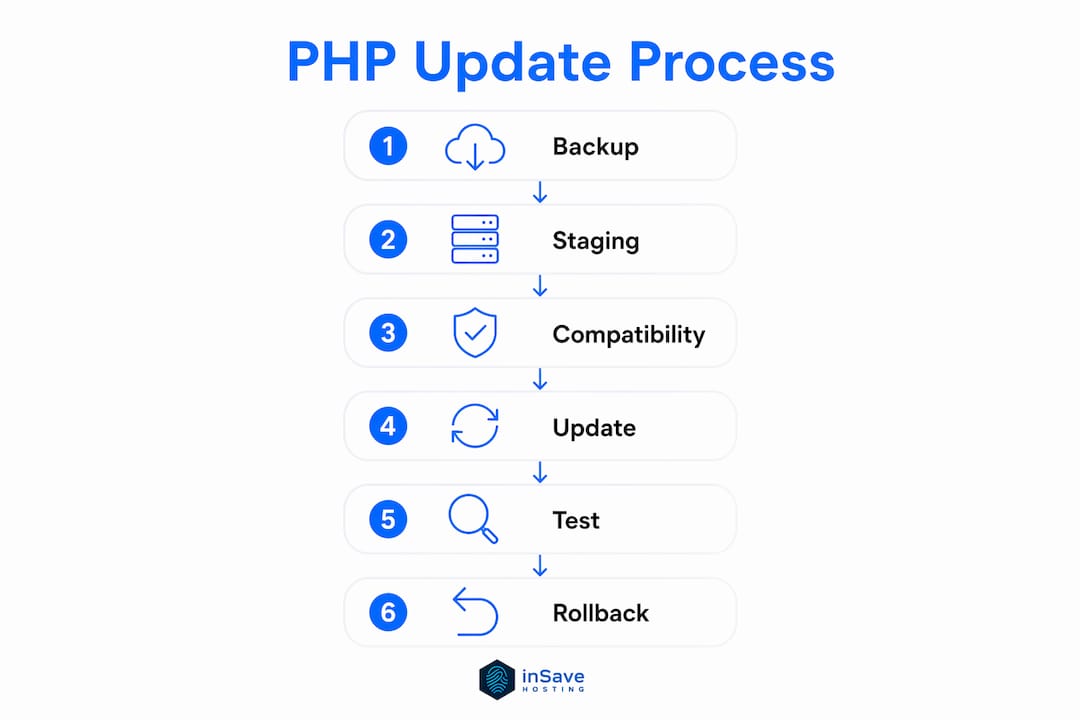
Before you change PHP:
- Back up all site files and the database
- Clone to a staging environment and test there first
- Update your CMS core, themes, and plugins to their latest versions
- Run a compatibility scan (PHPCompatibility or Rector)
- Change PHP version on staging, run smoke tests, then promote to production
- Keep the previous PHP version available for a quick rollback
Pro Tip: If you're on managed WordPress hosting, open a support ticket or use the host dashboard to schedule the PHP change. Managed hosts often handle the restart and extension verification for you, which cuts the risk of a missed step.
Table of Contents
- Which hosting environment are you on?
- How to update PHP version: platform-by-platform instructions
- Should you back up and stage before changing PHP?
- What to check after updating PHP
- How to roll back if the site breaks
- Copy/paste cheat sheet: commands and compatibility checks
- Key Takeaways
- Why most PHP upgrade pain is self-inflicted
- inSave Hosting takes the upgrade risk off your plate
- Useful sources
- FAQ
Which hosting environment are you on?
The right upgrade path depends entirely on your setup. Answer three questions to find your section:
- Do you have SSH access? If yes, you're on a VPS, dedicated server, or cloud instance. Jump to the Debian/Ubuntu or RHEL/CentOS instructions.
- Do you see a PHP selector in your control panel? That's cPanel or Plesk. Follow those steps.
- Is this managed WordPress hosting? Contact support or use the host's dashboard. You likely have no direct shell access.
| Hosting type | Primary update method |
|---|---|
| Shared hosting with cPanel | MultiPHP Manager or Select PHP Version |
| Plesk-managed server | PHP Settings per domain or subscription |
| Managed WordPress hosting | Host dashboard or support request |
| VPS/cloud (Debian/Ubuntu) | apt with Sury or distro repo |
| VPS/cloud (RHEL/CentOS/Fedora) | dnf/yum with Remi or Codeready repo |
| macOS (local dev) | Homebrew |
| Windows (local dev) | XAMPP or WampServer manual swap |
| Docker/container | Update base image tag, rebuild |
CLI vs. web PHP: Your command-line PHP (php -v) and your web server's PHP can be different versions. Changing one does not automatically change the other. Always verify both after an upgrade. On Ubuntu, sudo update-alternatives --config php controls the CLI default; your web server uses the PHP-FPM pool you configure separately.

If you're evaluating whether to self-manage PHP updates or move to a host that handles it for you, the PHP web host guide covers that decision in detail.
How to update PHP version: platform-by-platform instructions
Work through the section that matches your environment. Skip the rest.
cPanel (MultiPHP Manager)
- Log in to cPanel and open MultiPHP Manager (under the Software section).
- Check the box next to the domain you want to update.
- Select the target PHP version from the dropdown (e.g., PHP 8.3).
- Click Apply. cPanel restarts PHP-FPM automatically.
- Open MultiPHP INI Editor and re-enable required extensions —
mysqli,curl,gd,mbstring, andxml— because extension states are version-specific. - Verify with a temporary
phpinfo()file or check PHP Version in the cPanel dashboard.
For WordPress sites specifically, WordPress Site Health (Tools > Site Health > Info > Server) shows the running PHP version and flags out-of-date runtimes before you even open cPanel.
Plesk
- Go to Domains, select the domain, then click PHP Settings.
- Choose the PHP version and handler (FPM is preferred over FastCGI for performance).
- Click OK. Plesk restarts the PHP handler for that domain.
- Confirm extensions under PHP Settings > Additional directives or via a
phpinfo()page.
Debian/Ubuntu (apt)
# Add Ondřej Surý's repo (most current PHP packages for Ubuntu/Debian)
sudo apt install -y software-properties-common
sudo add-apt-repository ppa:ondrej/php
sudo apt update

# Install the target version and common extensions
sudo apt install -y php8.3 php8.3-fpm php8.3-mysql php8.3-curl \
  php8.3-gd php8.3-mbstring php8.3-xml php8.3-zip

# Switch CLI default
sudo update-alternatives --set php /usr/bin/php8.3
php --version

# Enable new FPM, disable old, restart web server
sudo systemctl enable php8.3-fpm
sudo systemctl disable php8.2-fpm
sudo systemctl restart php8.3-fpm nginx   # or apache2
After switching, verify with php --version and serve a temporary phpinfo() file to confirm the web server is also using the new version.
RHEL / CentOS / Fedora (yum/dnf)
# Enable Remi repo (adjust for your distro)
sudo dnf install -y https://rpms.remirepo.net/enterprise/remi-release-9.rpm
sudo dnf module reset php
sudo dnf module enable php:remi-8.3

# Install PHP and extensions
sudo dnf install -y php php-fpm php-mysqlnd php-curl \
  php-gd php-mbstring php-xml php-zip

# Restart services
sudo systemctl restart php-fpm httpd   # or nginx
php --version
macOS (Homebrew)
brew update
brew install php@8.3
brew unlink php          # unlink current version
brew link --overwrite --force php@8.3
brew services restart php@8.3
php --version
If you use MacPorts instead of Homebrew, the equivalent is sudo port install php83 followed by sudo port select --set php php83.
Windows (XAMPP or WampServer)
XAMPP bundles PHP as a single binary. To upgrade:
- Download the new XAMPP version from apachefriends.org that ships with your target PHP.
- Back up your
htdocsfolder andphp.ini. - Stop Apache and MySQL in the XAMPP Control Panel.
- Install the new XAMPP version to a separate directory, then copy your
htdocscontent and mergephp.inisettings manually. - Start Apache and open
http://localhost/phpinfo.phpto verify.
For WampServer, right-click the tray icon, go to PHP > Version, and select the installed version. WampServer manages multiple PHP versions natively.
Docker
Updating PHP in a container means changing the base image tag, not installing packages inside a running container:
# Before
FROM php:8.2-fpm

# After
FROM php:8.3-fpm

RUN docker-php-ext-install mysqli pdo_mysql gd mbstring zip
Rebuild and test before deploying:
docker build -t myapp:php83 .
docker run --rm myapp:php83 php --version
Keep image tags versioned (not just latest) so you can roll back by redeploying the previous tagged image. Run smoke tests against the rebuilt container before swapping it into production.
Composer and dependencies
The server-side package install is usually the easy part. Most of the real work is updating Composer packages and replacing deprecated function calls. After changing PHP:
composer update
composer install --no-dev --optimize-autoloader
Check the output for deprecation warnings and fatal errors. Run PHPCompatibility (a PHP_CodeSniffer ruleset) and Rector before the upgrade to catch issues statically. Both tools find and often auto-fix the bulk of incompatibilities before you hit runtime errors.
Version jumps: When you're multiple releases behind, step through versions incrementally — for example, 7.4 → 8.0 → 8.1 → 8.3. Each jump has a narrower set of breaking changes, which makes debugging far easier than a single leap across four releases.
Should you back up and stage before changing PHP?
Yes, always. The backup and staging step is what separates a five-minute fix from a four-hour outage.
Full backup checklist:
- All site files (public root, uploads, environment files like
.env) - Database dump:
mysqldump -u root -p dbname > backup.sql - Composer
vendordirectory or at minimumcomposer.lock - Any custom
php.inior.htaccessfiles
For staging site creation, you have three practical options: use your host's built-in staging tool (cPanel and Plesk both offer one-click clones), spin up a local clone with Docker Compose, or use a subdomain with a database copy. The goal is a production-identical environment where you can flip PHP and run your full test suite without touching live traffic.
Timeline expectations vary. A small static WordPress site with a handful of plugins takes a short time end-to-end. A complex Laravel or Drupal application with custom Composer packages and CI/CD pipelines can take significantly longer, especially if Composer dependencies need updating. Involve your QA team for anything beyond a simple CMS site.

Pro Tip: On a VPS or cloud instance, take a snapshot or disk image before the upgrade. Most cloud providers (AWS, DigitalOcean, Vultr) let you restore from a snapshot in minutes. That's faster than restoring from a file-based backup and covers the entire server state, not just the web root.
For a deeper look at backup types and recovery strategies, snapshot vs. file-based backups have meaningfully different recovery times that matter when a site is down.
What to check after updating PHP
Run these checks in order. Don't skip the CLI verification just because the site loads.
Smoke test checklist:
php -vin the terminal confirms the CLI versionphp -mlists loaded modules; verifymysqli,mbstring,gd,curl, andxmlare present- Load a temporary
phpinfo()page to confirm the web server's PHP version and loaded extensions - Visit the site homepage, log in, submit a key form, and trigger any cron jobs manually
- Check WordPress Site Health or your CMS's status dashboard for warnings
Common fixes after a PHP upgrade:
- Missing extension: Re-enable it in cPanel's MultiPHP INI Editor, or install the package (
sudo apt install php8.3-gd) and restart PHP-FPM. - Fatal error on load: Check the web server error log and PHP-FPM log before assuming it's a plugin. Disable suspect plugins one at a time and retest.
- Composer autoload failure: Run
composer dump-autoloadthencomposer install. If packages require a PHP version you've now exceeded, update them individually. - Deprecated function warnings filling logs: These are non-fatal in most cases but signal code that needs updating before the next PHP release.
Viewing logs:
# PHP-FPM log
sudo tail -f /var/log/php8.3-fpm.log

# Apache error log
sudo tail -f /var/log/apache2/error.log

# Nginx error log
sudo tail -f /var/log/nginx/error.log

# Restart services
sudo systemctl restart php8.3-fpm
sudo systemctl restart nginx
For WordPress, update core, themes, and plugins before the PHP upgrade to prevent fatal compatibility errors. If an error appears after the switch, roll back PHP first, then identify the incompatible plugin before re-upgrading. Continuous WordPress monitoring after the upgrade catches regressions that don't show up in a quick smoke test.
How to roll back if the site breaks
Speed matters here. The faster you restore service, the shorter the outage.
Emergency checklist:
- Enable maintenance mode immediately (WordPress: use a maintenance plugin or drop a
.maintenancefile in the web root). - Switch PHP back to the previous version via your control panel (MultiPHP Manager or Plesk PHP Settings) or re-enable the old PHP-FPM service on a VPS.
- Restart the web server and PHP-FPM.
- Confirm the site loads, then disable the plugin or theme that caused the failure.
Control panel rollback is the fastest path. In cPanel's MultiPHP Manager, select the previous PHP version from the dropdown and click Apply. In Plesk, go to PHP Settings and revert the version. Both restart the handler automatically.
VPS/SSH rollback:
# Re-enable old PHP-FPM, disable new
sudo systemctl stop php8.3-fpm
sudo systemctl start php8.2-fpm
sudo systemctl enable php8.2-fpm

# Revert CLI default
sudo update-alternatives --set php /usr/bin/php8.2

# Restart web server
sudo systemctl restart nginx
Pro Tip: Keep the previous PHP version installed but disabled, not uninstalled. Switching between installed versions takes seconds. Reinstalling a package from scratch takes minutes and requires repo access.
Database recovery is rarely needed for a PHP version rollback alone, since PHP changes don't alter database schema. If you ran a migration script or CMS update alongside the PHP change and the database was modified, restore from your pre-upgrade dump: mysql -u root -p dbname < backup.sql. Restore only the tables that changed when possible, rather than dropping and reimporting the entire database.
Copy/paste cheat sheet: commands and compatibility checks
Key commands by platform
| Task | Command |
|---|---|
| Check PHP CLI version | php --version |
| List loaded PHP modules | php -m |
| Ubuntu: install PHP 8.3 + FPM | sudo apt install php8.3 php8.3-fpm |
| Ubuntu: switch CLI default | sudo update-alternatives --set php /usr/bin/php8.3 |
| Ubuntu: restart PHP-FPM | sudo systemctl restart php8.3-fpm |
| RHEL/CentOS: enable Remi module | sudo dnf module enable php:remi-8.3 |
| RHEL/CentOS: install PHP | sudo dnf install php php-fpm php-mysqlnd |
| RHEL/CentOS: restart services | sudo systemctl restart php-fpm httpd |
| Composer: update all packages | composer update |
| Composer: rebuild autoloader | composer dump-autoload -o |
| Database backup | mysqldump -u root -p dbname > backup.sql |
| Docker: rebuild image | docker build -t myapp:php83 . |
Compatibility checklist
- Extensions:
mysqli,curl,gd,mbstring,xml,zip— confirm all present withphp -m - Composer packages: run
composer outdatedbefore upgrading; update packages that require a lower PHP version - CMS/plugin compatibility: check WordPress, Drupal, or Joomla plugin pages for PHP version requirements
- php.ini settings: review
memory_limit,upload_max_filesize,max_execution_time, anderror_reportingafter the upgrade - Static analysis: run PHPCompatibility (
phpcs --standard=PHPCompatibility) and Rector before the upgrade - Drupal: use
drush php-eval "phpversion();"to verify runtime version; check module compatibility on drupal.org - Joomla: verify PHP compatibility in the Joomla System Information panel (System > System Information > PHP Information)
Dockerfile snippet
FROM php:8.3-fpm
RUN docker-php-ext-install mysqli pdo_mysql gd mbstring zip
COPY . /var/www/html
Key Takeaways
Updating PHP safely comes down to one rule: test in staging first, then promote to production with a rollback plan already in place.
| Point | Details |
|---|---|
| Backup before anything | Dump the database and back up all site files before touching the PHP version. |
| Use staging, not production | Test the new PHP version on a staging clone; promote only after smoke tests pass. |
| Incremental version jumps | Step through versions (e.g., 7.4 → 8.0 → 8.1) rather than jumping multiple releases at once. |
| Composer is the real work | Most upgrade effort goes into updating Composer packages, not the server-side install. |
| inSave Hosting simplifies it | inSave Hosting's shared and WordPress hosting plans include a PHP version selector, staging tools, and automated backups. |
Why most PHP upgrade pain is self-inflicted
There's a pattern worth naming: most PHP upgrade horror stories aren't about PHP itself. They're about skipping staging, running outdated plugins, and treating the upgrade as a single risky event instead of a small, planned project.
PHP's active support lifecycle is roughly two years per release, with an additional security-only period after that. Staying current isn't optional if you care about a patched runtime. But the teams that struggle most are the ones who let three or four versions accumulate before acting. By then, the accumulated deprecations, stricter type rules, and behavioral changes compound into a genuinely difficult migration.
The fix isn't heroic effort. It's scheduling. Treat each PHP minor or major release as a small project: a compatibility scan with PHPCompatibility or Rector, a Composer update pass, a staging test, and a production flip. That's a half-day of work done annually, versus a multi-day emergency done every three years. The PHP 8 performance and language improvements alone justify the cadence — JIT compilation and named arguments aren't just syntax sugar; they change what your application can do under load.
One more thing: automate your smoke tests. Even a basic test suite that hits your homepage, login page, and one form submission catches 80% of upgrade regressions before a human has to notice them. That's the difference between a five-minute rollback and a two-hour outage.
inSave Hosting takes the upgrade risk off your plate
Managed PHP upgrades are one of those things that sound simple until they aren't. inSave Hosting's shared hosting and WordPress hosting plans include a built-in PHP version selector, so switching from PHP 8.2 to 8.3 is a dropdown choice in the dashboard, not a server configuration project.

Every plan comes with automated daily backups, one-click staging environments, free migration, and 99.9% uptime backed by LiteSpeed and LSCache. If something goes wrong after a PHP change, you restore from last night's backup in minutes, not hours. The staging tool lets you test the new PHP version against your live site's content before a single visitor sees it.
For WordPress users, the platform handles PHP-FPM restarts and extension verification automatically after a version change. You get the upgrade without the checklist anxiety. Check out inSave Hosting's WordPress hosting plans or browse shared hosting options to find the plan that fits your site's scale.
Useful sources
- php.net — Official PHP downloads, changelogs, and migration guides for every version
- WordPress.org: Update PHP — WordPress-specific pre-upgrade checklist and Site Health integration
- cPanel MultiPHP Manager docs — Official cPanel documentation for switching PHP versions per domain
- Plesk PHP Settings docs — Plesk's guide to changing PHP version and handler per subscription
- Composer / Packagist — Package compatibility and version constraint reference
- XAMPP (Apache Friends) — Official XAMPP downloads for Windows local development stacks
- PHPCompatibility (GitHub) — PHP_CodeSniffer ruleset for static compatibility analysis
- Rector — Automated PHP refactoring and upgrade tool
- Zend: How to Upgrade PHP — Lifecycle and incremental upgrade strategy guidance
- Ubuntu Forums — Community reference for Ubuntu-specific PHP installation and switching issues
FAQ
How do I check my current PHP version?
Run php --version in the terminal for the CLI version. For the web server version, create a file containing <?php phpinfo(); ?> and open it in a browser, or check Tools > Site Health > Info > Server in WordPress.
Is PHP still relevant in 2026?
PHP powers a large share of the web, including WordPress, Drupal, and Laravel applications. PHP 8.3 and 8.4 include JIT compilation, named arguments, and significant performance improvements that keep it competitive with other server-side runtimes.
How do I install the latest PHP version on a server?
On Ubuntu/Debian, add the Ondřej Surý PPA (sudo add-apt-repository ppa:ondrej/php), then run sudo apt install php8.3. On RHEL/CentOS, enable the Remi repo and run sudo dnf install php. On shared hosting, use cPanel's MultiPHP Manager or Plesk's PHP Settings to select the version from a dropdown.
How do I upgrade PHP on Windows 11?
Download the latest XAMPP release from apachefriends.org that bundles your target PHP version, back up your htdocs folder and php.ini, install to a new directory, and copy your project files over. For WampServer, right-click the tray icon and select the new PHP version from the PHP menu.
How do I roll back PHP if my site breaks?
In cPanel, open MultiPHP Manager, select the previous PHP version, and click Apply. In Plesk, revert the version in PHP Settings. On a VPS, stop the new PHP-FPM service, start the old one, revert the CLI default with sudo update-alternatives --set php /usr/bin/php8.2, and restart your web server.