
TL;DR:
- cPanel is a Linux-based web hosting control panel that simplifies website, email, and database management through a graphical interface. It is installed by hosting providers on their servers, serving as the management layer over hardware and network infrastructure. Active security measures, regular updates, and proper configuration are essential to protect sites hosted with cPanel from vulnerabilities like CVE-2026-48172.
cPanel is a Linux-based web hosting control panel that gives you a graphical interface to manage your website, email, databases, and server settings without writing a single command. It sits between you and your hosting server, translating complex technical operations into clicks and forms. For small business owners and individuals who need a working website without a systems administrator on staff, cPanel is the most widely deployed solution in shared hosting environments. Understanding what it does, how it compares to alternatives, and where its security limits lie puts you in control of your hosting from day one.
What is cPanel and what does it actually do?
cPanel is defined as a web-based control panel software that runs on Linux servers, giving account holders a visual dashboard to perform hosting management tasks. It is not a type of hosting itself. It is software that hosting providers install on their servers and then bundle with shared, VPS, or dedicated hosting plans.
The distinction matters. When a hosting company says "cPanel hosting," they mean their servers run cPanel software so you get that familiar dashboard. The underlying hardware and network are still the hosting product. cPanel is the management layer on top.
cPanel is designed to reduce manual server configuration through a unified, intuitive dashboard, enabling users of all skill levels to manage hosting effectively. That design philosophy is why it became the default choice for shared hosting providers worldwide. You do not need to know SSH, Linux file permissions, or DNS syntax to get a website running.
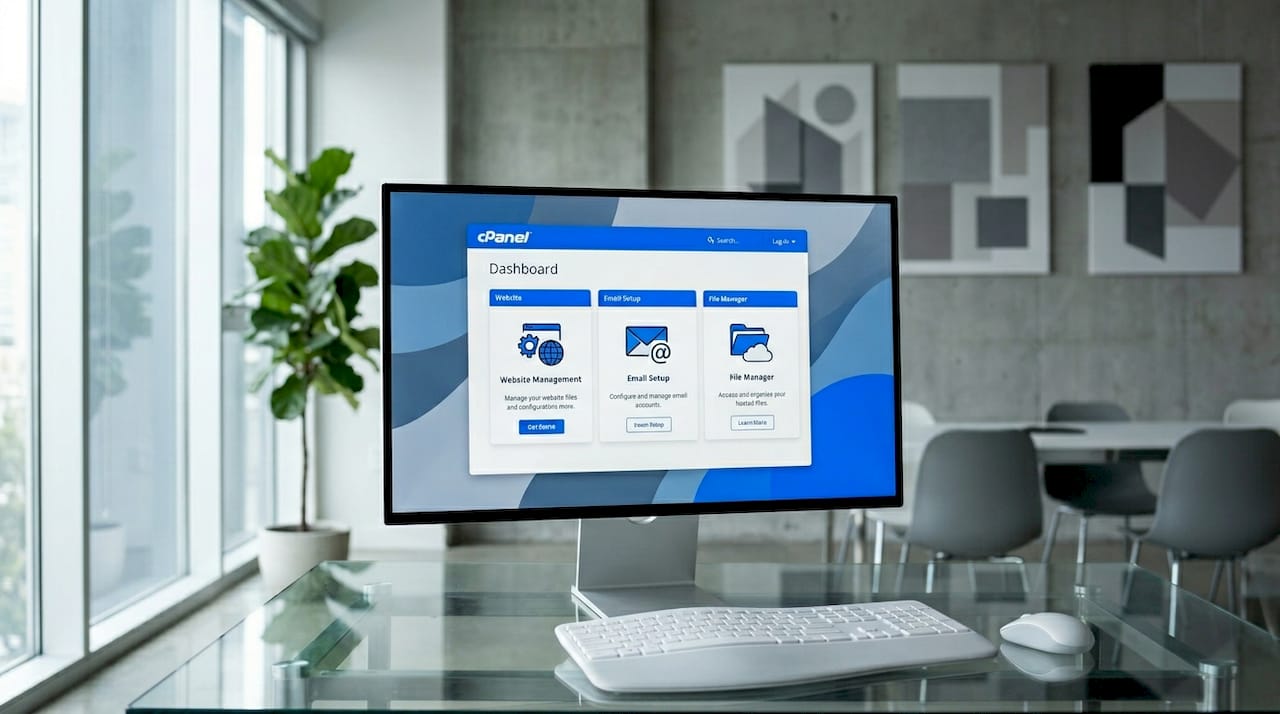
cPanel also works alongside Web Host Manager (WHM). cPanel manages individual accounts, while WHM handles server-wide administration. If you are a small business owner on a shared plan, you only see cPanel. Your hosting provider uses WHM behind the scenes to manage the server itself.
Core cPanel features every website owner should know
cPanel includes tools for file management, database creation, email setup, and domain management all accessible from one dashboard. Here is what each of those areas actually covers:
- File Manager: Upload, edit, move, and delete website files directly in your browser. No FTP client required, though cPanel also supports FTP access if you prefer a desktop tool like FileZilla.
- MySQL databases: Create databases, assign users, and set permissions through a guided wizard. phpMyAdmin is built in for direct database editing.
- Email accounts: Create professional email addresses tied to your domain (you@yourbusiness.com), set up forwarders, configure spam filters, and access webmail through Roundcube or Horde.
- DNS and domain management: The Zone Editor lets you manage domains and DNS records directly inside cPanel, removing the need to log into a separate registrar dashboard for most changes.
- One-click app installers: Softaculous, the most common installer bundled with cPanel, lets you deploy WordPress, Joomla, Magento, and dozens of other applications in under two minutes.
- Backups: The Backup Wizard creates full or partial backups of your site files, databases, and email. You can download them locally or store them on a remote destination.
- SSL management: AutoSSL, cPanel's built-in certificate tool, provisions and renews free Let's Encrypt SSL certificates automatically.
Pro Tip: Use the Softaculous staging feature to test plugin updates or theme changes on a copy of your WordPress site before pushing them live. It takes three clicks and can save you from a broken production site.
How does cPanel compare to other hosting control panels?
The three panels you will encounter most often are cPanel, Plesk, and CyberPanel. Each targets a slightly different user and server environment.
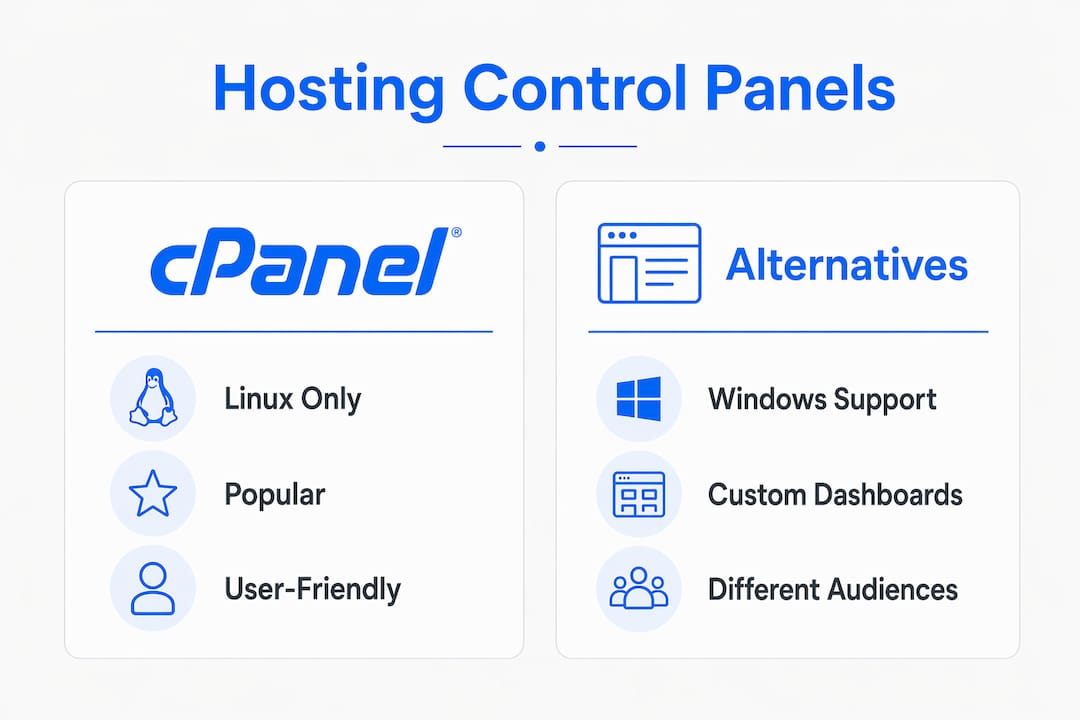
| Feature | cPanel | Plesk | CyberPanel |
|---|---|---|---|
| Operating system | Linux only | Linux and Windows | Linux only |
| User interface | Familiar, icon-based | Modern, menu-driven | Minimal, developer-focused |
| One-click WordPress | Softaculous | WordPress Toolkit | OpenLiteSpeed integration |
| Licensing model | Paid (per account) | Paid (per server/tier) | Free and open source |
| Learning curve | Low for beginners | Low to moderate | Moderate |
| Security surface | Broad, multi-service | Broad | Narrower by default |
cPanel's licensing cost has increased in recent years, influencing hosting provider pricing and, by extension, what you pay per month. That cost increase is one reason some providers have moved toward CyberPanel, which is open source and free. For you as an end user, this mostly shows up as price differences between hosting plans rather than anything you manage directly.
CyberPanel pairs natively with LiteSpeed and OpenLiteSpeed web servers, which deliver faster page loads for WordPress sites compared to Apache. cPanel works with Apache by default, though LiteSpeed can be added. The trade-off is that cPanel environments require custom monitoring solutions and careful hardening to ensure stability and security, while CyberPanel's smaller feature set means fewer services to monitor.
Plesk is the strongest alternative if you need Windows server support or manage both Linux and Windows environments. For most small business owners on Linux shared hosting, cPanel remains the most familiar and widely documented option, which means more tutorials, more community support, and faster troubleshooting.
Pro Tip: If your hosting provider offers a choice between cPanel and a custom dashboard, pick cPanel. The volume of YouTube tutorials, community forums, and third-party documentation for cPanel is unmatched, and that matters when something breaks at 11 PM.
How to use cPanel for common website management tasks
Getting started with cPanel follows a predictable workflow. Here are the core tasks you will perform most often, in the order most users encounter them:
- Log in to cPanel. Your hosting provider sends a welcome email with your cPanel login URL, typically at yourdomain.com:2083 or through a hosting account dashboard. Enter your username and password to reach the main interface.
- Orient yourself on the dashboard. cPanel groups tools into sections: Files, Databases, Email, Domains, Security, and Software. Spend five minutes clicking through each section before you start making changes.
- Upload your website files. Open File Manager, navigate to the public_html folder, and upload your site files. If you are installing WordPress, skip this step and use Softaculous instead.
- Install WordPress (or another CMS). Go to the Software section, open Softaculous, select WordPress, and fill in your site name, admin username, and password. The installer handles the rest in about 90 seconds.
- Create a database. If your application needs a database that Softaculous did not create automatically, use MySQL Databases to create one, add a user, and assign full privileges.
- Set up your email. Go to the Email Accounts section, click Create, and enter the address and password. Your new inbox is live immediately and accessible via webmail or any email client using the IMAP/SMTP settings cPanel displays.
- Configure DNS records. Open the Zone Editor under Domains. Add or edit A records, CNAME records, MX records, and TXT records from here. For a deeper look at how DNS works, the DNS management guide from Insave covers the full record types and their purposes.
- Run a backup. Go to Backup Wizard, choose Full Backup, and download the archive to your local machine. Do this before any major change to your site.
The entire workflow above requires zero command-line knowledge. That is the core value proposition of cPanel for non-technical users.
cPanel security: what small business owners need to know
Security is where cPanel requires more attention than its friendly interface suggests. Shared hosting environments treat users as unprivileged tenants, and the security model depends entirely on proper isolation between accounts. When that isolation fails, the consequences affect every account on the server, not just yours.
In May 2026, a critical vulnerability was disclosed: CVE-2026-48172 was found in the LiteSpeed cPanel plugin, allowing privilege escalation to root access via an unprivileged function. Root access means full control of the entire server. Every account hosted on that server was at risk until the patch was applied. This is not a theoretical edge case. It is a real example of why plugin hygiene matters as much as your own password security.
Hardening a cPanel server is not a matter of flipping a security toggle. It requires auditing and selectively disabling default services to reduce attack surface vectors, and that work never fully stops.
Here are the security practices every cPanel user should follow:
- Enable two-factor authentication (2FA). cPanel supports Google Authenticator and Authy natively. Turn it on before you do anything else.
- Use strong, unique passwords. cPanel's built-in password generator creates high-entropy passwords. Use it for every account, database user, and email address you create.
- Keep plugins and applications updated. Softaculous sends update notifications for WordPress and other installed apps. Apply them promptly. The LiteSpeed vulnerability above was a plugin issue, not a core cPanel flaw.
- Limit cPanel access by IP. If your hosting plan supports IP whitelisting for cPanel login, restrict access to your office or home IP address.
- Audit installed applications. Remove WordPress installations, databases, and email accounts you no longer use. Every unused service is an attack surface.
- Monitor your error logs. cPanel's Errors tool under Logs shows recent PHP and server errors. Unusual spikes often signal a compromised file or brute-force attempt.
For WordPress-specific hardening that works alongside cPanel's security tools, the WordPress security guide from Insave covers the application-layer steps that cPanel alone cannot handle.
Key takeaways
cPanel is the most practical entry point into web hosting management for non-technical users, but its security requires active maintenance, not passive trust.
| Point | Details |
|---|---|
| cPanel definition | cPanel is Linux-based control panel software, not a hosting type, bundled with shared and VPS plans. |
| Core feature set | File management, MySQL databases, email accounts, DNS editing, and one-click WordPress installs are all built in. |
| Comparison to alternatives | Plesk supports Windows; CyberPanel is free and LiteSpeed-native; cPanel wins on documentation and ecosystem. |
| Security responsibility | Plugin vulnerabilities like CVE-2026-48172 show that shared hosting security depends on patching and active auditing. |
| Best practice starting point | Enable 2FA, update all installed apps, and run a full backup before making any significant hosting change. |
Why cPanel still earns its place in small business hosting
I have worked with cPanel environments across dozens of hosting setups, from single-page business sites to multi-domain small business accounts with active e-commerce. My honest view is that cPanel's reputation as the "safe default" is mostly deserved, but it comes with a condition most beginners do not hear upfront.
The interface is genuinely good. The learning curve for basic tasks is shallow enough that a first-time website owner can be operational in an afternoon. The Softaculous installer alone removes what used to be a 45-minute WordPress setup process and turns it into two minutes. That matters for someone running a business who does not want to spend a weekend on server configuration.
Where I think people get tripped up is the assumption that cPanel handles security for them. It does not. The CVE-2026-48172 disclosure in 2026 was a sharp reminder that shared hosting isolation is software-enforced, not hardware-enforced. Your server neighbors are real, and a vulnerable plugin on their account can become your problem. The tools to protect yourself are all inside cPanel, but you have to use them deliberately.
My advice: if you are choosing a hosting plan and cPanel is included, that is a genuine benefit worth having. If a provider offers a proprietary dashboard instead, ask specifically what one-click WordPress management, backup tools, and DNS editing look like before committing. cPanel's value is partly the software and partly the decade of community documentation behind it.
— Ihor
Get cPanel-powered hosting with Insave
Insave includes cPanel with its shared hosting plans, giving you full access to file management, email setup, DNS editing, and one-click WordPress installation from a single dashboard. Every plan comes with a free SSL certificate, 99.9% uptime, and free CDN integration powered by LiteSpeed technology. If WordPress is your platform, Insave's WordPress hosting adds staging tools, managed security features, and optimized server configurations on top of the standard cPanel toolkit. Managing your website should not require a technical background. Explore Insave hosting plans and get your site running today.
FAQ
What is cPanel in web hosting?
cPanel is a Linux-based control panel software that hosting providers install on their servers to give account holders a graphical interface for managing files, email, databases, and domains. It is bundled with most shared hosting plans and works on VPS and dedicated servers as well.
Is cPanel the same as my hosting account?
No. cPanel is software that runs on your hosting server, not the hosting service itself. Your hosting provider supplies the server; cPanel is the management layer that lets you control what is on it.
How do I log in to cPanel?
Your hosting provider sends cPanel login credentials in your welcome email. The login URL is typically your domain followed by :2083, or you can access it through your hosting account's client portal.
Is cPanel secure for small business websites?
cPanel includes security tools like AutoSSL, two-factor authentication, and IP blocking, but security depends on how actively you use them. The 2026 LiteSpeed plugin vulnerability (CVE-2026-48172) demonstrated that keeping plugins and applications updated is non-negotiable for any cPanel-hosted site.
What is the difference between cPanel and WHM?
cPanel manages a single hosting account, giving the website owner control over their files, email, and databases. WHM (Web Host Manager) manages the entire server and is used by hosting providers or resellers who oversee multiple cPanel accounts.