
A virtual cloud server is a remotely hosted, virtualized server instance you can create, resize, and delete on demand. Before you read another word, do three things: pick a CPU/RAM profile that matches your workload, choose a US data center region close to your users, and confirm the provider's egress policy in writing.
Quick-start checklist:
- Match vCPU and RAM to your peak load, not your average load
- Choose a region within the US that satisfies any compliance requirements (PCI DSS, NIST, FTC guidelines)
- Read the outbound bandwidth policy before signing up
Pro Tip: Most surprise bills on cloud servers come from outbound bandwidth charges, not compute. Ask for the egress rate per GB and the monthly cap before you commit to any plan.
inSave Hosting backs its cloud and VPS plans with a high-availability uptime SLA, which matters if your site or app serves US customers around the clock.
Table of Contents
- What exactly is a virtual cloud server, and how does it differ from a VPS?
- How virtual cloud servers are built and run
- What types of cloud server deployments should you consider?
- Which specs actually matter when you evaluate a plan?
- What are the real benefits and trade-offs of cloud servers?
- How much does a virtual cloud server cost?
- How to choose the right virtual cloud server plan
- How to provision and secure a virtual cloud server step by step
- What workloads fit which starter configurations?
- Why cloud hosting helps SMBs: evidence and what inSave Hosting delivers
- Key Takeaways
- The case for managed cloud over DIY virtual servers
- inSave Hosting cloud and VPS plans: a ready-made path to get started
- Useful sources and further reading
- FAQ
What exactly is a virtual cloud server, and how does it differ from a VPS?
A virtual cloud server is a software-defined server instance created by a hypervisor that carves a physical machine into isolated virtual environments, each with its own vCPU, RAM, storage, and network interface. The cloud provider owns and maintains all the physical hardware; you get API or control-panel access to a server that behaves exactly like a dedicated box.
The difference between a cloud VM, a traditional VPS, and a physical server comes down to architecture:
- Cloud VM: runs on a distributed pool of physical hosts; can be live-migrated to a healthy host if hardware fails
- Traditional VPS: lives on a single physical server; if that machine fails, your instance goes down with it
- Dedicated server: one physical machine reserved entirely for you; maximum customization, no shared resources, higher cost
"Cloud servers are virtual instances created and managed by cloud providers; they allow organizations to spin up servers anywhere in the provider's footprint without buying physical hardware." — AWS
The practical upshot: a cloud VM gives you the isolation of a VPS with the fault tolerance of a distributed system. You also get on-demand snapshots, resizing, and the ability to clone an instance in minutes. A VPS can do some of that, but it is fundamentally constrained by the single physical host it sits on.
Core capabilities a virtual cloud server exposes:
- Configurable vCPU count and type (shared or dedicated)
- RAM allocation you can resize without a full rebuild
- Block storage (NVMe, SSD, or HDD) attached or detached at will
- Public and private networking with configurable firewall rules
- Snapshot and image creation for backups or cloning
How virtual cloud servers are built and run
Cloud providers draw compute resources from large physical pools and deliver slices of that capacity to your instance on demand. A hypervisor, such as KVM or VMware ESXi, sits between the physical hardware and your VM, managing CPU scheduling, memory allocation, and I/O.

When you launch an instance, the provider copies a VM image (a pre-built OS template) to the allocated storage, boots it, and assigns networking. That image can be a stock Linux or Windows build, or a custom snapshot you created earlier. The whole process takes seconds to minutes.
Key technical concepts worth knowing:
- Hypervisor: the software layer that creates and manages VMs on a physical host
- VM image / snapshot: a point-in-time copy of a disk that can be used to launch new instances or restore a broken one
- Live migration: moving a running VM from one physical host to another without downtime, a capability distributed cloud architectures enable that single-machine VPS setups cannot
- Resource pool: the aggregate CPU, RAM, and storage across many physical servers that the cloud scheduler draws from
- Egress vs ingress: outbound traffic (egress) is usually metered and billed; inbound traffic (ingress) is typically free
Pro Tip: Set CPU and memory utilization alerts at 70% of your provisioned capacity. A "noisy neighbor" on a shared-CPU plan can spike your latency before you notice it in your application logs. Monitoring tools like Datadog, Prometheus, or even the provider's built-in metrics dashboard catch this early.
What types of cloud server deployments should you consider?
The right deployment model depends on your workload sensitivity, budget, and compliance requirements. Here is a plain-language breakdown:
Public cloud VMs are the default for most SMBs. A third-party provider manages all hardware and the hypervisor layer; you manage everything from the OS up. Cost is low, scaling is fast, and you share physical infrastructure with other tenants.
Private cloud means the physical hardware is dedicated to your organization, either on-premises or hosted. You get stronger isolation and easier compliance documentation, but you pay for capacity whether you use it or not.
Hybrid cloud combines both. Sensitive workloads stay on private infrastructure; burst capacity or less-sensitive apps run on public cloud VMs.
Managed vs unmanaged:
- Unmanaged: you handle OS updates, security patches, software installs, and monitoring
- Managed: the provider handles patching, security, and often backups; you focus on your application
Shared CPU vs dedicated CPU:
- Shared-CPU plans cost less and suit low-traffic sites, dev/test environments, and lightweight apps
- Dedicated-CPU plans guarantee consistent compute and suit databases, CI/CD runners, and anything CPU-intensive
Quick decision flow:
- Does your workload handle sensitive data or require HIPAA/PCI compliance? → Private or managed cloud
- Do you need burst capacity but want to keep costs predictable? → Hybrid or public cloud with reserved pricing
- Are you running a WordPress site, a small app, or a dev environment? → Public cloud VM or managed VPS
- Do you need consistent CPU performance (database, video encoding)? → Dedicated-CPU plan
- Do you want the provider to handle patching and backups? → Managed plan
Which specs actually matter when you evaluate a plan?
Providers list dozens of numbers. These are the ones that move the needle on performance and cost:
| Spec | What it affects | Practical note |
|---|---|---|
| vCPU (shared vs dedicated) | Consistent throughput | Shared vCPU can burst but throttles under load |
| RAM (GB) | App memory, DB caching | Size for peak, not average; RAM is cheap to add |
| Storage type (NVMe/SSD/HDD) | Read/write speed, IOPS | NVMe is fastest; HDD suits cold storage only |
| IOPS | Database and file I/O speed | Ask for guaranteed IOPS, not burst IOPS |
| Outbound bandwidth (GB/mo) | Monthly bill | Egress policies vary widely; some bundle allowances |
| Snapshot frequency | Recovery point objective | Daily automated snapshots are the minimum |
| Firewall type | Security posture | Hardware firewall beats software-only |
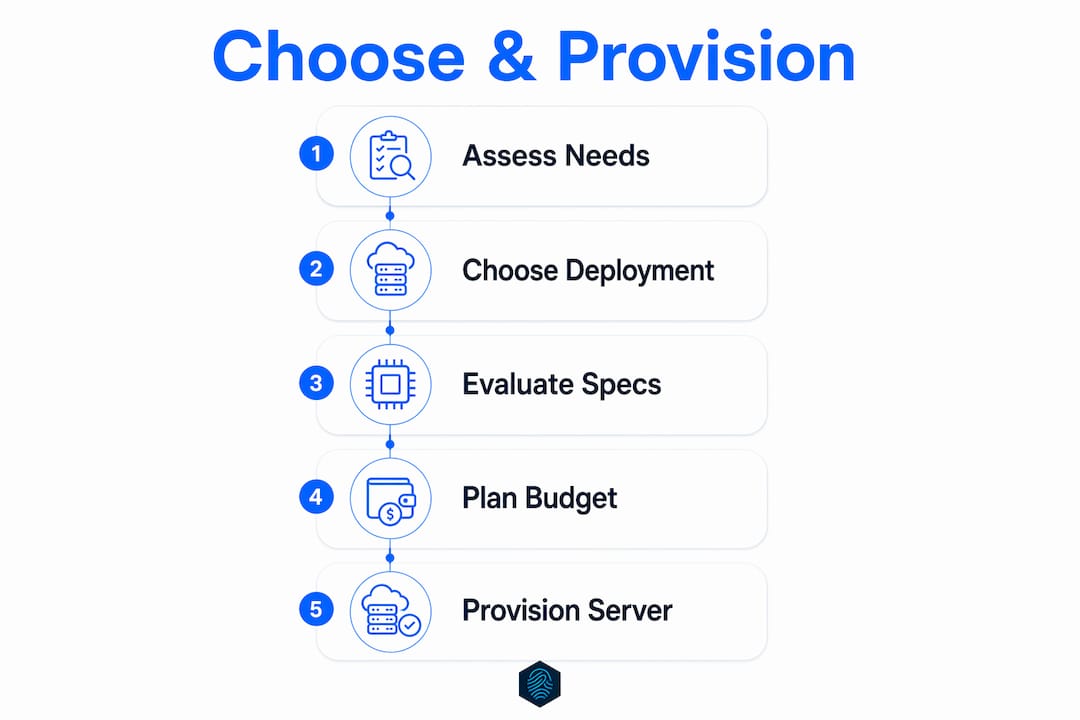
Storage type is the most underrated spec. An NVMe-backed instance running a MySQL database will outperform an HDD-backed instance with twice the RAM. IOPS matter more than raw disk size for anything database-driven.
Additional features to check:
- DDoS protection (hardware-level vs software mitigation)
- End-to-end encryption at rest and in transit
- One-click scaling or API-driven resize without downtime
- Backup retention period (7 days minimum; 30 days preferred)
- IPv6 support and private networking options
For a deeper look at how web hosting scalability affects real-world performance, the tradeoffs between storage tiers and IOPS become even clearer under sustained load.
What are the real benefits and trade-offs of cloud servers?
Cloud hosting's primary advantage is flexibility. Cloud models draw resources from a distributed pool to handle traffic surges that would take down a single-server setup. That is the headline benefit, but it is not the only one.
Benefits:
- Scale up or down in minutes without hardware procurement
- Pay only for what you use (hourly or per-second billing on most public clouds)
- Built-in redundancy through distributed architecture reduces single points of failure
- Snapshot-based disaster recovery is faster than rebuilding from bare metal
- Remote access from anywhere supports distributed teams
Trade-offs:
- Cost variability: consumption billing can spike unexpectedly if traffic surges or a misconfigured job runs overnight
- Vendor lock-in: proprietary APIs, storage formats, and networking configs make migration painful
- Noisy neighbor: on shared-CPU plans, a heavy tenant on the same physical host can degrade your performance
- Security responsibility: in an unmanaged setup, you own OS hardening, patching, and firewall rules
When benefits clearly outweigh trade-offs:
- Traffic is unpredictable or seasonal (eCommerce, event sites)
- You need to spin up dev/test environments quickly and tear them down after
- Your team lacks the budget or staff for physical hardware management
When trade-offs bite harder:
- You run a CPU-intensive workload 24/7 on a shared plan (reserved or dedicated is cheaper long-term)
- You store regulated data and need a clear compliance audit trail (private cloud or a managed provider with documented controls is safer)
For a side-by-side look at how cloud compares to shared hosting for SMBs, the cost and reliability gap becomes obvious once traffic grows past a few thousand daily visitors.
How much does a virtual cloud server cost?
Most providers bill by the hour or by the second, with a monthly cap that kicks in so you never pay more than the flat monthly rate. Reserved instances (committing to 1–3 years) typically cut that rate significantly. Spot or preemptible instances offer the lowest prices but can be terminated with little notice.
Primary cost drivers:
- vCPU count and type (shared vs dedicated)
- RAM allocation
- Storage size and type (NVMe costs more than HDD)
- Outbound bandwidth beyond the bundled allowance
- Snapshot storage (usually billed per GB/month)
- Additional IP addresses
- Managed services add-on (monitoring, patching, support tier)
Representative starter configurations (pattern-based, not vendor-specific):
| Configuration | Typical use case | Relative monthly cost |
|---|---|---|
| 1 vCPU / 1 GB RAM / 25 GB SSD | Personal site, dev sandbox | Low |
| 2 vCPU / 4 GB RAM / 80 GB SSD | Small business site, light app | Moderate |
| 4 vCPU / 8 GB RAM / 160 GB NVMe | eCommerce, small database | Higher |
| 8 vCPU / 16 GB RAM / — | CI/CD runner, mid-size app | Significantly higher |
Pro Tip: Egress is the billing trap most buyers miss. Some developer-focused providers bundle a generous outbound transfer allowance into the monthly price; others charge per GB from the first byte. Run a rough estimate of your monthly outbound traffic before comparing sticker prices.
How to choose the right virtual cloud server plan
Match your resources to your workload, then verify the SLA, support tier, egress policy, and backup options before you sign anything.
Numbered checklist:
- Define your workload: CPU-bound (dedicated vCPU), memory-bound (more RAM), or I/O-bound (NVMe + high IOPS)?
- Set a performance baseline: what response time and uptime does your application require? 99.9% SLA means roughly 8.7 hours of downtime per year.
- Check backup and snapshot options: automated daily snapshots? How long is retention? Can you restore with one click?
- Confirm scaling path: can you resize without rebuilding the instance? Is it API-driven or manual?
- Pick a US region: choose a data center close to your users and confirm it meets your compliance requirements (PCI DSS, NIST 800-53, FTC data security guidance).
- Read the egress policy: get the per-GB rate and the monthly cap in writing.
- Evaluate support: what is the response time SLA? Is 24/7 support included or an add-on?
- Decide managed vs unmanaged: do you have the staff to handle OS patching and security hardening?
Questions to ask any provider:
- What is your guaranteed uptime SLA, and what is the compensation if you miss it?
- How is outbound bandwidth billed, and what happens when I exceed the cap?
- Are backups automated, and how long is the retention window?
- Can I resize (CPU/RAM) without downtime?
- Which US data centers do you operate, and do you have SOC 2 or PCI DSS certification?
Red flags:
- No published SLA or a vague "best effort" uptime promise
- Egress policy buried in fine print or not documented at all
- No automated backup option (manual-only is a risk)
- Support only via ticket with no stated response time
PCMag's cloud hosting research consistently flags SLA, backup options, scaling paths, data center regions, and egress costs as the five decision levers that matter most for SMBs.

How to provision and secure a virtual cloud server step by step
Choose your plan, pick a region, select an OS image, add SSH keys, configure the firewall, enable backups, and set up monitoring. That sequence covers 90% of what can go wrong in the first week.
Step-by-step provisioning:
- Choose a plan that matches your workload profile (vCPU, RAM, storage type)
- Select a US region closest to your primary users
- Pick an OS image (Ubuntu LTS and Debian are the most widely supported; use a provider-vetted image, not a random community one)
- Add SSH keys before the instance launches; disable password authentication immediately after first login
- Configure the firewall to allow only the ports your application needs (22 for SSH, 80/443 for web, nothing else by default)
- Enable automated backups and confirm the retention period in the control panel
- Install a monitoring agent (Datadog, Prometheus + Grafana, or the provider's native tool) and set CPU, memory, and disk alerts
- Enable automatic OS updates for security patches; schedule maintenance windows for major updates
- Test a restore from your first snapshot before you go live
Cloud servers can be provisioned and managed via APIs, control panels, and CLI tooling; most providers also offer one-click OS and application images that cut setup time from hours to minutes.
Pro Tip: Test your backup restore before you need it. Spin up a second instance from your latest snapshot, verify the application runs correctly, then delete it. A backup you have never tested is not a backup.
What workloads fit which starter configurations?
- Low-traffic website or blog: 1–2 vCPU / 1–2 GB RAM / 25–50 GB SSD. Scale trigger: page load time exceeds 2 seconds or CPU sustains above 60%.
- eCommerce store (WooCommerce, Magento): 2–4 vCPU / 4–8 GB RAM / 80 GB NVMe. Database queries are the bottleneck; NVMe storage matters more than extra RAM here.
- Small relational database (MySQL, PostgreSQL): 4 vCPU / 8 GB RAM / 160 GB NVMe with dedicated CPU. Shared vCPU causes unpredictable query latency under concurrent load.
- CI/CD runner or build server: 4–8 vCPU / 8–16 GB RAM / 100 GB SSD. These are bursty by nature; hourly billing suits them well since they often run for minutes, not months.
- Game server (Minecraft, Valheim, small multiplayer): 4 vCPU / 8 GB RAM / 50 GB SSD, low-latency US region. Latency to players matters more than raw throughput; pick the region closest to your player base.
- Dev/test environment: 1–2 vCPU / 2 GB RAM / 40 GB SSD. Spin up on demand, snapshot before major changes, tear down when idle to avoid paying for unused capacity.
For WordPress-heavy workloads specifically, advanced hosting technologies like LiteSpeed, LSCache, and HTTP/2 can cut server resource requirements significantly compared to a default Apache stack.
Why cloud hosting helps SMBs: evidence and what inSave Hosting delivers
Cloud hosting gives SMBs better uptime and faster scaling than traditional shared hosting, and the gap widens as traffic grows. Flexibility is the most-cited reason to choose cloud servers: they let applications absorb traffic surges that would overwhelm a single-server setup.
For SMBs specifically, the operational benefits are concrete:
- 99.9% uptime SLA from inSave Hosting translates to a maximum of roughly 8.7 hours of unplanned downtime per year
- Free SSL certificates remove a common compliance gap for US businesses handling customer data
- Daily automated backups reduce recovery time after a breach or accidental deletion
- Free migration means switching from a legacy host does not require a developer or a weekend of downtime
- One-click WordPress installs and staging tools cut deployment time for the most common SMB CMS
The cloud hosting benefits for SMBs extend beyond raw uptime: lower operational overhead, predictable pricing tiers, and managed security features all reduce the risk that a small team carries when running a public-facing site.
Key Takeaways
A virtual cloud server runs on a distributed pool of physical hardware, giving you on-demand compute with built-in fault tolerance that a single-machine VPS cannot match.
| Point | Details |
|---|---|
| Match resources to workload | Size vCPU and RAM for peak load; use NVMe storage for any database-driven workload. |
| Egress is the hidden cost | Read the outbound bandwidth policy before comparing prices; bundled allowances save money on public-facing sites. |
| Secure by default | Disable password logins, restrict firewall rules to needed ports, and enable automated backups from day one. |
| SLA and support matter | A 99.9% uptime SLA means minimal unplanned downtime per year; confirm compensation terms before signing. |
| inSave Hosting as a managed route | inSave Hosting's cloud and VPS plans include 99.9% uptime, free SSL, daily backups, and free migration for SMBs. |
The case for managed cloud over DIY virtual servers
Most SMB owners underestimate how much time the "unmanaged" part of an unmanaged VPS actually costs. Patching, monitoring, firewall tuning, and incident response are not one-time tasks. They are ongoing, and they compound. A security misconfiguration on an unpatched server is not a hypothetical risk for a small business; it is a when, not an if.
The conventional wisdom says self-managed servers give you more control and cost less. That is true on a per-instance basis. What it ignores is the fully loaded cost: the hours spent on OS updates, the 2 AM alerts, the recovery time when something breaks. For most SMBs, that hidden labor cost exceeds the price difference between unmanaged and managed hosting within the first quarter.
Managed cloud hosting makes sense for any business where the owner or a small team is also the de facto sysadmin. The specific features that shift the math: automated security patching, daily backups with one-click restore, staging environments for safe updates, and a support team that picks up the phone. Those are not luxury features. They are the difference between a site that runs and one that becomes a liability.
Self-managed virtual servers still make sense for developers who want full control, teams with dedicated DevOps staff, or workloads with very specific software stacks that a managed environment cannot accommodate. For everyone else, the managed route is the smarter starting point.
inSave Hosting cloud and VPS plans: a ready-made path to get started
Skipping the infrastructure setup entirely is a legitimate choice for most SMBs. inSave Hosting's cloud server plans are built for exactly that: turnkey virtual server solutions with 99.9% uptime, free SSL, daily backups, and one-click WordPress setup included from day one.

Here is how inSave Hosting's plans map to the selection checklist covered above:
| Feature | inSave Hosting offering |
|---|---|
| Uptime SLA | 99.9% guaranteed |
| SSL certificate | Free, included |
| Automated backups | Daily, included |
| Free migration | Yes, included |
| WordPress tools | One-click install, staging, managed security |
| Firewall and DDoS protection | Included |
| Scaling | Available across plan tiers |
Free migration means you can move an existing site without downtime or a developer. The staging environment lets you test updates before pushing them live, which alone prevents the most common cause of SMB site outages: a plugin update gone wrong.
Ready to skip the setup headaches? Browse inSave Hosting's plans and get your cloud server running today, with free SSL and daily backups already included.
Useful sources and further reading
- Microsoft Azure: What is a Cloud Server? — Vendor-neutral explainer covering cloud server types, hypervisors, and deployment models. Good starting point for buyers new to the topic.
- AWS: What is a Cloud Server? — Covers provisioning, API management, and VM image usage from one of the largest cloud providers. Useful for understanding the provisioning workflow.
- Google Cloud: What is a Virtual Private Server? — Explains the architectural difference between a VPS and a true cloud VM, including live migration and fault tolerance.
- PCMag: The Best Cloud Web Hosting Services — Independent testing and buyer guidance; covers SLA, egress, backups, and scaling as the key decision levers for SMBs.
- DigitalOcean: VPS Hosting — Practical breakdown of shared vs dedicated CPU, egress policies, and the VPS-vs-cloud-VM terminology overlap that trips up most buyers.
FAQ
What is a virtual cloud server?
A virtual cloud server is a software-defined server instance hosted on a provider's distributed physical infrastructure, giving you on-demand access to vCPU, RAM, and storage over the internet. Unlike a traditional VPS tied to one physical machine, a cloud VM can be live-migrated between hosts for higher reliability.
Can I run a VM for free?
Most major cloud providers offer a free tier or a time-limited free trial that includes a small VM instance. Free tiers typically cap resources at 1 vCPU and 1 GB RAM and may restrict the region or OS options; they are suitable for testing but not production workloads.
How do I get a VPS or cloud server?
Choose a provider, select a plan that matches your workload (vCPU, RAM, storage type), pick a US data center region, add SSH keys, and launch the instance from the provider's control panel or API. The whole process takes seconds to minutes with most managed providers, including inSave Hosting.
How much does a virtual server cost?
Entry-level configurations (1 vCPU / 1 GB RAM / 25 GB SSD) typically fall in the low end of the monthly range; mid-tier plans (4 vCPU / 8 GB RAM / NVMe storage) cost more. The final bill depends heavily on outbound bandwidth usage, snapshot storage, and whether you add managed services.