A POP3 account downloads email from the server to one device and, by default, removes it from the server once downloaded. Use POP3 when you need a single-device archive, a one-time bulk migration, or reliable access over a slow or metered connection. For anything involving two or more devices, IMAP is the better fit.
The core behavior is simple: POP3 is one-way. Messages travel from server to client, and that's the end of the relationship. There's no folder sync, no read-state sharing, and no way for a second device to know what happened on the first.
Quick use cases where POP3 makes sense:
- You want a permanent local archive on one machine, independent of the server
- You're migrating a mailbox and need a one-time full download
- You're on satellite, metered, or high-latency internet and want offline access without constant syncing
Key Takeaways
POP3 is a download-first protocol best suited for single-device archival; IMAP is the right choice for almost every multi-device workflow.
| Point | Details |
|---|---|
| POP3 downloads, IMAP syncs | POP3 pulls mail to one device; IMAP keeps messages on the server and syncs across all devices. |
| Use port 995 with SSL | Port 995 with implicit TLS is the modern standard; never use port 110 without STARTTLS. |
| Check "leave a copy" first | Enable server retention before your first sync to prevent accidental mass deletion. |
| Back up local mail | POP3 mail lives on your device; a regular backup of your client's data folder prevents permanent loss. |
| inSave Hosting for hosted email | inSave Hosting provides POP3- and IMAP-ready hosted email with 99.9% uptime and free SSL included. |
Table of Contents
- What is a POP3 account and how does it actually work?
- POP3 versus IMAP: which one should you use?
- POP3 server settings you need to enter
- How to set up a POP3 account in common email clients
- How to tell if your account is already set up as POP3 or IMAP
- Common POP3 problems and how to fix them
- Security, backup practices, and the real limits of POP3
- POP3 in 2026: a practical take on when it still earns its place
- inSave Hosting gives you reliable hosted email ready for POP3 or IMAP
- Sources
- FAQ
What is a POP3 account and how does it actually work?
POP3 stands for Post Office Protocol version 3. The protocol has been around since the early days of internet email, and its job has never changed: connect to the mail server, authenticate, pull down messages, and disconnect.
The command flow is straightforward. Your client sends credentials (USER/PASS), requests messages (RETR), and optionally marks them for deletion (DELE). The server executes those commands and closes the session. Nothing is written back to the server about what you read, moved, or flagged.
The delete-by-default behavior is the part that catches people off guard. Most clients remove messages from the server the moment they download them. That means if you sync on your laptop, those messages are gone from the server. Open webmail an hour later and the inbox looks empty.
The fix is a single checkbox: "Leave a copy on server." Check it before your first sync. According to POP3 configuration best practices, many clients also let you set a retention window, such as "leave copies for several days," which gives you a safety net without filling the server indefinitely.
Key behaviors to know before you configure:
- POP3 downloads to one device only; other devices won't see those messages unless you leave copies on the server
- Read/unread status is local, not synced
- Sent items, drafts, and folders are not synced to the server
- Webmail always shows server-side mail; your email app's protocol determines what stays there
Pro Tip: Before your very first sync on a new POP3 account, go into the account settings and enable "Leave a copy on server." Skipping this step on a large mailbox is the most common cause of accidental mass deletion.
POP3 versus IMAP: which one should you use?
The honest answer for most people in 2026: use IMAP. But POP3 still has a real place, and knowing the difference helps you choose without second-guessing.
IMAP keeps messages on the server and syncs state across every device. Read a message on your phone, and it shows as read on your laptop. Move it to a folder, and that folder appears everywhere. POP3 does none of that. It downloads and disconnects, leaving each device with its own independent copy.
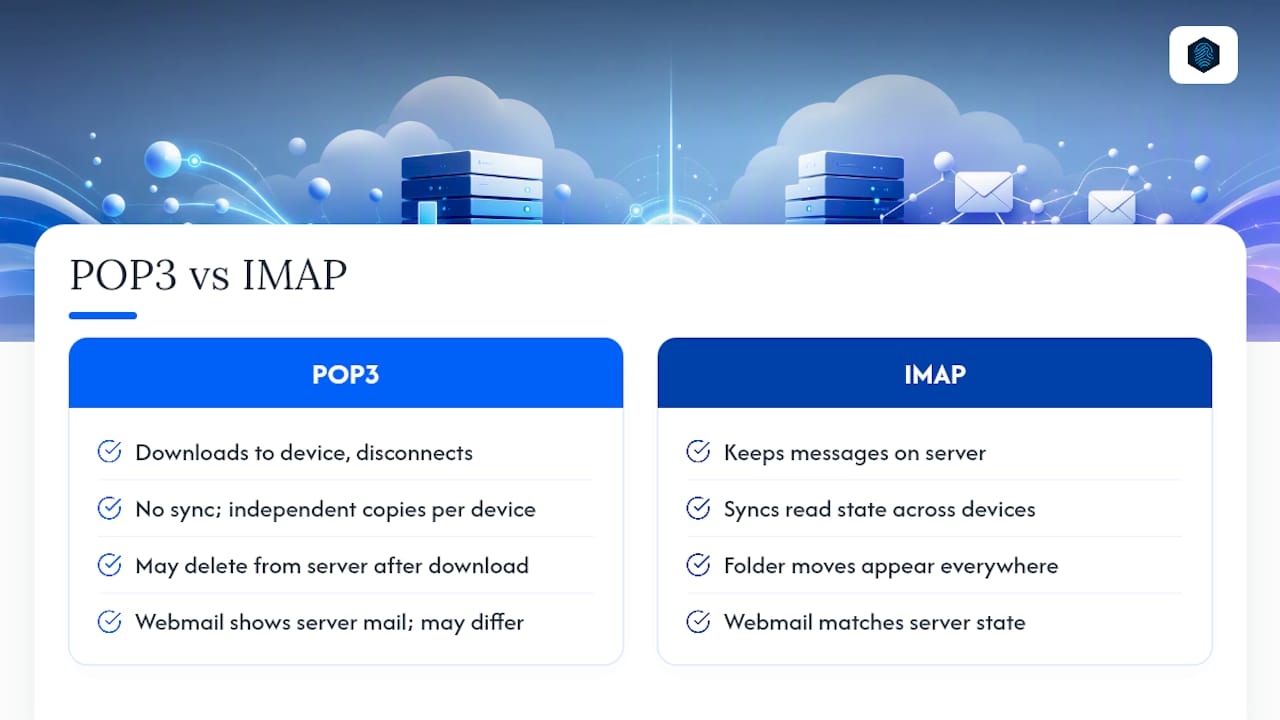
Decision rule: Multi-device sync → IMAP. Single device, local archive, or low-bandwidth connection → POP3.
One nuance worth knowing: webmail always shows server-side mail regardless of which protocol your desktop app uses. If you check Gmail in a browser and also pull it via POP3 in Outlook, the browser view reflects what's still on the server. Once Outlook downloads and deletes, those messages vanish from the browser too.
POP3 server settings you need to enter
Getting the hostname, port, and encryption right is the whole game. Everything else in the setup is just clicking through menus.
Port 995 with implicit TLS is the modern default. Port 110 with STARTTLS is the legacy fallback, acceptable only when 995 is blocked. Never use port 110 without STARTTLS — that sends credentials in plaintext.
Incoming POP3 settings
Outgoing SMTP settings
How to set up a POP3 account in common email clients
Each client below follows the same four-step logic: add account → choose manual setup → select POP3 → enter the server values from the table above. The differences are in where the menus live.
Microsoft Outlook (desktop)
- Go to File → Add Account → Manual setup or additional server types
- Select POP or IMAP, then click Next
- Choose POP3 as the account type
- Enter incoming server (port 995, SSL) and outgoing SMTP details
- Click More Settings → Advanced and confirm "Leave a copy of messages on the server" is checked if you want server retention
- Click Test Account Settings to verify
Outlook removes messages from the server by default. Always check that retention box before finishing setup.
Apple Mail (macOS)
- Open Mail → Add Account → Other Mail Account
- Enter your name, email, and password, then click Sign In
- If auto-detection fails, select POP from the account type dropdown
- Enter the incoming server hostname and port 995 with SSL
- Add the SMTP server details and click Sign In
Mozilla Thunderbird
- Go to Account Settings → Account Actions → Add Mail Account
- Enter your credentials and click Configure Manually
- Set protocol to POP3, port to 995, and connection security to SSL/TLS
- Click Done
Thunderbird downloads new messages and deletes them from the server by default. To keep copies, go to Account Settings → Server Settings and check "Leave messages on server."
iPhone (iOS Mail)
- Go to Settings → Mail → Accounts → Add Account → Other
- Tap Add Mail Account, enter your details, tap Next
- Select the POP tab at the top
- Enter incoming server (pop.yourdomain.com, port 995, SSL) and outgoing SMTP
- Tap Save
Android (Gmail app or native email)
- Open the Gmail app → Settings → Add Account → Other
- Enter your email address, tap Manual Setup
- Select Personal (POP3)
- Enter the incoming server hostname, port 995, and SSL/TLS
- Add SMTP details and tap Next to finish
Pro Tip: If your provider uses two-factor authentication, your normal password won't work for POP3. Generate an app-specific password in your provider's security settings and use that instead. Gmail, Yahoo, and Microsoft all require this step when 2FA is active.
For a broader walkthrough of email account setup across clients, including screenshots, that guide covers the full process visually.
How to tell if your account is already set up as POP3 or IMAP
The fastest check: send yourself a test email, read it in webmail, then let your desktop client sync. If the message disappears from webmail after the sync, your client is running POP3 with server deletion enabled.
For a more direct audit, here's where to look in each client:
- Outlook: File → Account Settings → Account Settings → double-click the account → the "Type" column shows POP3 or IMAP
- Apple Mail: Mail → Preferences → Accounts → select the account → the Account Information tab shows "Account Type"
- Thunderbird: Account Settings → Server Settings → "Server Type" at the top of the panel
- Gmail (web): Settings → See all settings → Forwarding and POP/IMAP tab → shows whether POP is enabled and its current status
One thing that trips people up: webmail always shows server-side mail. If you're checking email in a browser, you're not using POP3 or IMAP at all — you're using HTTP. The protocol only matters for your desktop or mobile email app.
Switching from IMAP to POP3 is not a simple toggle. Most clients require you to delete the existing IMAP account and add a new POP3 account from scratch, which triggers a full re-download of your messages.
Common POP3 problems and how to fix them
Most POP3 errors fall into a short list of causes. Work through these before assuming the server is broken.
Authentication failures
- Wrong password: if 2FA is on, use an app password, not your regular login
- OAuth2 required: some Microsoft 365 and Google Workspace accounts block basic auth entirely; check your admin settings or switch to IMAP with OAuth2
SSL/TLS errors
- Wrong port: confirm you're using 995 for SSL, not 110
- Certificate mismatch: use the provider's exact hostname (pop.gmail.com, not mail.gmail.com)
- Expired cert on a custom domain: renew the SSL certificate on your hosting account
Port timeouts
- Port 995 blocked by your ISP or firewall: try port 110 with STARTTLS as a fallback
- Reduce client check frequency; some providers rate-limit POP connections
Mail deleted on another device
- Another client is pulling the same account with "leave on server" turned off
- Check every device and client that accesses the account; disable deletion on all but one
Duplicate messages
- The server doesn't support persistent UIDs (UIDL), so the client can't tell which messages it already downloaded
- Enable UIDL tracking in your client settings, or switch to a server that supports it; legacy POP servers without persistent UIDs are the most common cause of re-downloads
Mailbox full / server rejecting connections
- If you're leaving copies on the server, the mailbox fills over time
- Log into webmail and delete old messages, or shorten the retention window in your client settings
- Incoming email filtering can reduce spam volume and slow mailbox growth
Security, backup practices, and the real limits of POP3
Encryption is non-negotiable. Always connect on port 995 with implicit TLS. Port 110 without STARTTLS sends your username and password in plaintext across the network. No legitimate provider requires plaintext POP3 in 2026.
Local backups matter more with POP3 than with IMAP. Because messages live on your device rather than the server, a hard drive failure or accidental deletion is permanent. Back up your mail client's data folder regularly. On Outlook, that's the .pst file. On Thunderbird, it's the profile folder under AppData (Windows) or ~/Library/Thunderbird (macOS).
The "leave a copy on server for N days" setting is a useful middle ground: it gives you a server-side safety net without letting the mailbox grow without limit. Set it to 14 or 30 days depending on how often you back up locally.
The real limitations in 2026:
- No server-side folder sync; folders you create in your client stay local
- Sent items are not synced; each device has its own sent folder
- Multi-device workflows break down quickly without careful "leave on server" management
- Some providers have dropped POP3 support entirely; iCloud does not support POP3 at all
- Gmail and Yahoo still support POP3 but steer users toward IMAP in their own documentation
Pro Tip: If you're using POP3 primarily for archival, consider pairing it with an IMAP account on the same address. Leave IMAP running on your phone for real-time access, and run POP3 on a dedicated archive machine with "delete from server" enabled. You get the best of both without losing messages.
For guidance on email deliverability best practices that apply regardless of protocol, that resource covers SMTP configuration and inbox placement in detail.
POP3 in 2026: a practical take on when it still earns its place
Most people reading this should use IMAP. That's not a hedge — it's the honest answer for anyone checking email on a phone, a laptop, and a tablet. IMAP keeps everything in sync without any manual effort, and every major provider supports it well.
POP3 earns its place in three specific situations: single-device archival where you want messages off the server and under your control, one-time migrations where you need to pull a full mailbox into a local client, and genuinely constrained network environments where constant IMAP syncing is impractical.
The administrative cost of POP3 is real. Leaving copies on the server means you're managing two copies of every message. Not leaving copies means one device failure wipes your history. Neither outcome is free. IMAP offloads that management to the server, which is why it became the default for good reason.
That said, dismissing POP3 entirely misses its value as a control mechanism. Some users specifically want email that lives locally and nowhere else — for privacy, for compliance, or simply because they don't trust cloud retention. For those cases, POP3 configured correctly with port 995 and a solid local backup routine is a perfectly sound choice.
inSave Hosting gives you reliable hosted email ready for POP3 or IMAP
If you need a hosted email account that works cleanly with POP3 or IMAP, inSave Hosting's email hosting plans include 99.9% uptime, free SSL certificates, and straightforward server settings you can copy directly into any email client. There's no hunting for hostnames or guessing at ports — the configuration details are consistent and documented.

inSave Hosting also supports free migration, so if you're moving an existing mailbox to a new host, the transition doesn't mean losing archived mail. Whether you're setting up a branded business address for the first time or switching from a shared ISP account, the setup process is the same: pick a plan, register or transfer your domain, and your POP3 and SMTP settings are ready to go. Check available hosting plans and get your hosted email running today.
Sources
- Read Gmail messages on other email clients using POP - Gmail Help
- The difference between IMAP and POP3 | Thunderbird Help
- POP3 Configuration: Ports, Authentication, TLS and Server Retention (2026)
FAQ
What is a POP3 account?
A POP3 account uses Post Office Protocol version 3 to download email from a mail server to a single local device, typically removing messages from the server after download. It's a one-way protocol with no folder sync or multi-device read-state sharing.
Should I use IMAP or POP3?
Use IMAP if you check email on more than one device — it keeps messages synced across all of them. POP3 is the better choice for single-device archival, one-time mailbox migrations, or low-bandwidth environments where constant syncing isn't practical.
Is Gmail IMAP or POP3?
Gmail supports both, but defaults to IMAP. To use POP3 with Gmail, you must enable it in Gmail settings under Forwarding and POP/IMAP, then connect with pop.gmail.com on port 995 with SSL.
How do I tell if my account is POP3 or IMAP?
In Outlook, go to File → Account Settings and check the Type column. In Thunderbird, open Account Settings → Server Settings and look at the Server Type field. A quick behavioral test also works: if messages disappear from webmail after your client syncs, the account is running POP3 with server deletion enabled.