
For most beginners, inSave Hosting is the right starting point. Here's why it earns that recommendation:
- Easy setup from day one: One-click WordPress installation, free SSL, and a free domain mean you go from signup to a live site without touching a config file.
- Everything included: Free migration, daily backups, LiteSpeed-powered performance, and 99.9% uptime are built into the plan, not sold as add-ons.
Ready to start? Head to inSave's WordPress hosting plans and pick the tier that matches your site size. The rest of this guide walks you through every decision along the way.
Key Takeaways
For most beginners, the best WordPress hosting is a shared or managed WordPress plan that includes one-click installation, free SSL, and automated backups from day one.
| Point | Details |
|---|---|
| Best hosting type for beginners | Start with shared or managed WordPress hosting; upgrade to VPS only when traffic or complexity demands it. |
| Must-have features | One-click WordPress installer, free SSL, automated daily backups, and 24/7 WordPress-knowledgeable support. |
| Realistic setup time | Most beginners get a working WordPress site live in under 60 minutes with a one-click installer. |
| Renewal pricing matters | Introductory rates often double at renewal; read the renewal terms before you commit to any plan. |
| inSave Hosting for beginners | inSave includes one-click install, free SSL, free migration, LiteSpeed performance, and 99.9% uptime on its WordPress and shared plans. |
Table of Contents
- What is WordPress hosting, and why does it matter?
- Which type of hosting should beginners choose?
- What features should beginners look for in a host?
- How much does WordPress hosting cost, and how long does setup take?
- How to get WordPress live in under an hour
- Moving an existing WordPress site: what are your options?
- Security and backups every beginner should set up right away
- Why inSave Hosting works well for beginners
- What beginners actually get wrong about hosting
- inSave Hosting gives beginners a real head start
- Sources
- FAQ
What is WordPress hosting, and why does it matter?
WordPress hosting is server space configured to run WordPress well. Your site's files, database, images, and code live on that server. When someone visits your URL, the server processes PHP, queries the database, and delivers the page.
Three things hosting supplies that WordPress specifically needs: storage and a MySQL or MariaDB database for your content, PHP processing (WordPress runs on PHP), and domain/DNS support plus an SSL certificate so browsers trust your site. Wordpress that WordPress performs best in a "rich hosting environment" with the right PHP version, database support, and HTTPS enabled. That's exactly why picking the right host matters before you install anything.
Which type of hosting should beginners choose?
There are four main hosting types. Knowing the difference saves you from overpaying for power you don't need or underpaying for a plan that can't handle your site.

Shared hosting puts your site on a server with many others, splitting resources. It's affordable and perfectly adequate for a new blog, portfolio, or small business site with modest traffic.
Managed WordPress hosting is shared or cloud infrastructure tuned specifically for WordPress, with automatic updates, caching, and WordPress-trained support included. It costs a bit more but removes most of the technical upkeep.
VPS and cloud hosting give you dedicated resources and better isolation. Worth considering once your site grows, but overkill for a first site.
Reseller hosting is built for agencies managing multiple client sites under separate accounts. Not a beginner option.
For a deeper look at how these types compare, the inSave guide to hosting types for WordPress breaks down the tradeoffs clearly.
The short answer: Start with shared or managed WordPress hosting. Both work well for beginners. Upgrade to VPS when your traffic or complexity demands it.
What features should beginners look for in a host?
WPBeginner's comparison and TechRadar's reviews both point to the same short list of features that separate beginner-friendly hosts from the rest. Use this checklist when you evaluate any plan:
Must-have features:
- One-click WordPress installer — no manual file uploads or database setup
- Free SSL certificate — required for HTTPS; browsers flag sites without it
- Automated daily backups — your safety net if something breaks
- Staging environment — test changes before pushing them live
- CDN and caching — faster load times without extra configuration
- PHP 8.x support — newer PHP versions run WordPress faster and more securely
- 24/7 support with WordPress knowledge — not just generic ticket queues
Questions to ask before you buy:
- What's the renewal price after the first term? (Introductory rates often double.)
- Is migration free, and does the host handle it or do you?
- How fast does support respond, and is live chat available?
Red flags to walk away from:
- No one-click WordPress installer
- Backups cost extra or aren't included at all
- Renewal pricing buried in fine print
- Support only available by email with multi-day response times
Pro Tip: Check the hosting features list for SMB WordPress sites before committing to a plan. It maps technical specs to real-world beginner needs so you know exactly what to compare.
How much does WordPress hosting cost, and how long does setup take?
Pricing varies by hosting type and what's bundled in. The table below reflects typical market ranges for U.S. beginners.
| Hosting type | Typical monthly cost | What's usually included |
|---|---|---|
| Entry shared hosting | $3–$8/month | 1-click install, SSL, email, basic backups |
| Managed WordPress | $5–$20/month | Auto-updates, staging, caching, WP support |
| VPS entry level | $10–$20/month | Dedicated resources, root access, scalability |
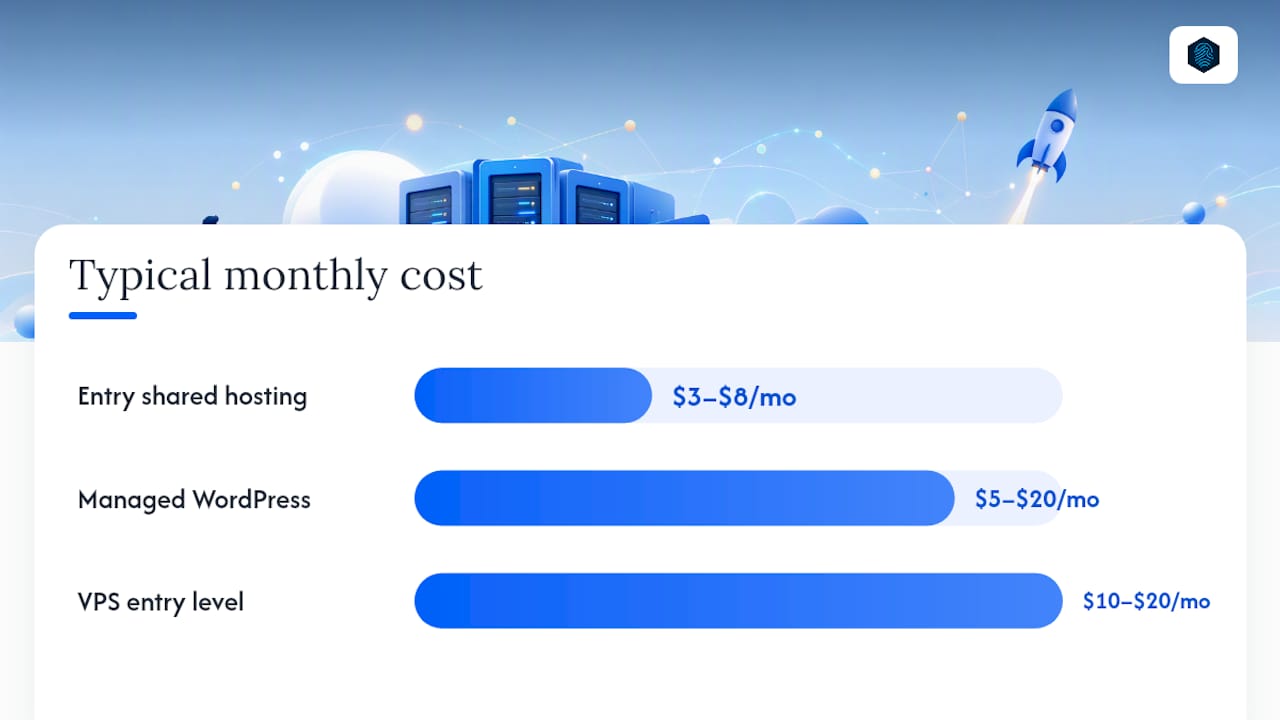
What drives cost up: higher storage limits, daily off-site backups, staging environments, and managed security. Traffic volume matters too. A site getting a few hundred visits a month runs fine on a $5 plan. A WooCommerce store with daily transactions needs more.
Realistic setup timeline:
| Step | Time needed |
|---|---|
| Register a domain | a few minutes |
| Sign up for hosting | a few minutes |
| One-click WordPress install | a few minutes |
| Choose and activate a theme | some time |
| Install starter plugins | a short while |
| Basic settings and test | a short while |
| Total | typically under one hour |
Most beginners get a working WordPress site live in under an hour when they use a host with a one-click installer and a pre-configured environment.
How to get WordPress live in under an hour
Follow these steps in order. No technical background required.
- Register your domain. Go to inSave's domain registration and search for your preferred .com, .org, or .net name. Many plans include one free year.
- Sign up for a hosting plan. Choose shared or WordPress-specific hosting based on your budget and needs. Complete checkout and note your login credentials.
- Run the one-click WordPress installer. Inside your hosting dashboard, find the WordPress installer (usually labeled "WordPress" or "Install WordPress"). Enter your site name, admin email, and a strong password. Click install. Done in under five minutes.
- Choose a theme. Inside WordPress, go to Appearance → Themes → Add New. Search for a free theme that fits your site type. Activate it.
- Install essential plugins. Add these four to cover your core needs:
- Wordfence Security — scans for malware and blocks brute-force login attempts
- UpdraftPlus — schedules automatic backups to cloud storage
- LiteSpeed Cache (or W3 Total Cache) — speeds up page load times
- Yoast SEO — guides you through on-page SEO basics for every post and page
- Configure basic settings. Set your site title and tagline under Settings → General. Set permalinks to "Post name" under Settings → Permalinks. Add a contact page with a form plugin like WPForms Lite.
- Test and publish. Check that your site loads at your domain, the padlock (SSL) appears in the browser bar, your contact form sends a test message, and your first backup has run.
For a more detailed walkthrough, the beginner website setup guide covers each step with screenshots.
Moving an existing WordPress site: what are your options?
If you already have a WordPress site somewhere else and want to switch hosts, you have two realistic paths.
Free host-assisted migration is the easiest route. Many hosts, including inSave Hosting, handle the file and database transfer for you at no charge. You provide credentials, they move everything, and you update your DNS when the transfer is confirmed. Downtime is typically minimal. The tradeoff: you're on their schedule, and complex setups may need extra coordination.

DIY migration using a plugin gives you more control. Plugins like Duplicator or All-in-One WP Migration export your entire site as a package, which you then import on the new host. It works well for straightforward sites. For sites with large databases or custom server configurations, the process gets fiddly.
| Migration path | Best for | Effort | Risk |
|---|---|---|---|
| Host-assisted (free) | Most beginners | Low | Low |
| Plugin-based (DIY) | Tech-comfortable users | Moderate | Moderate |
When to get professional help: Large WooCommerce stores with order history, WordPress Multisite networks, or setups where your domain email runs through the same server all carry real risk if DNS or database steps go wrong. In those cases, paying for managed migration is worth it.
Migration readiness checklist:
- Full backup of files and database before you start
- Login credentials for both old and new hosts
- DNS TTL lowered to 300 seconds 24 hours before the switch
- Test site confirmed working on new host before pointing DNS
Security and backups every beginner should set up right away
New WordPress sites are targeted by automated bots within hours of going live. These steps take less than 30 minutes and cover the most common attack vectors.
- Enable auto-updates for minor WordPress releases. Go to Dashboard → Updates and confirm automatic updates are on for minor versions. Major version updates you can review manually.
- Install a security plugin. Wordfence Security (free tier) adds a firewall, login protection, and malware scanning. It runs quietly in the background.
- Force HTTPS sitewide. If your host provides a free SSL certificate (inSave Hosting does), activate it and then set WordPress to use HTTPS under Settings → General. Redirect all HTTP traffic to HTTPS.
- Use a strong admin password and change the default username. "Admin" as a username is the first thing bots try. Create a new administrator account with a unique username, then delete the default "admin" account.
- Set a backup schedule and store copies off-site. Daily backups for active sites, weekly for static ones. UpdraftPlus can send backups directly to Google Drive or Dropbox so a server failure doesn't take your backup with it.
For speed and security configuration that goes a step further, the WordPress hosting tips for speed and security guide covers LiteSpeed cache tuning and additional hardening steps worth bookmarking.
Hosts like inSave Hosting handle several of these automatically: SSL is provisioned on signup, daily backups run without configuration, and managed security features monitor for threats at the server level. That's a meaningful head start for anyone who'd rather focus on their site than their server.
Why inSave Hosting works well for beginners
inSave Hosting's WordPress plans map directly to the beginner checklist covered earlier. Here's how each feature connects to a real beginner need:
- One-click WordPress installer — no manual setup; WordPress is running in minutes
- Free SSL certificate — HTTPS active from day one, no extra cost or configuration
- Free migration — bring an existing site over without paying or doing it yourself
- Staging environment — test redesigns or plugin updates before they go live
- 99.9% uptime guarantee — your site stays accessible when visitors arrive
- LiteSpeed web server with LSCache — faster page delivery than standard Apache setups, which matters for both user experience and SEO
- PHP 8 support — the current recommended PHP version for WordPress performance and security
- Free CDN integration — content served from servers closer to your visitors, reducing load times globally
The combination of LiteSpeed and LSCache is worth calling out specifically. Most entry-level shared hosts run Apache, which handles WordPress adequately. LiteSpeed handles concurrent requests more efficiently, which means your site holds up better even on a shared plan when traffic spikes.
Pro Tip: If you're moving from another host, request inSave's free migration before you cancel your old plan. Keep both active until you've confirmed the new site loads correctly and DNS has propagated fully.
Good hosting also supports the plugins and tools you'll add over time. If you plan to invest in WordPress SEO automation, a host with reliable uptime and fast response times ensures those tools run without interruption.
What beginners actually get wrong about hosting
The most common mistake isn't picking the wrong host. It's picking the right host and then overcomplicating the setup before the site is even live.
Beginners often spend days comparing plans, reading reviews, and debating between managed WordPress and shared hosting when either option would work fine for a site that doesn't exist yet. The performance difference between a $5 shared plan and a $20 managed plan is irrelevant at zero traffic. What matters at the start is getting something live, learning how WordPress works, and building the habit of publishing.
Start with the simplest plan that includes one-click install, SSL, and backups. Get the site live. Then upgrade when you have a real reason to, like actual traffic, a WooCommerce store, or a client who needs guaranteed uptime. Managed hosting and VPS exist for problems you don't have yet.
One thing that does matter from day one: the renewal price. Introductory rates are real, but they end. A plan that costs $3/month for the first year and $12/month after that is a $12/month plan. Read the renewal terms before you buy.
inSave Hosting gives beginners a real head start

Getting a WordPress site live shouldn't take a weekend. inSave Hosting bundles everything a beginner needs into one plan: one-click WordPress installation, a free SSL certificate, free domain registration for the first year, free site migration, daily backups, and LiteSpeed-powered performance right out of the box. No hunting for add-ons, no surprise fees for features that should be standard.
Start with inSave's WordPress hosting or explore the shared hosting plans if you're on a tighter budget. Both include free migration, so if you already have a site elsewhere, getting it moved costs you nothing. Pick your plan, request migration or run the one-click installer, and your site is live the same day.
Sources
- Wordpress
- How to Choose the Best WordPress Hosting in 2025 (Comparison)
- Best WordPress hosting of 2025 - TechRadar
FAQ
What is the best WordPress hosting for beginners?
Shared or managed WordPress hosting with a one-click installer, free SSL, and automated backups is the right starting point for most beginners. inSave Hosting covers all three on its entry-level plans.
How long does it take to set up a WordPress site?
With a host that provides a one-click WordPress installer, most beginners get a working site live in under 60 minutes, including domain registration, WordPress installation, and a basic theme.
Can I host multiple websites on one plan?
Many shared plans support multiple addon domains, but all sites share the same server resources. As GoZen Host's knowledge base explains, multiple busy sites on one shared account can slow each other down. For hosting multiple websites reliably, consider a plan with higher resource limits or a VPS.
Do I need technical skills to use WordPress hosting?
No. Hosts like inSave Hosting provide one-click WordPress installation and managed features that handle updates, backups, and security at the server level. Basic WordPress use requires no coding.
What happens if I want to move my site to a different host later?
Most reputable hosts offer free migration assistance. With inSave Hosting, free migration is included, meaning you provide your credentials and the team handles the file and database transfer with minimal downtime.