
For most WordPress sites, the right move is layered protection: a reputable endpoint WAF like Wordfence running inside WordPress, plus an edge WAF like Cloudflare in front of it if the site handles real traffic or takes payments. Pick just one, and a small blog is fine with an endpoint plugin, while a store or high-traffic site needs an edge WAF first.
TL;DR:
- The best WordPress security setup combines both an endpoint WAF like Wordfence for WordPress-specific rules and an edge WAF like Cloudflare for DDoS mitigation and rapid threat updates.
- Wordfence offers real-time threat feed updates only in its premium tier, while Cloudflare automatically applies new rules within hours of vulnerability disclosures.
- For high-traffic, payment-processing, or resource-intensive sites, deploying an edge WAF is essential to block volumetric attacks before they overload your server.
- Smaller sites with limited control over DNS should start with a plugin-based WAF, but must upgrade to an edge solution once traffic or attack volume increases.
- Proper WAF deployment includes testing in monitor mode for at least 48 hours, allowing critical endpoints to be whitelisted before enabling active blocking.
Table of Contents
- What Is a WAF for WordPress, and Why Does It Need One?
- Which WAF Options Should You Compare First?
- How Does a WAF Actually Protect a WordPress Site?
- Plugin WAF or Edge WAF: Which Fits Your Hosting Setup?
- What Are the Best WAF Options for WordPress Right Now?
- How Do You Actually Choose the Right WAF?
- How Do You Turn On a WAF Without Breaking Your Site?
- Why Trust This Guidance on WAF Selection?
- How Does a WAF Fit With the Rest of Your WordPress Security Stack?
- What the Data Actually Tells You to Prioritize
- Simplify WAF Setup With Hosting Built for WordPress
- Sources
- FAQ
What Is a WAF for WordPress, and Why Does It Need One?
A web application firewall inspects incoming HTTP requests and blocks the ones that look like an attack before they ever reach your PHP code or database. On WordPress specifically, that means catching malicious login attempts, SQL injection strings hidden in form fields, cross-site scripting payloads stuffed into comment boxes, and the file-upload tricks that lead to remote code execution. WordPress powers a significant portion of websites globally, which makes it a permanent target, and a WordPress web application firewall is the layer that stands between your site and that constant scanning traffic. The term "WAF" itself is standard industry vocabulary, but plenty of WordPress owners just call it a "firewall plugin" or "WordPress firewall," so this article uses both interchangeably.
Which WAF Options Should You Compare First?
The market splits cleanly into two camps: plugins that run inside WordPress itself, and edge services that filter traffic before it ever touches your server. Neither camp is strictly better. They solve different problems, which is exactly why combining them is the strongest posture for anything revenue-critical.
Endpoint plugins like Wordfence, WordSec, and Techbox Firewall see WordPress from the inside. They know which user is logged in, what role they hold, and which plugin generated a given request, so their rules can be sharper about what's actually suspicious. Edge services like Cloudflare sit in front of your origin server entirely, absorbing traffic spikes and denial-of-service attempts before your hosting even notices them.
| Option | Deployment | Best for | Pricing shape | Standout feature |
|---|---|---|---|---|
| Wordfence | Plugin | Sites needing deep WordPress-aware rules and file scanning | Free tier; premium adds real-time feed | On-origin scanning tied to WordPress context |
| Cloudflare | Edge | High-traffic or ecommerce sites needing DDoS protection | Free tier; paid plans add advanced WAF rules | Rapid rule rollout across proxied traffic |
| Jetpack | Plugin (bundled) | Owners already in the WordPress.com ecosystem | Paid plans starting at $4.95/month | Bundled with backups and scanning in one plan |
| Techbox Firewall | Plugin | Owners who want a lightweight in-app WAF with safe rollout | Free | Learning mode by default plus safe-mode recovery |
| WordSec | Plugin | Owners who prefer local enforcement without a license key | Free, with optional paid cloud feed | Works fully offline; cloud feed is optional |
| Sucuri | Edge/hybrid | Sites that want a managed security service with cleanup support | Paid | Combines edge filtering with incident response |
Every plugin listed above installs in minutes from the WordPress plugin directory. Every edge option requires pointing your DNS through the provider first, which is a bigger commitment but pays off the moment your traffic spikes.
How Does a WAF Actually Protect a WordPress Site?
A WAF inspects three things on every request: the headers, the URL parameters, and the body of the submission. That's where attackers hide their payloads, whether it's a SQL injection string tucked into a search box or a script tag dropped into a comment field. The firewall compares what it sees against known attack patterns and, increasingly, against behavioral baselines that flag requests that simply don't look like normal human traffic.
The OWASP Top Ten is the standard reference for what a WAF is actually defending against, and most of those categories show up constantly on WordPress sites:
- SQL injection (SQLi): malicious database queries smuggled through form fields or URL parameters.
- Cross-site scripting (XSS): scripts injected into comments or post content that execute in another visitor's browser.
- Remote code execution (RCE): exploits that let an attacker run arbitrary code on your server, often through a vulnerable plugin.
- Local/remote file inclusion (LFI/RFI): tricking the server into loading a file it shouldn't, sometimes pulling in attacker-controlled code from elsewhere.
- Brute-force login attempts: repeated password guessing against
wp-login.php, often from botnets.
Detection happens two ways. Signature-based rules match known attack strings, which is fast and precise but only as good as the last update. Behavioral detection looks for anomalies, like a login endpoint suddenly getting five hundred requests a minute from one IP range, and catches things signatures miss. This is why update cadence matters so much: Cloudflare deployed rules to protect WordPress sites from two high-severity vulnerabilities within hours of disclosure, applying automatically to every proxied customer, including those on free plans. A plugin with a stale rule feed simply can't match that speed.
There's a resource trade-off worth knowing too. An endpoint WAF runs its checks on your own server, which uses CPU cycles you're paying for. An edge WAF absorbs that inspection work before traffic ever reaches your origin, which is one reason busy sites lean on it during traffic surges or attacks.
Plugin WAF or Edge WAF: Which Fits Your Hosting Setup?
Neither approach wins outright, and picking the wrong one for your setup either leaves gaps or wastes money on protection you don't need yet.
Endpoint plugins earn their place when:
- You need rules aware of WordPress roles and logged-in state, something most edge services can't see.
- You're on shared or managed hosting without easy control over DNS or edge configuration.
- Malware scanning against your actual file system matters as much as request filtering.
Endpoint plugins fall short when:
- Your site faces volumetric DDoS traffic, since a plugin running on your own server can't stop a flood before it hits your origin.
- Every blocked request still consumes your server's CPU and memory, even the ones stopped instantly.
Edge/cloud WAFs earn their place when:
- Traffic spikes or attack volume threaten to overwhelm your origin server directly.
- You need a new CVE-based rule live across your whole site within hours, not whenever your plugin's next update ships.
- CDN caching benefits matter as much as security.
Edge WAFs fall short when:
- TLS termination at the edge can create origin mismatch issues if your certificates aren't configured to match.
- Rules apply only to proxied traffic, so any direct-to-origin path bypasses protection entirely.
- Less visibility into WordPress-specific context like user roles means some rules stay coarser than a plugin's.
Pro Tip: If you're on shared hosting with no way to change DNS settings easily, start with an endpoint plugin. Move to an edge WAF the moment your site starts processing payments or your traffic outgrows a single server.
Regulatory considerations matter too. Sites handling payment data or health information often need logging and audit trails that plugins provide more granularly, since they can tie an event to a specific WordPress user account rather than just an IP address.
What Are the Best WAF Options for WordPress Right Now?
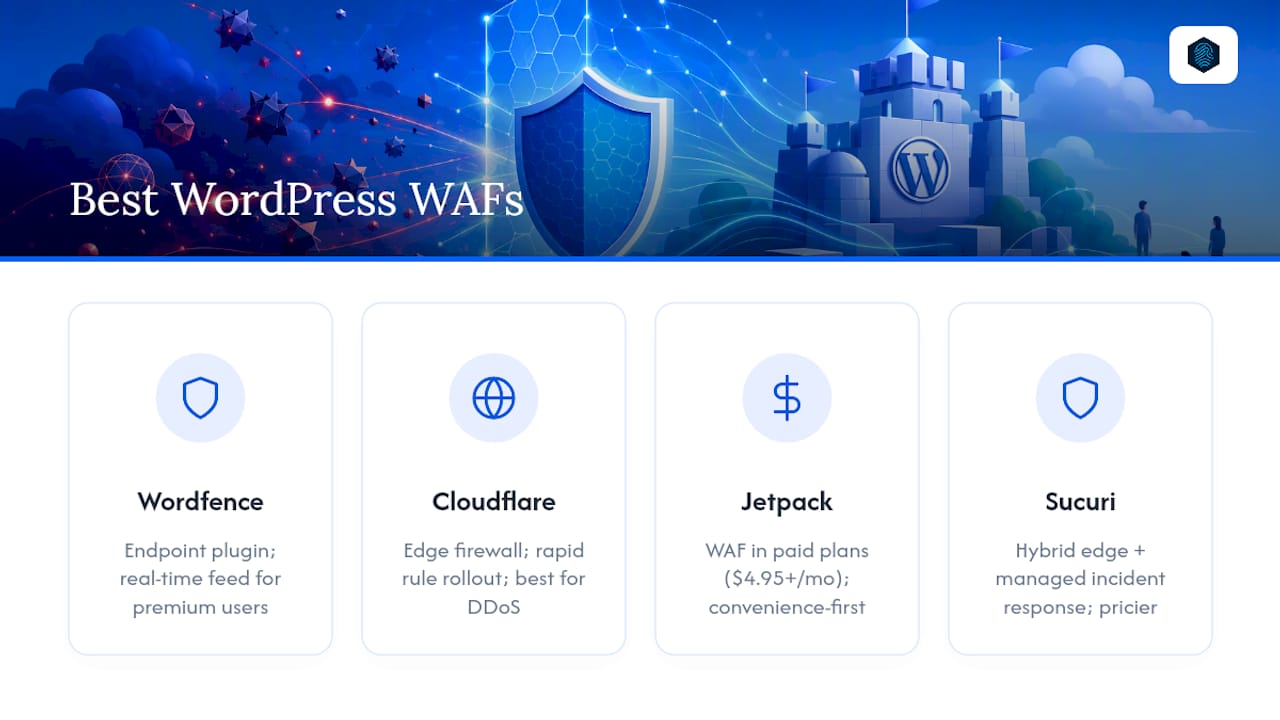
Wordfence remains the most WordPress-aware endpoint option available. It bundles an endpoint firewall, malware scanner, and login security into one plugin, backed by a Threat Defense Feed that updates in real time for premium users and on a delay for the free tier. That delay is the real trade-off of the free version: you get solid baseline protection, but a brand-new attack pattern might circulate for days before your rules catch up. It has no meaningful limit beyond that lag and the CPU overhead of scanning large sites.
Cloudflare operates at the network edge rather than inside WordPress at all. It can push new firewall rules across every proxied customer within hours of a disclosed vulnerability, which is a speed no plugin matches. The trade-off is that Cloudflare only protects traffic actually routed through its proxy, and it has no visibility into WordPress user roles or plugin-level context. It's the strongest choice for absorbing DDoS traffic before it reaches your server.
Jetpack bundles WAF-capable protection into its paid security plans, alongside backups and scanning, with plans starting at $4.95/month. It suits owners already committed to the WordPress.com ecosystem who'd rather manage one dashboard than stitch together separate tools. The limit is that its firewall rules aren't the deepest on the market. It's convenience-first, not depth-first.
Techbox Firewall takes a cautious approach by design. It ships in monitor/learning mode by default, logs activity before you ever flip on blocking, and includes safe-mode recovery if a rule locks out legitimate traffic. That makes it a good pick for anyone nervous about breaking their own site. Its limit is a smaller rule ecosystem than the bigger names, since it's a lighter-weight tool built for simplicity over breadth.
WordSec runs entirely locally without requiring a license key, which appeals to owners who don't want a cloud dependency. Activate an optional license and you get cloud threat feeds layered on top. Without that license, though, you're relying purely on local detection, which won't catch brand-new attack patterns as fast as a connected feed would.
Sucuri operates as a hybrid, combining edge filtering with a managed incident-response team that can clean up an already-compromised site. That combination suits owners who want a safety net beyond just prevention, though it comes at a higher price point than a standalone plugin.
Atomic Edge Security, NinjaFirewall, MalCare, and BulletProof Security round out the field, each occupying a narrower niche. NinjaFirewall and BulletProof Security are both plugin-based options aimed at site owners who want granular rule control without a subscription. MalCare leans toward automated malware remediation alongside its firewall layer, appealing to owners who'd rather not read logs themselves. Atomic Edge Security follows the same defense-in-depth logic Cloudflare champions: pairing a plugin's WordPress context with an edge layer's volumetric protection rather than relying on either alone.
How Do You Actually Choose the Right WAF?
Six factors determine which option fits, and most owners can answer all of them in five minutes.
- Site value. A brochure site for a local business has a different risk profile than a store processing daily transactions. Higher value justifies more layers.
- Traffic volume. Sites under a few thousand visits a month rarely need edge-level DDoS protection. Sites pushing tens of thousands do.
- Hosting type. Shared hosting benefits most from a plugin since you may not control DNS. Managed or dedicated hosting gives you room to add an edge layer without friction.
- Staff skills. A one-person shop should favor tools with learning mode and clear logs over anything requiring manual rule-writing.
- Recovery plan. Know how you'll restore access if a rule locks out an admin, before you ever turn on blocking mode.
- Budget. Free tiers cover real protection today; paid tiers mainly buy you speed, in the form of faster rule updates and deeper feeds.
Before committing to any vendor, ask them directly: How often do rule feeds update, and is that update real time or delayed for your tier? Does the tool offer a learning or monitor mode before it starts blocking? What's the recovery process if a legitimate user gets locked out? Is there a support channel that won't just point back to generic documentation?
Watch for red flags that suggest a tool isn't ready for a production site: no visible activity logs, no monitor mode before enforcement, no clear explanation of how to recover from a false positive, or a support team that goes quiet once you've paid.
How Do You Turn On a WAF Without Breaking Your Site?
Getting this sequence wrong is how site owners end up locked out of their own admin panel at 2 a.m.
- Back up everything first. Take a full backup and, if possible, test the WAF on a staging copy before touching the live site.
- List your critical endpoints. Note any webhooks, third-party API integrations, and admin IP addresses that need to stay reachable, and allowlist them in advance.
- Start in monitor or learning mode. Run it this way for 48 to 72 hours so it can log legitimate traffic patterns without blocking anything yet.
- Test common flows. Log in, submit a contact form, complete a test checkout if you run a store, and confirm nothing breaks.
- Switch to enforce mode. Only flip to active blocking once monitor mode has run clean.
- Watch logs closely for the first three days. Catch any false positive before it costs you a real customer or a locked-out editor.
If you get locked out of the admin panel, most plugins have a safe-mode recovery path accessible through your hosting file manager. If you're running an edge WAF that terminates TLS, double-check your origin certificate and any IP allowlists match before flipping to enforce, since a mismatch there is the single most common cause of "everything worked in staging, then broke in production."
Pro Tip: Test admin logins and any back-office API calls from a staging environment before enabling blocking mode on the live site. It catches TLS mismatches and allowlist gaps while they're still cheap to fix.
Why Trust This Guidance on WAF Selection?
This guidance reflects how inSave Hosting approaches WordPress security day to day: free SSL, staging environments, and managed security features that make WAF deployment less risky for site owners without a dedicated security team. Editorial perspective comes from Ihor, whose take closes out this guide below, alongside inSave Hosting's own step-by-step WordPress hardening guide.
How Does a WAF Fit With the Rest of Your WordPress Security Stack?
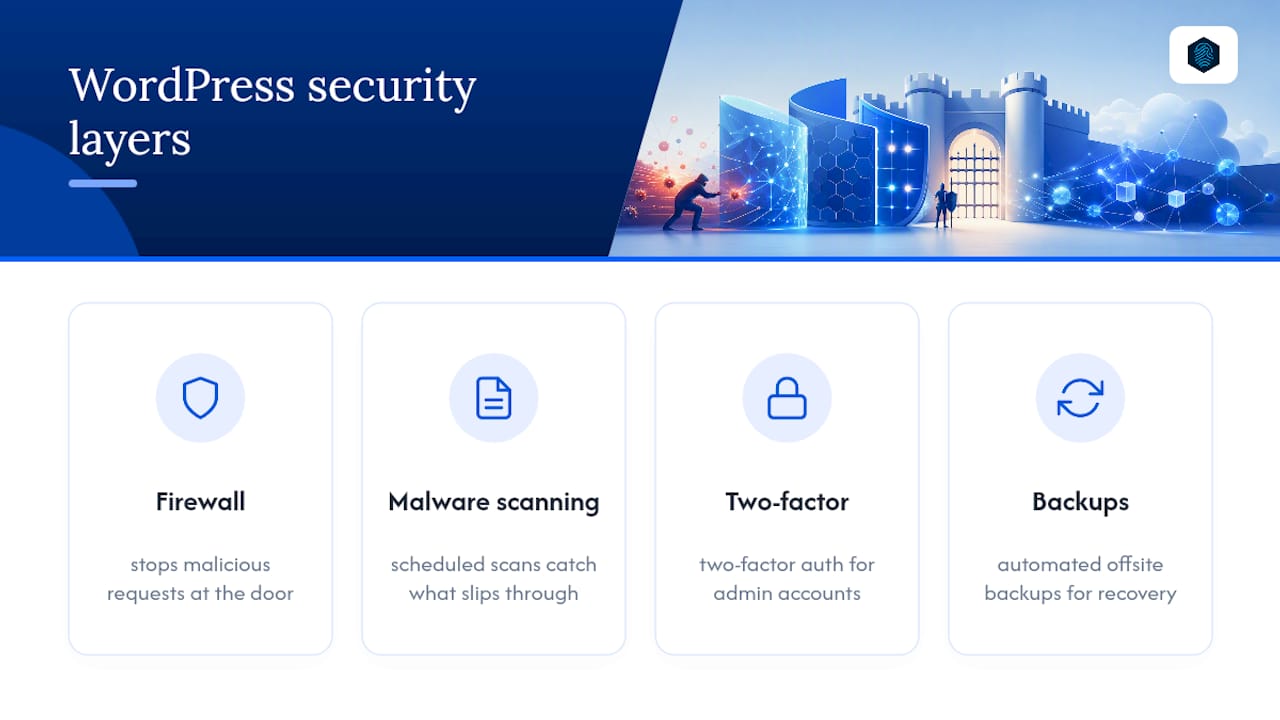
A WAF is one layer, not the whole security plan. It stops malicious requests at the door, but it doesn't back up your database, and it won't catch a compromised plugin that was already vulnerable before you installed the firewall.
Pair your WAF with a security plugin that handles the things a firewall doesn't touch: two-factor authentication on admin accounts, file integrity monitoring that flags unexpected changes to core files, and scheduled malware scans that catch anything that slips through. Wordfence and WordSec bundle some of this already, since malware scanning ships alongside their firewall features. If you're running a standalone edge WAF like Cloudflare, you'll want a separate plugin covering that ground.
Backups matter just as much, arguably more. A WAF reduces the odds of a break-in, but if one happens anyway, a recent automated backup is what actually gets you back online without paying a recovery specialist. Keep backups running on a schedule independent of your firewall, stored somewhere outside your main hosting account, so a compromised server can't take your recovery point down with it.
The strongest setups treat firewall, malware scanning, two-factor login, and backups as four separate boxes that all need checking, not one tool doing everything.
What the Data Actually Tells You to Prioritize
Most advice on WordPress firewalls treats plugin and edge WAFs as competing choices, which misreads what each one is actually for. A plugin protects the application. An edge service protects the pipe leading to it. Asking which one is "better" is like asking whether a lock or an alarm system matters more. You want both if the thing behind the door is worth protecting.
Where conventional advice really falls short is update cadence. Owners fixate on which plugin has the most features and skip past the plainer question of how fast its rules actually update when a new vulnerability drops. A feature-rich plugin running on a delayed free-tier feed can leave a real gap open for days.
If you're prioritizing one thing first, make it this: know your traffic pattern and your hosting constraints before you pick a tool. A tiny blog on shared hosting gains little from an edge WAF's DDoS protection it will likely never need. A store processing hundreds of orders a day cannot afford to skip one. Match the tool to the actual risk, not to whichever name shows up first in search results.
— Ihor
Simplify WAF Setup With Hosting Built for WordPress
Running an endpoint WAF well means starting from a clean, well-configured WordPress environment, and that's where hosting quality actually changes your security outcome. inSave Hosting's WordPress-optimized plans include free SSL, staging environments for testing firewall rules before they go live, and daily automated backups, so switching a plugin from monitor mode to enforce mode carries far less risk of locking yourself out with no way back.

Free one-click WordPress installs and managed security monitoring mean less setup friction whether you're deploying Wordfence, Techbox Firewall, or pairing a plugin with an edge service like Cloudflare. If you're comparing basic hosting options for a smaller site, inSave Hosting's shared hosting plans get you SSL and backups from day one without the extra cost of enterprise infrastructure you don't need yet. Check current plan pricing and pick the tier that matches your traffic before your next security update lands.
FAQ
Is Wordfence Still Free?
Yes. Wordfence offers a free tier with a functional endpoint firewall and malware scanner, though the Threat Defense Feed updates on a delay compared to the real-time feed premium subscribers get.
Can I Use Cloudflare With WordPress?
Yes, and it's one of the most common pairings in WordPress security. Cloudflare works as an edge WAF in front of any WordPress site once you route your DNS through it, adding DDoS protection and rapid rule deployment that a plugin alone can't provide.
Who Has the Best WAF for WordPress?
There's no single best option because plugin and edge WAFs solve different problems. Wordfence leads for WordPress-aware endpoint protection, Cloudflare leads for edge-level DDoS defense, and pairing a plugin like Wordfence or Techbox Firewall with an edge service gives the strongest overall coverage for business-critical sites.
Is a WAF Different From a Regular Firewall?
Yes. A traditional network firewall filters traffic by port and IP address, while a WAF inspects the actual content of web requests, looking for attack patterns in form fields, URL parameters, and headers that a network firewall never examines.
Does inSave Hosting Help With WAF Setup?
inSave Hosting doesn't sell a WAF product directly, but its WordPress hosting plans include staging environments, free SSL, and daily backups that make testing and enabling any WAF plugin significantly safer.