
Yes, optimizing your WordPress database is worth doing, and you have three safe routes: a cleanup plugin, WP-CLI or manual SQL, or phpMyAdmin. Each works. The one rule that overrides all of them is this: back up your files and database, and test destructive changes on staging before you touch production.
TL;DR:
- Removing autoloaded options exceeding 1MB significantly improves site speed, as these options load on every page load regardless of need.
- Scheduling regular cleanup tasks such as transient and revision removal during low-traffic hours prevents performance issues and minimizes site disruption.
- Manual SQL and WP-CLI commands enable precise, repeatable maintenance routines that can target orphaned data and large tables more effectively than plugins alone.
- Always back up and test on a staging environment before making destructive changes to avoid site downtime or data loss during cleanup.
- Long-term maintenance should include limiting post revisions, reducing transient lifespan, and auditing autoloaded options to prevent database bloat from recurring.
Table of Contents
- Why Does WordPress Database Bloat Happen?
- What Should You Do Before You Touch the Database?
- Which Plugin Should You Use to Clean Up Your Database?
- How Do You Optimize a WordPress Database With WP-CLI?
- How Do You Measure Database Bloat Before and After Cleanup?
- How Do You Stop the Database From Bloating Again?
- What If Something Breaks During Cleanup?
- How inSave Hosting Features Support Safer Database Work
- A Site Admin's Honest Take on Cleanup Priorities
- Make Database Maintenance Routine, Not Risky
- Sources
- FAQ
Why Does WordPress Database Bloat Happen?
Most WordPress databases don't get slow because of traffic. They get slow because nobody ever cleans up after the software running underneath them. Four tables usually carry the weight: wp_options, wp_posts, wp_postmeta, and wp_comments. A site that's been live for several years without maintenance can carry a very large number of rows nobody needs anymore.
The bloat comes from a handful of predictable sources.
- Post revisions pile up because WordPress saves a new row every time you hit save on a draft, sometimes dozens per published post.
- Transients (WordPress's built-in temporary cache entries) frequently outlive their expiration date and sit in
wp_optionsforever. - Deactivated plugins often leave their custom tables and postmeta entries behind instead of cleaning up after themselves.
- Comment spam accumulates in
wp_commentsfaster than most admins realize, especially without a filter like Akismet.
The one that does the most damage per kilobyte is autoloaded options. Every option in wp_options marked autoload = yes gets pulled into memory on every single page load, whether that page needs the data or not. A bloated wp_options table with a handful of oversized autoloaded entries can slow down your homepage the same way a slow database query would, because WordPress core queries that table before it renders anything else. The Make WordPress Core team has flagged this as a real performance risk and has been pushing plugin developers to stop marking large options as autoloaded by default.
What Should You Do Before You Touch the Database?
Skipping preparation is how a routine cleanup turns into a support ticket. Run through this sequence before you run a single DELETE statement or click a plugin's "clean now" button.
- Take a full backup of both files and the database, and confirm you can actually restore it. A backup you haven't tested is a backup you don't have.
- Use a staging copy if your site is large, runs custom tables, or has complex plugin dependencies. If staging isn't available, schedule the work for your lowest-traffic window.
- Run SELECT before you run DELETE. If a tool or command lets you preview affected rows first, use that preview every time, even when you're confident about the outcome.
- Export specific tables you're worried about, separate from your full backup, so you can restore just that table without a full rollback.
- Note your current database size and site speed so you have a baseline to compare against once cleanup is done.
None of this takes more than fifteen minutes on a typical site, and it's the difference between a five-minute fix and a multi-hour recovery. A site with automated daily backups, which most managed WordPress hosts include, cuts this prep time down to just confirming the last backup ran successfully.
Which Plugin Should You Use to Clean Up Your Database?
Plugin cleanup is the right call when you don't have SSH access, prefer a visual interface, or run a smaller site where a few clicks beats writing SQL. It's also the safer default for admins who aren't fully comfortable reading a database schema before deleting from it.
The tasks worth automating through a plugin are consistent across tools: deleting old post revisions, clearing expired transients, removing spam and trashed comments, and flagging orphaned data left behind by plugins you've since removed.
Three tools cover most needs, and they're not interchangeable.
- WP-Optimize is the closest thing to an all-in-one option. It cleans revisions, transients, and spam, runs scheduled cleanups automatically, and bundles caching and image compression on top, which makes it a reasonable pick if you'd rather manage fewer plugins overall.
- Advanced Database Cleaner goes deeper on orphan detection. Its Pro tier can scan for tables and postmeta left behind by plugins you deactivated months or years ago, which is the scenario most general-purpose cleaners miss entirely.
- WP-Sweep takes the most conservative approach, using WordPress's own core delete functions instead of raw SQL queries, so it's a solid fit if you want cleanup without any direct database risk.
Whichever you choose, preview before you commit. Every plugin listed here lets you see a count, and usually a list, of what's about to be deleted before you confirm. Never run a bulk delete blind, even when the plugin promises it's safe.
Pro Tip: Schedule your plugin cleanups for early morning hours in your lowest-traffic timezone. Transient and revision cleanup is lightweight, but running it during a traffic spike adds unnecessary load at the worst possible moment.
How Do You Optimize a WordPress Database With WP-CLI?
WP-CLI is the better tool once you're managing multiple sites, need cleanup that's scriptable and repeatable, or just want more control than a plugin's settings screen gives you. It skips the admin UI entirely and talks straight to the database and WordPress core.
A handful of commands cover almost everything you'll need:
- Run
wp db size --tablesto see exactly which tables are eating your storage, sorted largest to smallest. - Run
wp transient delete --allto clear every transient, expired or not, in one pass. - Run
wp db optimizeto defragment your tables, which under the hood runsmysqlcheck --optimize(effectivelyOPTIMIZE TABLE) across your entire database. - Run
wp db query "SELECT COUNT(*) FROM wp_posts WHERE post_type = 'revision'"before deleting anything, so you know exactly what you're about to remove.
OPTIMIZE TABLE briefly locks the table it's working on, which matters most on InnoDB tables over a gigabyte. On a busy site, that lock can cause a handful of failed writes during the operation, so scheduling this for low traffic isn't optional caution, it's a real requirement on anything but a small site.
For manual SQL work outside WP-CLI, mysqlcheck offers the same optimization from the command line if you'd rather not install WP-CLI, though it requires direct database credentials rather than working through WordPress's abstraction layer.
The pattern that keeps manual SQL safe is always the same: SELECT first, DELETE second. Before removing orphaned postmeta, for instance, run a SELECT joining wp_postmeta against wp_posts to find rows with no matching post ID, review the count, and only then convert that SELECT into a DELETE. This is also where manual SQL earns its keep over any plugin: it can catch orphaned metadata tied to plugins that never registered a cleanup routine at all, which automated tools simply have no way to detect.
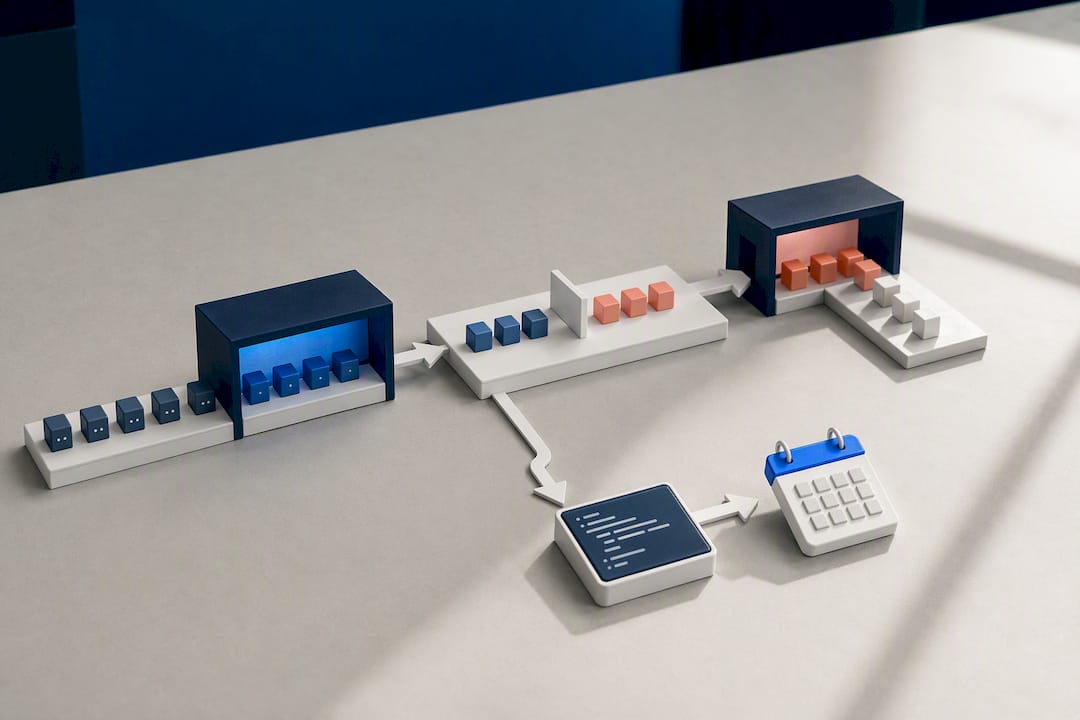
If you're running this cleanup routine across a dozen client sites, wrap the WP-CLI commands into a shell script triggered by cron, and you've turned a manual chore into something that runs itself every week.
How Do You Measure Database Bloat Before and After Cleanup?
You can't tell if cleanup worked without a number to compare against. Two commands and one query cover almost everything you need to diagnose where the bloat actually lives.
wp db size --tables gives you a sorted list of every table by size, which immediately tells you whether wp_postmeta or wp_options is your real problem. Pair that with a direct query against wp_options filtered to autoload = 'yes', summing the LENGTH() of the option_value column, to see your total autoload burden and which individual options are the worst offenders. Query Monitor, run in the browser, shows you the same story from a different angle: query count per page load and which queries take the longest.
| What to measure | Tool | What "good" looks like |
|---|---|---|
| Total database size | wp db size | Trending down after cleanup, not up |
| Largest tables | wp db size --tables | No single table disproportionately large |
| Autoload total | Custom SQL on wp_options | Well under 1MB combined |
| Time to first byte | Browser dev tools / Query Monitor | Lower after optimization |
| Queries per page | Query Monitor | Fewer duplicate or slow queries |
| Backup file size | Your backup tool's export log | Smaller archive, faster backup runs |
Run each of these before you start and again after cleanup finishes. The comparison is what actually proves the work was worth doing, and it's what tells you whether to keep cleaning or move on to something else, like reviewing our practical guide to improving website speed.
How Do You Stop the Database From Bloating Again?
Cleaning your database once is a one-time fix for a recurring problem. Without maintenance built into your workflow, you'll be back here in six months running the same commands.
A few settings and habits keep the bloat from coming back.
- Set
define('WP_POST_REVISIONS', 5);inwp-config.phpto cap how many revisions each post can accumulate, instead of letting them grow indefinitely. - Adjust
define('AUTOSAVE_INTERVAL', 160);if your editors are triggering autosaves more often than necessary. - Schedule transient cleanup daily and revision cleanup weekly through cron, rather than running it manually whenever you remember.
- Audit autoloaded options quarterly, and push any option a plugin doesn't need on every page load to
autoload = 'no'. - Move transients and repeated lookups into a persistent object cache like Redis or Memcached, which takes the load off MySQL entirely for anything that doesn't need to survive a server restart.
Pro Tip: If you're not sure whether your host supports persistent object caching, check before you build a cleanup routine around database-stored transients. Enabling object cache can eliminate a category of bloat you'd otherwise be fighting every week.
What If Something Breaks During Cleanup?
Mistakes happen even with careful prep, and knowing the recovery path in advance saves you the panic of figuring it out mid-incident.
- Restore from your backup immediately if the site breaks or a critical page throws errors, rather than trying to debug live while visitors are hitting a broken site.
- Run through a basic checklist after any restore or change: homepage loads, a sample post renders correctly, the login screen works, and your most-used plugin (e-commerce, forms, membership) still functions.
- Check your PHP error log and database error log for the specific query or function that failed, since that tells you exactly what to avoid or fix before trying again.
If a staging test caught the problem before it reached production, you've done this correctly. If it happened on live, the backup you tested at the start is the reason you're back online in minutes instead of hours.
How inSave Hosting Features Support Safer Database Work
Every safety step in this guide gets easier with the right hosting stack underneath it. Staging environments let you test wp db optimize and plugin cleanups without any production risk. Daily automated backups mean you're never running a cleanup without a recent restore point already in place. And a MariaDB backend paired with LiteSpeed's caching layer reduces how often WordPress needs to query the database at all, which lowers the stakes of any single optimization pass.
Object cache support matters here too. Once transients move to Redis or Memcached instead of wp_options, table-level optimization becomes a smaller, faster, lower-risk operation, because you're no longer optimizing a table that's constantly being rewritten by cache traffic.
A Site Admin's Honest Take on Cleanup Priorities
If you only have twenty minutes today, audit wp_options for autoloaded bloat and clear expired transients. That's where the fastest wins live. Plugins are convenient, but they're generalists. Manual SQL is slower to write and faster to regret if you skip the SELECT step, but it catches what plugins miss.
My rule of thumb: convenience for routine maintenance, precision for anything touching custom tables, and staging plus backups for any OPTIMIZE TABLE run on a site over a few gigabytes. Skip that last part at your own risk.
— Ihor
Make Database Maintenance Routine, Not Risky
Cleanup only stays safe if the environment underneath it is forgiving of mistakes, and that's exactly where inSave Hosting fits into everything covered above. Every WordPress plan includes free staging, so you can run wp db optimize, test a plugin's bulk delete, or clear autoloaded options on a copy of your site before touching production, no separate staging tool required.

Daily backups run automatically in the background, MariaDB and LiteSpeed handle the database and caching layer without extra configuration, and object cache support is built in for anyone moving transients off MySQL. If you're migrating an existing site, the free migration service handles the move so your first cleanup pass happens on a stack built for it from day one. Check the WordPress hosting plans and see which tier matches your site's size and traffic before you start your next cleanup.
Sources
- Advanced Database Cleaner — WordPress plugin
- WP-CLI: db optimize — Developer Resources
- WP-Optimize – Cache, Compress images, Minify & Clean database
- Options API: Disabling autoload for large options — Make WordPress Core
FAQ
How Can I Clean Up My WordPress Database?
Start with a full backup, then remove post revisions, expired transients, spam comments, and trashed content using either a plugin like WP-Optimize or WP-CLI commands like wp db optimize. Follow up with an autoload audit on wp_options, since that's where the highest-impact bloat usually lives.
Is WP-Optimize Good?
WP-Optimize handles the core cleanup tasks most sites need: revisions, transients, spam, and scheduled maintenance, bundled with caching and image tools. It's a strong all-in-one pick if you want fewer plugins managing performance, though Advanced Database Cleaner goes further on detecting orphaned data from long-removed plugins.
Is WordPress Outdated in 2026?
No. WordPress still powers a large share of the web, and the ecosystem around it, including WP-CLI, caching layers, and hosting stacks built specifically for it, has kept pace with modern performance demands. A slow WordPress site is almost always a maintenance problem, not a platform problem.
Why Are People Moving Away From WordPress?
Most migrations away from WordPress come down to neglected maintenance rather than a platform limitation. A bloated, unoptimized database and outdated plugins create the sluggish experience people blame on WordPress itself, when regular cleanup and the right hosting stack usually fix it.
How Often Should I Optimize My WordPress Database?
Run lightweight tasks like transient cleanup daily through cron, revision trimming weekly, and a full autoload and orphan-data audit quarterly. A site with consistent traffic and several active plugins benefits from more frequent scheduling than a small, static brochure site.