
Fix mixed content by replacing every insecure http:// subresource URL with https:// and confirming the change in DevTools. Where a permanent fix takes time, a Content Security Policy with upgrade-insecure-requests or a CDN rewrite can hold the line temporarily, but neither replaces editing the source code and database. Run a full scan after every change, because one missed image tag or cached template can bring the warning right back.
TL;DR:
- Fix any
http://URLs by replacing them withhttps://in all source files, including templates, CSS, JavaScript, and serialized database content.- Prioritize fixing active content like scripts and stylesheets first, then clean up passive media such as images and videos to prevent website functionality issues.
- Use DevTools to identify and confirm insecure requests, focusing on blocked scripts or CSS first, then scanning all pages for hidden mixed content.
- Temporary measures like CSP headers with
upgrade-insecure-requestsor CDN rewrites help, but they do not replace manual code and database cleaning.- Regularly scan, review code, and establish team protocols to prevent returning insecure links, as browser security is tightening and such fixes are only short-term solutions.
Table of Contents
- What Are Active vs. Passive Mixed Content?
- Where Does Mixed Content Usually Hide?
- How Do You Diagnose Mixed Content With DevTools?
- How Do You Fix Mixed Content by Resource Type?
- How Do You Fix Mixed Content in WordPress?
- How Do CSP and CDN Rewrites Work as a Safety Net?
- How Do You Verify the Fix and Prevent Regressions?
- How Do You Stop Mixed Content From Coming Back?
- Who Wrote This and What Else Should You Read?
- Why Most Mixed-Content Advice Skips the Hard Part
- Get Managed Hosting That Handles the SSL Groundwork for You
- Sources
- FAQ
What Are Active vs. Passive Mixed Content?
Not every insecure request gets treated the same way by the browser, and that distinction decides how urgently you need to act.
Browsers split mixed content into two categories. Passive (or display) content covers images, video, and audio pulled in over http://. Browsers usually still load these but slap a "not secure" warning on the address bar. Active content, meaning scripts, iframes, stylesheets, and XHR or fetch requests, gets treated as a security risk because it can manipulate the page, so most browsers block it outright.
That gap matters for triage. A broken hero image is annoying. A blocked login script or a stylesheet that never loads can take down checkout or account access entirely. Browser vendors keep tightening the rules, too, so what quietly loaded with a warning a few years ago might be flat-out blocked today.
Here's the practical breakdown:
- Active/blockable: JavaScript, iframes, CSS, fetch/XHR calls, web fonts loaded via script.
- Passive/optionally-blockable: images, video, audio.
- Priority order: fix anything blocking a script or stylesheet first, then clean up images and media.
Where Does Mixed Content Usually Hide?
Mixed content rarely announces itself. It shows up in the same handful of spots on almost every site, and once you know the pattern, spotting it takes minutes instead of hours.
Look for these exact patterns in your source and templates:
<img src="http://example.com/photo.jpg">in a post body or theme file.background: url(http://example.com/bg.png)inside a CSS file or inline style.fetch('http://api.example.com/data')in a JavaScript file calling an internal or third-party API.<iframe src="http://widget.example.com">embedding a map, video, or chat widget.
The usual sources: content written years before the site moved to HTTPS, theme templates that hardcode a domain, plugins or ad tags pulling from their own servers, CSS @import statements, and serialized values buried in the database from old page builders. Third-party widgets are the trickiest, since you don't control their code. If a vendor still serves assets over http://, your options are to replace the widget, proxy the request through your own server, or self-host the asset if licensing allows it.
How Do You Diagnose Mixed Content With DevTools?
Chrome DevTools is still the fastest way to find exactly which request is breaking your page, and it takes about five minutes once you know the sequence.
- Open DevTools (F12 or right-click → Inspect) and load the page fresh with a hard refresh.
- Check the Console tab first. Mixed-content warnings show up here with the exact insecure URL and a description of whether it was blocked or just flagged.
- Switch to the Issues tab, which groups mixed-content problems separately from other errors and often links directly to the offending resource.
- Open the Network tab, filter by "http" in the request list, and look for any entry that isn't already
https://. - Click each flagged request to see its Initiator, which tells you whether it came from an HTML tag, a CSS file, an inline script, or a database-driven template.
- For full-site coverage, run a crawler or a dedicated mixed-content scanner that checks every page in one pass instead of one URL at a time.
Fix pages tied to core flows first. A mixed-content warning on an "About Us" page is a nuisance; one blocking your checkout script or login form is a revenue problem.
Pro Tip: Bookmark the DevTools Network tab filtered by "http" as a saved search. It turns a five-minute manual hunt into a two-second check every time you deploy.
How Do You Fix Mixed Content by Resource Type?
Each resource type breaks differently, so the fix looks a little different depending on where the insecure reference lives.
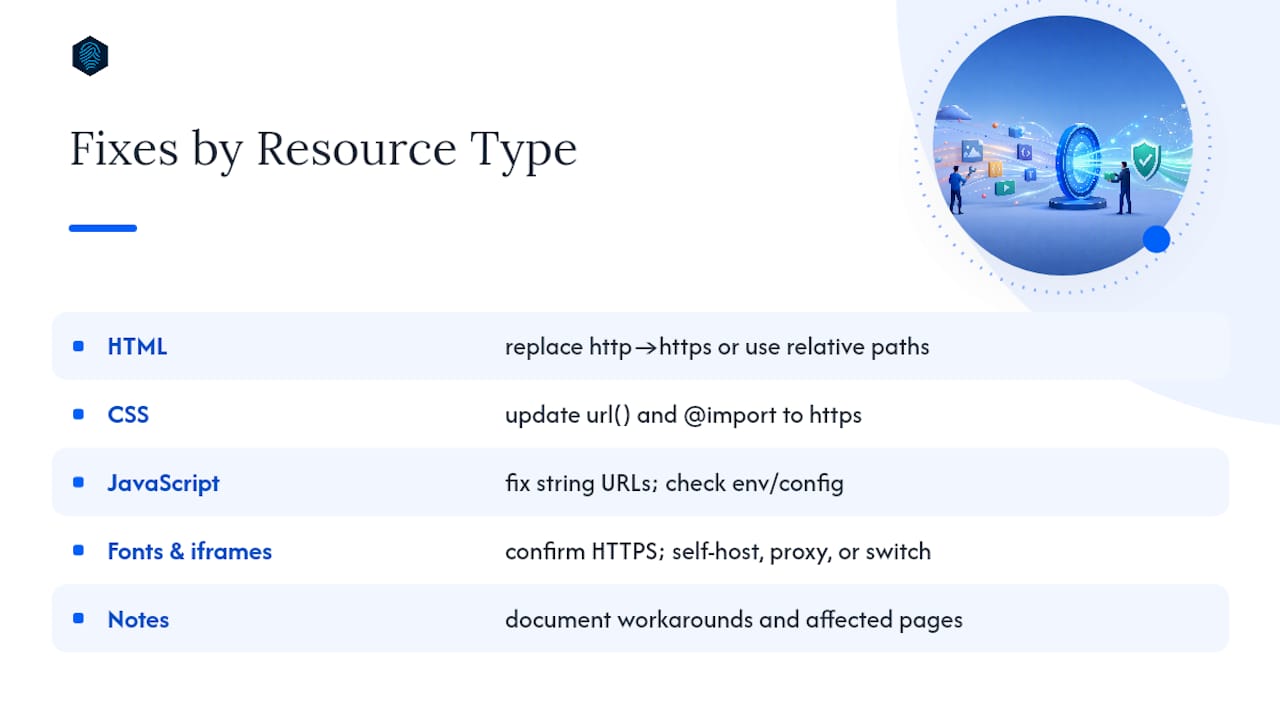
HTML. Run a global search-and-replace across your templates and content for http://yourdomain.com and swap it for https://yourdomain.com, or better yet, use a relative path (/images/photo.jpg) for anything on your own domain. A quick grep -rl "http://yourdomain.com" . from the command line, or your IDE's find-and-replace across files, will surface every match before you touch a single line.
CSS. Check every url(...) reference and @import statement. Web font files loaded from a CDN are a common culprit, especially on sites that set up custom fonts years ago and never revisited the path.
JavaScript. Hunt for dynamic string concatenation that builds a URL starting with "http://". Update any fetch() or XMLHttpRequest call pointing at an internal API, and check your environment or config files. It's common to find a staging config with an http:// base URL that got copied into production by accident.
Fonts and iframes. Confirm the provider actually supports HTTPS. Most modern font and video services do, so this is usually a one-line swap. If a provider genuinely lacks HTTPS support, you have three options: self-host the asset, run it through a server-side proxy, or switch to a provider that supports encrypted delivery.
Browsers have moved toward blocking more mixed content categories by default rather than just warning about them, which is reshaping how urgently teams treat this cleanup. A fix that was optional three years ago might be mandatory today.
If HTTPS truly isn't available anywhere for a given asset, document the workaround. Self-hosting, proxying through your CDN, or replacing the vendor are all valid temporary mitigations, but write down which pages are affected so nobody forgets to revisit them once a permanent option exists.
How Do You Fix Mixed Content in WordPress?
WordPress sites get mixed content from a specific source: the database. Post content, widget settings, and theme options frequently store full http:// URLs from before the site moved to SSL, and those get re-served on every page load.
- Go to Settings → General and confirm both the WordPress Address and Site Address use
https://. Checkwp-config.phpfor any hardcodedWP_HOMEorWP_SITEURLoverrides that might be fighting the dashboard setting. - Back up the database, then run a dry-run search-and-replace with WP-CLI:
wp search-replace 'http://example.com' 'https://example.com' --all-tables --dry-run. Review the output, then run it again without--dry-runto apply. - If WP-CLI isn't available, a serialization-safe plugin like Better Search Replace handles the same job through the dashboard, though it's worth checking that any plugin you use correctly handles serialized data rather than corrupting stored arrays.
- Clear every cache layer: server-side, page cache, object cache, and CDN cache. Regenerate image thumbnails if your media library references changed.
Pro Tip: Never run a database search-and-replace without a fresh backup first. Serialized data that gets mishandled by a naive text replacement can silently break widgets and page builder layouts.
How Do CSP and CDN Rewrites Work as a Safety Net?
These are stopgaps, not solutions, and treating them as permanent fixes is how mixed content quietly comes back six months later.
Adding a Content Security Policy header with Content-Security-Policy: upgrade-insecure-requests tells the browser to automatically rewrite any http:// subresource request to https:// before it loads. It's an effective interim fix during a migration, but it has one hard failure mode: if the asset simply has no HTTPS version, the rewritten request fails and the resource never loads at all.
CDN-level options work similarly. Many CDNs offer automatic HTTPS rewrites or a "full strict" viewer protocol policy that upgrades requests on the way through. Our own step-by-step CDN integration guide walks through setting this up. Server-side rewrites, such as Nginx's sub_filter directive or an Apache Header rule, can patch responses in transit too.
The catch with all three: they mask the underlying problem instead of fixing it. Practitioners generally agree these rewrites are useful safety nets but shouldn't replace correcting the root cause in code or the database.
How Do You Verify the Fix and Prevent Regressions?
A fix isn't done until you've confirmed it in three places, and automated it so it doesn't quietly break again next sprint.
- Reload every affected page in DevTools with the Console open. Zero mixed-content messages means the fix held.
- Run a full-site crawler or scanner to catch pages you didn't manually check, especially older content or paginated archives.
- Add a CI test using Playwright or headless Chrome that fails the build if a "Mixed Content" console message appears, and lint your build artifacts for stray
http://strings. - Once the site is clean, consider enabling HSTS as a longer-term hardening step that tells browsers to never attempt an insecure connection to your domain again.
How Do You Stop Mixed Content From Coming Back?
The cheapest mixed-content fix is the one you never have to make twice, and that comes down to a few team habits rather than another round of find-and-replace.
- Add a code-review rule that blocks any pull request containing a hardcoded
http://reference in templates or shipped assets. - Require HTTPS support as a condition of adopting any new third-party script, widget, or ad vendor, and revisit that requirement whenever a vendor gets swapped.
- Schedule recurring scans and set up an alert for any new mixed-content log entry so problems surface within days, not months.
Pro Tip: Put your mixed-content scan on the same schedule as your uptime monitoring. If one alert fires, check the other. New content and new plugins are the most common source of regressions.
Who Wrote This and What Else Should You Read?
This guide was written by Ihor, drawing on hands-on experience with server configuration, HTTPS migrations, and WordPress troubleshooting for the inSave Hosting audience. For related reading, check the SSL and SEO breakdown on why browsers treat "not secure" warnings as a ranking and trust signal, or the website security checklist for broader hardening steps.
inSave Hosting's plans include free SSL certificates, staging environments for testing template changes safely, and free CDN integration, all of which remove common friction points during a mixed-content cleanup. If you're mid-migration, the migration checklist covers the steps that most often introduce insecure URLs in the first place.
Why Most Mixed-Content Advice Skips the Hard Part
Most guides on this topic stop at "enable upgrade-insecure-requests" and call it solved. That's the part of the job that takes five minutes. The part that actually matters, tracing every hardcoded URL back through templates, plugins, and serialized database fields, is the part nobody wants to write about because it's tedious and site-specific.

Here's what the evidence actually supports: CSP rewrites and CDN automation are triage, not treatment. They buy you time while you do the real work, and if you never get around to that real work, you're one plugin update or one cache-clear away from the warning reappearing. Browsers are only getting stricter about what they'll silently load, so the safety net you're leaning on today will cover less ground next year.
The conventional advice also underrates how much of this problem lives in the database, not the code. Developers comb through theme files and forget that a page builder saved a dozen http:// links in a serialized array three years ago. If you're only fixing what you can see in a code editor, you're fixing half the problem. Start with a full DevTools audit, prioritize anything blocking core user flows, and treat the temporary fixes as exactly that: temporary.
— Ihor
Get Managed Hosting That Handles the SSL Groundwork for You
Fixing mixed content by hand works, but it's a lot easier when your hosting environment isn't fighting you the whole way. inSave Hosting offers SSL certificates on its hosting plans, helping to ensure origin-side HTTPS coverage when addressing insecure requests.

Managed WordPress hosting plans include staging environments where you can test a database search-and-replace or a CSP header change before it touches your live site, plus free migration support if outdated URLs trace back to an old host. CDN integration and WordPress management tools can help reduce the manual cache-clearing and template editing involved in a mixed-content cleanup. If you're auditing your current setup and finding gaps in certificate coverage, browse SSL certificate options or explore hosting plans to get a staging-ready environment running today.
Sources
For deeper technical detail on classification and browser behavior, see Cloudflare's mixed content explainer, web.dev's guide to fixing mixed content, and MDN's mixed content security reference. For CMS architecture pitfalls that can introduce insecure URLs, see this technical SEO checklist for headless CMS setups.
FAQ
How Do You Unblock Mixed Content in Chrome?
Click the padlock or the "Not secure" label in the address bar, open Site settings, and enable "Insecure content" for that specific site. This only works around the symptom in your browser. Fix the underlying http:// reference so every visitor's browser stops blocking it.
How Do You Allow Mixed Content in Chrome Permanently?
You can't set a permanent, site-wide allowance for visitors; Chrome's insecure content toggle applies per site, per browser, and resets easily. The only durable fix is updating the actual http:// references to https:// in your code and database.
How Do You Fix a "Not Secure" Website Warning?
Confirm your SSL certificate is valid and installed correctly, then check DevTools for any remaining http:// subresource requests, since even one insecure image or script can trigger the warning. Clearing your cache after fixing the references usually resolves it immediately.
Does Chrome's Mixed-Content Blocking Affect 18+ or Adult Content Sites Differently?
No. Chrome applies the same active/passive mixed-content rules regardless of content category. Any site loading scripts, iframes, or stylesheets over http:// will see them blocked the same way, so the fix is identical across site types.