
Run a remote scanner against your live site right now, then follow up with an in-site plugin scan or a WP-CLI checksum check before you do anything else. That two-step combination catches what neither tool spots alone: the remote scan sees redirects, blacklist flags, and injected scripts in seconds, while the deeper scan finds the PHP backdoor hiding in your uploads folder. Save the remote report, and don't delete a single flagged file until you've quarantined it and backed it up.
TL;DR:
- Remote scans quickly detect redirects, blacklist warnings, and injected scripts but can miss dormant malware hidden in the database or server files.
- Plugin-based scanners identify altered files and executable scripts in uploads by comparing signatures and flagging suspicious files automatically.
- Checksum verification confirms core WordPress files are unmodified, reliably catching hidden backdoors that signature scans might overlook.
- Sequential scanning—remote check, plugin scan, then checksum verification—ensures comprehensive detection while respecting hosting resource limits.
- Regular, tailored scanning frequency based on site activity and risks, combined with routine credential rotation and backups, is essential for ongoing security.
Table of Contents
- What Does Malware Scanning WordPress Actually Check For?
- How Do Plugin-Based Scanners Find Hidden Threats?
- What Is Checksum Verification and Why Does It Matter Most?
- How Do You Run a Full Scan From Start to Finish?
- What Should You Do Immediately After Confirming Malware?
- How Often Should You Scan Your WordPress Site?
- How Do You Choose the Right Scanning Setup for Your Site?
- A Host-Aware Approach to WordPress Malware Scanning
- Why Most Malware Scanning Advice Skips the Hosting Reality
- A Managed Path if You'd Rather Not Run This Yourself
- Sources
- FAQ
What Does Malware Scanning WordPress Actually Check For?
A WordPress malware scan is really two different jobs wearing one name, and mixing them up is the most common mistake site owners make. External scanners look at your site the way a visitor's browser does. Plugin scanners look at your files and database the way a server administrator does. Neither replaces the other.
Remote checkers request your live pages, render the HTML, and compare what comes back against known threat patterns. A tool like WP-Scan's free malware checker runs about 22 checks in this category, covering hidden spam links, malicious JavaScript, webshell fingerprints, missing security headers, and blacklist status across services like Google Safe Browsing. Most sites get a graded report, A+ through F, in under a minute.
That speed comes with a real ceiling. A remote scan reads what your server sends to a browser, not what's stored inside it. It can flag a suspicious redirect or a spam link injected into your footer, but it has no way to open your wp-content/uploads folder or query your database directly. If malware sits dormant, only activating for logged-in admins or specific referrers, an external check often walks right past it.
Here's what to treat as an immediate red flag from a remote report:
- Unexpected redirects to unfamiliar domains, especially pharmacy, gambling, or adult-content sites
- Injected JavaScript you didn't add, particularly anything referencing
eval()or encoded strings - A blacklist warning from Google Safe Browsing or Norton Safe Web
- Foreign-language spam links buried in your footer or sidebar that don't render visibly on the page
Any one of those means you move straight to a deeper scan. None of them mean you're clean if the report comes back green. This kind of WordPress security scan is a starting point, not a verdict.
How Do Plugin-Based Scanners Find Hidden Threats?
Plugin scanners work from inside the walls, which is exactly why they catch what remote checkers miss. Instead of requesting pages like a visitor, they read your actual files, cross-reference them against a signature database, and query your database tables directly.
Most reputable scanners maintain signature libraries built from known malware samples. Wordfence, for example, reports coverage of more than 44,000 known malware signatures and compares your installed files against the official WordPress.org repository to flag anything that's been altered. That repository comparison matters more than the raw signature count. A file that doesn't match its published original, even if the malicious code inside it is brand new and unrecognized, still gets flagged as tampered.
Upload folders get special attention for good reason. Legitimate media files don't need PHP execution privileges, so any .php file sitting inside wp-content/uploads is almost always a sign of compromise, usually a webshell dropped through a vulnerable form or an outdated plugin. Good scanners flag executable files in upload directories automatically rather than waiting for a signature match.
There's a real tradeoff between cloud-based and local-only detection. Cloud signature feeds update faster since they draw from threats seen across thousands of sites, but they also send file data off your server. Local-only tools like Deep Malware Cleaner keep everything on-site and store scan history locally, trading some detection speed for privacy and independence from an external service's uptime.
- Signature-based detection catches known malware families instantly
- Heuristic analysis flags suspicious patterns even in unrecognized code
- Database scanning catches SEO spam injected into
wp_optionsor post content - Upload scanning treats any executable file in media folders as high-priority
Pro Tip: On shared hosting with tight memory and CPU limits, run scans during your lowest-traffic hours and look for a plugin that supports chunked or time-budgeted scanning. A full-site scan that times out halfway through tells you nothing useful and can trigger a resource-abuse warning from your host.
What Is Checksum Verification and Why Does It Matter Most?
Checksum verification is the closest thing to forensic-grade certainty you'll get without hiring a security firm, and it's free if you have terminal access. It compares every core WordPress file against a cryptographic fingerprint of the official release. A match means the file is untouched. A mismatch means someone, or something, edited it.
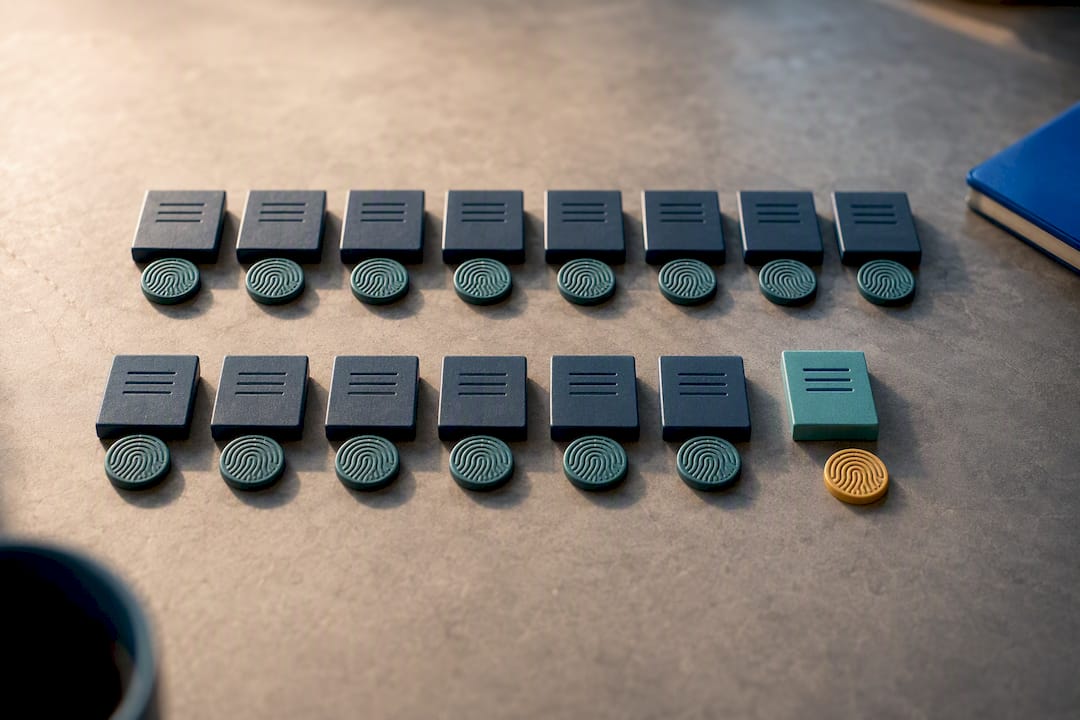
This matters because the most dangerous WordPress backdoors don't announce themselves with obvious malware signatures. They get inserted into core files like wp-load.php or wp-settings.php, disguised to blend in with legitimate code. Signature scanners look for known patterns. Checksum verification doesn't care what the code does, only whether the file matches what WordPress officially shipped.
Here's how to run it:
- Connect to your server via SSH and confirm WP-CLI is installed by running
wp --info - Run
wp core verify-checksumsfrom your WordPress root directory - Review the output: a clean install returns no warnings, while a compromised one lists every file that doesn't match the canonical version
WP-CLI's verify-checksums command flags any core file changed from the canonical WordPress release, which makes it fast and reliable for catching injected backdoors that other tools miss entirely.
Checksum checks only cover core files, not themes, plugins, or the database, so pair them with file integrity monitoring for ongoing protection. Integrity monitoring takes a snapshot of your file structure and timestamps, then alerts you when something changes outside a normal update cycle. Run it alongside scheduled deep scans, and you'll catch a tampered file within hours instead of discovering it months later when Google flags your site.
How Do You Run a Full Scan From Start to Finish?
Treat this as a sequence, not a menu of options to pick from. Each step catches something the last one missed, and skipping the order means you might quarantine the wrong file or miss the actual entry point.
-
Run and save a remote scan first. Point an external checker at your homepage and a few inner pages, then export the report as a PDF or screenshot before you touch anything. This gives you a timestamped record of what was visible to the public and any blacklist status, which you'll need later if you request a review from Google Search Console.
-
Run an in-site plugin scan next. Scope it to files, uploads, and database tables if your plugin allows granular control. On shared hosting, disable the heaviest heuristic options for the first pass and enable them only if the standard scan comes back clean, since aggressive heuristics can chew through your CPU allowance fast. Advanced scanners with WP-CLI integration let you trigger this from a scheduled cron job instead of the dashboard, which is worth setting up once and forgetting.
-
Run WP-CLI checksum verification if you have shell access. This is your tiebreaker. If the plugin scan flagged a core file as suspicious, checksum verification tells you definitively whether it's been modified from the official release.
Pro Tip: If you don't have SSH access, some hosts offer a support ticket path to run server-side checks on your behalf. Ask specifically for a core file integrity check rather than a general "look into it" request.
Interpreting results takes judgment. A single flagged file with an old timestamp, matching a plugin update you remember installing, is usually a false positive. A newly created PHP file in your uploads folder with an obfuscated eval(base64_decode(...)) pattern is a confirmed compromise, full stop. Anything in between, like an unfamiliar admin user or a suspicious cron job, counts as a warning that needs manual review before you decide it's nothing.
What Should You Do Immediately After Confirming Malware?
The sequence matters here as much as the individual actions. Move too fast and you destroy evidence you'll need later. Move too slow and the infection spreads or gets re-indexed by search engines.
Start with containment. Put the site in maintenance mode if visitor-facing damage (spam redirects, defacement) is active, and take a full forensic backup of the current, infected state before changing anything. That backup, kept outside your live filesystem, is your record if you need to trace how the breach happened.
- Quarantine every flagged file into a separate folder rather than deleting it immediately
- Take a forensic backup of the infected site before restoring anything
- Replace core files from the canonical WordPress ZIP for your exact version number
- Rotate every credential: WordPress admin passwords, database password, hosting account password, and any API keys stored in plugins
- Update every plugin, theme, and PHP version to current releases before bringing the site back online
- Submit a review request through Google Search Console if the site was blocklisted
A documented cleanup workflow built around exactly this sequence, remote scan, quarantine, forensic backup, deep scan and checksum verification, credential rotation, then clean restoration, gives you a repeatable process instead of a panic response.
Deciding between restoring a clean backup and cleaning in place comes down to scope. If checksum verification flagged more than a handful of core files or the infection touched your database extensively, restoring from a backup taken before the compromise is faster and safer than hunting down every injected line. If it's isolated to one uploaded file and a single suspicious plugin, cleaning in place and patching the entry point is reasonable. Keeping automated daily backups running makes that decision easy instead of agonizing, since you always have a known-clean point to roll back to.
How Often Should You Scan Your WordPress Site?
Scan frequency should track your site's risk profile, not a generic calendar reminder. An online store processing payments daily has a very different exposure than a personal blog updated once a month, and your scanning cadence should reflect that.
- Run daily scans on e-commerce sites, membership platforms, or anything handling customer data or payments
- Run weekly scans on lower-traffic brochure sites or blogs with infrequent updates
- Always run a scan immediately after installing a new plugin or theme, and after any core update
- Set automated alerts so a flagged file reaches your inbox within minutes, not whenever you next log in
Automated monitoring closes the gap between infection and discovery, which is where most of the real damage happens. A site scanned once a month can sit compromised for weeks, quietly serving spam links to search engines the entire time. Integrating scans with your backup schedule, so a clean backup always exists from before the most recent scan, turns a bad incident into a quick restore instead of a forensic project.
Keep scan logs for at least 90 days. If you ever need to trace when an infection started, or prove to a client or partner exactly when a site was compromised, historical logs are the only record you'll have.
How Do You Choose the Right Scanning Setup for Your Site?
The right setup depends on three things: how big your site is, how much technical comfort you have, and how much manual work you're willing to do after a scan flags something. There's no universal answer, but there's a clear checklist to work through.
- Detection surface: does it check files, database, and uploads, or just files?
- Signature update cadence: how often does the threat database refresh, and is that automatic?
- Quarantine workflow: can you isolate a flagged file without deleting it outright?
- Server integration: does it support WP-CLI or cron-based scheduling for automation?
- Resource footprint: will it survive shared hosting's memory and CPU limits, or does it need a VPS?
- Recovery support: if malware is confirmed, does the tool help you restore, or just report?
| Site profile | Best-fit approach | Why |
|---|---|---|
| Small blog, shared hosting | Lightweight local-only plugin scan, weekly | Low resource use, no external data transfer |
| Growing business site | Plugin scan with signature feed plus monthly checksum check | Balances coverage and update speed |
| E-commerce or high-traffic | Host-managed monitoring with daily automated scans | Consistent cadence without manual triage |
For site owners who don't want to manage scan schedules, interpret checksum output, or remember to rotate credentials after every incident, host-managed scanning paired with automated backups closes most of that gap without requiring a security background.
A Host-Aware Approach to WordPress Malware Scanning
Most malware scanning advice assumes you're running on hardware with generous memory limits and no execution timeouts. That's not reality for a huge share of WordPress sites, which live on shared hosting with strict resource caps. Ihor's practical guidance for these environments starts with staging: never test a scanner's most aggressive settings on your live site. Spin up a staging copy first, see how it performs under load, then apply what works to production.
Keep a recent backup before you scan, not after you find something. Chunked or time-budgeted scans, ones that read files in smaller batches instead of attempting the entire filesystem at once, are almost always the safer default on shared plans. When shell access is available, WP-CLI checksum verification remains the fastest fallback when a plugin scan times out or produces ambiguous results.
Hosting features like automated daily backups and staging environments turn a scan finding into a five-minute fix instead of a weekend project. For deeper configuration guidance, inSave Hosting's WordPress security guide covers hardening steps that complement everything above, and website security monitoring extends that protection between manual scans.
Why Most Malware Scanning Advice Skips the Hosting Reality
The conventional advice on this topic reads like it was written for a dedicated server with unlimited memory. Run this scan, enable that heuristic, schedule a full deep scan nightly. Fine advice if you're not on a $5-a-month shared plan where a memory-hungry scan gets killed halfway through and leaves you with a partial, misleading report.
What actually matters is sequencing that respects your hosting limits: a fast remote check first, a scoped plugin scan second, checksum verification as the tiebreaker when you have shell access. Skipping straight to an aggressive full-site scan on a resource-capped host isn't thoroughness. It's a good way to get a timeout instead of an answer.
The most overrated piece of advice is treating a clean scan report as proof of safety. A single scan is a snapshot, not a guarantee. What the research actually supports is monitoring cadence and integrity checks over time, not a one-time check-the-box scan. If you take one thing from this article, prioritize the checksum verification and scheduled monitoring over chasing the flashiest scanner with the biggest signature count. Detection speed means nothing if you only run it once.
— Ihor
A Managed Path if You'd Rather Not Run This Yourself
Everything above works, but it takes ongoing attention: scheduling scans, watching for timeouts, remembering to rotate credentials, keeping backups current before you need them. If that's more manual upkeep than you want to own, WordPress hosting from inSave Hosting builds much of it into the plan itself.

Automated daily backups mean you always have a clean restore point without setting a reminder to make one. Staging environments let you test updates or run aggressive scan settings without risking your live site. Built-in monitoring and free SSL round out the setup so mixed-content warnings and expired certificates aren't adding to your security workload. None of this replaces good judgment, but it removes the parts of malware scanning that depend on you remembering to do them at 2 a.m.
If you're setting up a new site or migrating one that's had security issues before, explore inSave Hosting's plans and see whether a managed setup fits better than piecing together plugins and cron jobs on your own.
Sources
- WP‑CLI: verify-checksums
- WP‑Scan: Free WordPress malware and security checker
- Wordfence Security – Firewall, Malware Scan, and Login Security
- How to Scan WordPress for Malware (And What to Do When You Find It) - BDShield
FAQ
How Can I Scan My WordPress Site for Malware?
Start with a remote scanner like WP-Scan for an instant external check, then run an in-site plugin scan or WP-CLI checksum verification for deeper file and database-level detection.
How Can I Remove Malware From My WordPress Site?
Quarantine flagged files without deleting them, take a forensic backup, replace core files from the canonical WordPress release, rotate all credentials, and restore from a clean backup if the infection is widespread.
How Do I Know if My WordPress Site Has Been Hacked?
Watch for unexpected redirects, unfamiliar admin accounts, a Google Safe Browsing blacklist warning, or injected spam links you didn't add. A checksum mismatch on core files is the most reliable confirmation.
What Is the Best WordPress Malware Scanner Plugin?
There's no single best option. It depends on your hosting resources and technical comfort: plugins with signature databases and repository comparisons like Wordfence offer broad detection, while lightweight, time-budgeted tools work better on shared hosting with strict limits.
How Often Should I Scan My WordPress Site for Malware?
Scan daily if you run e-commerce or handle customer data, weekly for lower-traffic sites, and always immediately after installing or updating plugins, themes, or WordPress core.