
Enable a TOTP authenticator app or a passkey as your second factor, then install a maintained plugin like WP 2FA and run its setup wizard. Enroll your admin account first, scan the QR code, and generate backup codes immediately. Store those codes somewhere outside your website before you enforce two-factor login for anyone else.
TL;DR:
- Authenticators like TOTP apps should be enabled first for small teams because they are compatible with most devices and effectively block automated attacks.
- Passkeys offer the highest phishing resistance but require modern browsers and HTTPS; they should be offered as an upgrade for users with compatible devices.
- Generating, storing, and testing backup codes immediately after setup is critical to avoid lockouts, with hosts able to disable plugins if recovery is needed.
- Enforce 2FA gradually by starting with admin roles, adding a grace period, and testing login flows to prevent support disruptions or accidental lockouts.
- Ensuring the site uses HTTPS and testing the full setup in a staging environment before enforcement reduces common setup issues and improves recovery options.
Table of Contents
- Which Two-Factor Method Should You Enable First?
- How Do You Set Up Two-Factor WordPress Login Step by Step?
- What Happens if You Lose Your Backup Codes?
- How Do You Enforce 2FA Without Locking People Out?
- Why Isn't Your Two-Factor Setup Working?
- How Do You Move to a New Device or Reset 2FA?
- What Operational Checks Should You Run Before Enforcing 2FA?
- A Publisher's Take on Two-Factor for Small Sites
- Recover Faster With Hosting Built for It
- Where to Read More on WordPress Two-Factor Setup
- Sources
- FAQ
Which Two-Factor Method Should You Enable First?
Not every second factor protects you equally, and picking the wrong one is how teams end up locked out or, worse, still vulnerable. Here's the breakdown that actually matters for a small WordPress team:
- Authenticator apps (TOTP): Work on almost any phone, don't need cell service, and stop the vast majority of automated login attacks. This is the default choice for most sites.
- Passkeys/WebAuthn: The strongest defense against phishing, since the credential is tied to your device and can't be typed into a fake login page. The catch is they require HTTPS and a reasonably modern browser.
- Email codes: Convenient but only as secure as your mail delivery. If your SMTP setup is flaky, so is your login.
- SMS codes: The weakest option on this list. SIM-swapping and carrier vulnerabilities make SMS a poor primary defense, even though it feels familiar to users.
Pro Tip: If your team is a mix of tech comfort levels, enable TOTP for everyone and offer passkeys as an upgrade path for the people who are ready for them. Don't force passkeys on someone still figuring out their phone's authenticator app.
Passkeys add real phishing resistance for people on modern devices, but support varies enough that TOTP still belongs as your fallback for mixed teams.
How Do You Set Up Two-Factor WordPress Login Step by Step?
Getting two-factor authentication running on WordPress takes less time than most site owners expect, usually under 15 minutes for the first admin account.
- Install a plugin. Go to Plugins > Add New in your dashboard, search for "WP 2FA" or the Two-Factor plugin, and click Install then Activate.
- Run the setup wizard. WP 2FA launches a first-time configuration screen. Set the policy to Optional for now. You'll switch this to Required later once your team is enrolled and tested.
- Enroll your own account. Head to Users > Your Profile, scroll to Two-Factor Options, and choose Authenticator App (or Passkey if your host already runs HTTPS everywhere).
- Scan the QR code. Open your authenticator app, scan the code shown on screen, and type in the six-digit number it generates to confirm the pairing.
- Generate backup codes. The plugin will offer a set of one-time recovery codes right after you confirm setup. Download or print them now, not later.
- Log out and back in. This is the step people skip, and it's the one that actually proves the flow works. If you get prompted for your code and it accepts it, you're set.
The Two-Factor plugin works similarly but leaves enforcement up to you entirely. Each user opts in individually from their own profile, so it fits smaller teams who don't need a policy pushed from the top.
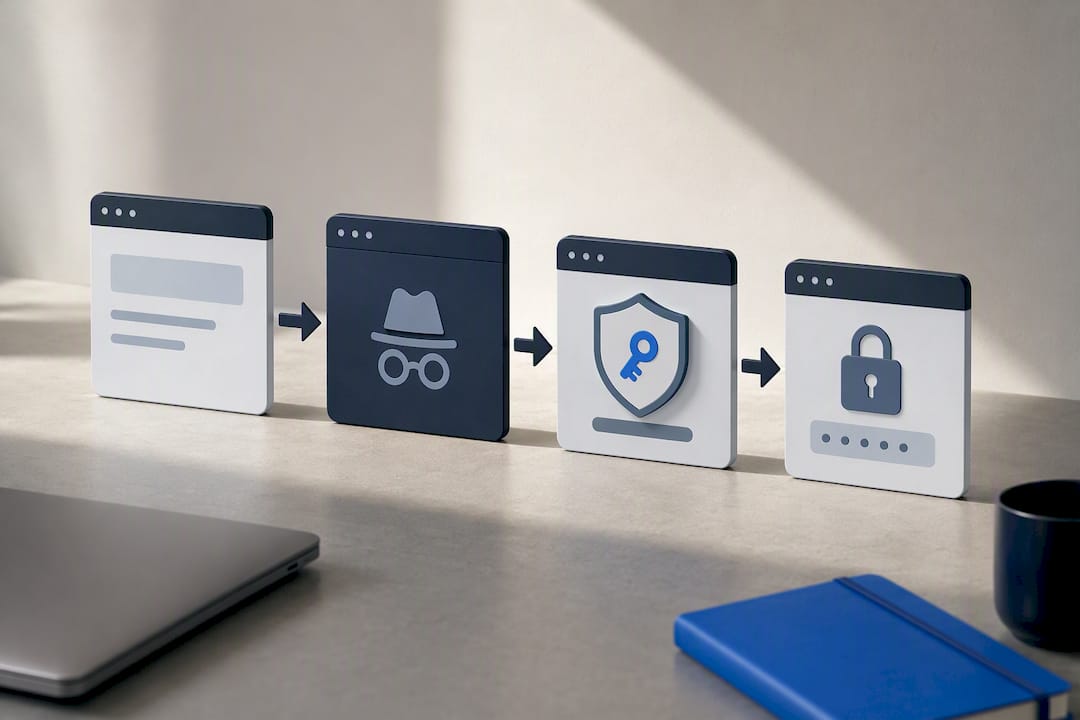
Pro Tip: Test the whole enrollment flow in a private or incognito browser window before you roll it out to your team. That way you're seeing exactly what a new user sees, backup code prompt included.
What Happens if You Lose Your Backup Codes?
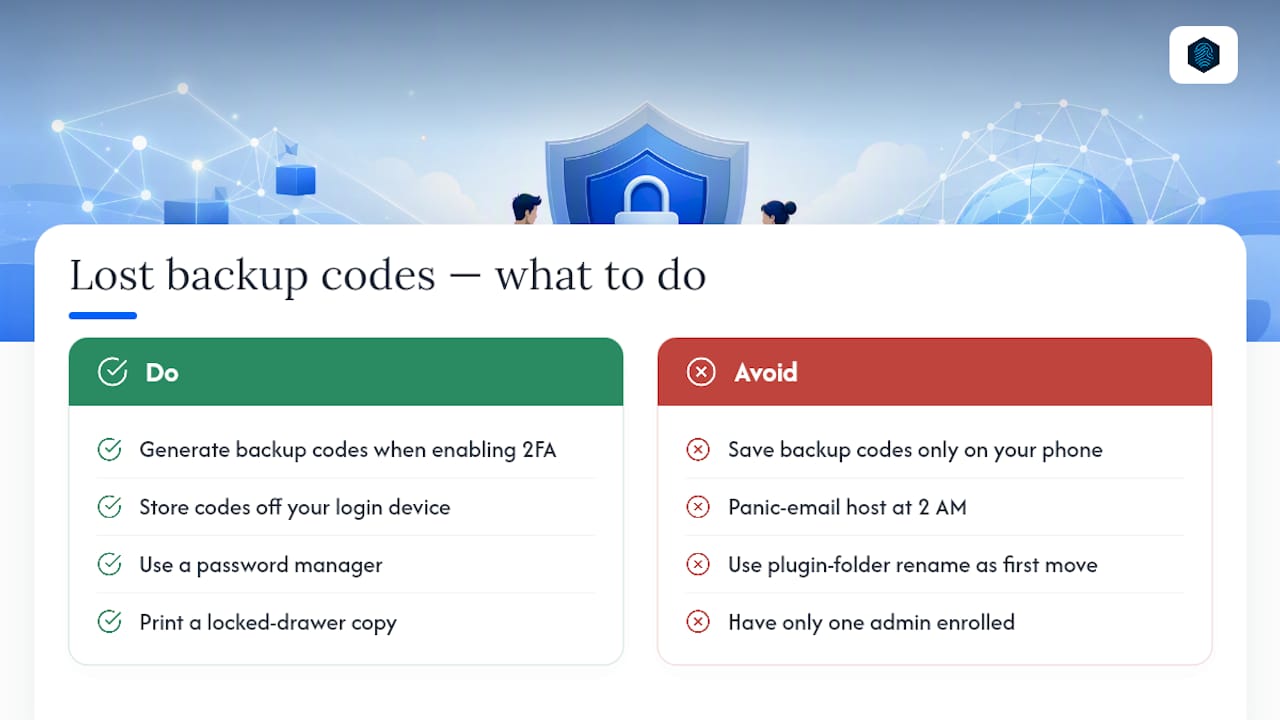
Lost backup codes are the number one reason admins panic-email their host at 2 AM. Generate them the moment you set up two-factor authentication, and store them somewhere that isn't the same device you use to log into WordPress. A password manager works. A printed sheet in a locked drawer works. A note saved only on your phone does not, because if that phone is what's locked out, you've lost your recovery path too.
If lockout happens anyway, hosts can often disable the plugin through SSH or SFTP by renaming its folder, which forces WordPress to deactivate it and restores normal login. That's a last resort, not a first move, and it works because renaming a plugin's directory tells WordPress the plugin no longer exists.
For any site with more than one person managing it, enroll at least two administrators in two-factor separately, so one locked-out account never leaves the site with zero access. According to SiteCare's setup guidance, a documented recovery plan, listing who to contact at your host, where backup codes live, and the exact folder-rename command, cuts down on support tickets significantly in the first week after enforcement.
How Do You Enforce 2FA Without Locking People Out?
Turning on two-factor for yourself is easy. Requiring it for your whole team without causing a wave of confused support requests takes a bit more planning.
- Set the policy scope. In your plugin settings, choose whether the requirement applies to All Users or specific roles like Administrator and Editor.
- Start narrow. Enable enforcement for administrators and editors first, since they hold the most access and the most risk if compromised.
- Add a grace period. Add a short grace period before enforcement kicks in to give people time to set up their authenticator app without an abrupt lockout.
- Watch for the nag screen. During the grace period, unenrolled users see a reminder banner asking them to set up 2FA. Once the grace period ends, that banner becomes a hard block on further dashboard access until they comply.
- Test before you flip the switch site-wide. Log in as a test account in an unenforced role, then as one in an enforced role, to confirm the block behaves the way you expect.
Recommended practice is to run the plugin in Optional mode while your team enrolls, then switch to Required with that grace period active once backup codes are stored and admins are confirmed working.
Why Isn't Your Two-Factor Setup Working?
Most two-factor problems on WordPress trace back to one of three things: too many security plugins fighting each other, broken email delivery, or an API client that can't complete a login prompt.
- Plugin conflicts. Running two login-security plugins at once (say, a login limiter and a separate 2FA plugin) is a common cause of unexpected redirects or broken login screens. Pick one 2FA solution and stick with it.
- Email codes failing. If your site relies on email-based codes and they never arrive, the mail server is almost always the culprit. Confirm your SMTP configuration works before troubleshooting the plugin itself.
- SMS unreliability. If SMS codes are inconsistent, that's expected. Move affected users to an authenticator app or a passkey instead.
- REST API access. Third-party apps and integrations that connect through the REST API generally can't respond to a two-factor prompt. Generate an application password for those specific connections instead of routing them through your normal login.
Pro Tip: Before installing anything new, check your hosting dashboard. Many hosts already run a web application firewall or login protection layer, and stacking a third plugin on top rarely adds real security while it does add real risk of conflicts.
How Do You Move to a New Device or Reset 2FA?
Switching phones without a plan is how people get locked out of their own dashboard.
- Add the new device first. Register a new authenticator entry or an extra passkey while your old device is still active and working.
- Confirm the new method works. Log out and log back in using the new device before you wipe or discard the old one.
- Regenerate backup codes. Any time your authentication method changes, generate a fresh set of recovery codes and store them the same way you did originally.
- Reset through the admin, if needed. A site administrator can reset another user's two-factor setup from their profile screen in most plugins. If the admin account itself is stuck, use the plugin's reset tool or disable it entirely through your hosting control panel as a final option.
What Operational Checks Should You Run Before Enforcing 2FA?
A few boring, unglamorous checks prevent most of the two-factor headaches admins run into.
- HTTPS site-wide. Passkeys and WebAuthn depend on it, and half-configured HTTPS is one of the more common reasons passkey enrollment silently fails.
- Test on staging first. Run the full enrollment and recovery flow on a staging copy of your site before touching production, especially if you're planning to enforce 2FA for multiple roles.
- Check what your host already offers. Some hosting providers bundle a web application firewall or managed security layer that already reduces brute-force login attempts, which changes how aggressively you need to configure 2FA on top of it. InSave Hosting's guide on securing a WordPress site walks through what to check before adding another plugin layer.
A Publisher's Take on Two-Factor for Small Sites
Small businesses put off two-factor authentication because it sounds like an IT project. It isn't. It's a fifteen-minute setup that stops the single most common way small WordPress sites get compromised: reused or guessed passwords. Managed hosting with daily backups and easy SSH access matters here too, because recovery friction is what actually scares people away from enforcing 2FA in the first place. Ihor has spent years working alongside hosting and infrastructure teams, and the pattern is consistent: sites with a recovery plan in place enforce 2FA without drama, and sites without one don't enforce it at all.
— Ihor
Recover Faster With Hosting Built for It
The scariest part of enabling two-factor isn't the setup. It's wondering what happens if something breaks. WordPress plans built around exactly that concern, with daily backups and direct SSH/SFTP access so you're never one locked plugin away from losing your site.

If a 2FA plugin ever misbehaves, you can pull a recent backup or rename the plugin folder yourself through SSH instead of waiting on a support ticket. That kind of direct access matters more than most site owners realize until the moment they actually need it. Check out the WordPress hosting plans built with managed security and backup recovery in mind, and get your site set up with a safety net before you flip two-factor enforcement on for your whole team.
Where to Read More on WordPress Two-Factor Setup
Start with the WP 2FA plugin page and the Two-Factor plugin listing, then check the WordPress Developer Handbook on MFA and SiteCare's setup notes.
Sources
- WordPress Two-Factor Authentication (SiteCare)
- WP 2FA – Two-factor authentication for WordPress (wordpress.org plugin page)
- Wordpress
FAQ
How Do I Turn on Two-Factor Verification in WordPress?
Go to Users > Your Profile in your dashboard, select a Two-Factor option like an authenticator app, scan the QR code with your phone, and enter the confirmation code. Save your backup codes right after setup so you're never locked out.
Can I Enable Two-Factor Authentication Without a Plugin?
WordPress has no built-in two-factor authentication, so you need a plugin like WP 2FA, the Two-Factor plugin, or Sigil to add it. Some managed hosts also offer platform-level login protection worth checking before adding a plugin.
Is There a Reliable 2FA Plugin for WordPress?
Yes. WP 2FA offers a wizard-driven setup with role-based enforcement and grace periods, while the community-maintained Two-Factor plugin covers TOTP and email codes without built-in enforcement. Sigil adds passkey support and front-end enrollment for users without dashboard access.
How Do I Turn Off Two-Factor Authentication on WordPress?
Disable it from the plugin's settings page, or deactivate the plugin entirely from Plugins in your dashboard. If you're locked out, a host can disable it by renaming the plugin folder through SSH or SFTP access, which is why keeping that access available matters.
Do I Need HTTPS to Use Passkeys on WordPress?
Yes, passkeys and WebAuthn require site-wide HTTPS along with a modern browser to work correctly. Confirm your SSL certificate covers your entire site before enabling passkey login for any user role.