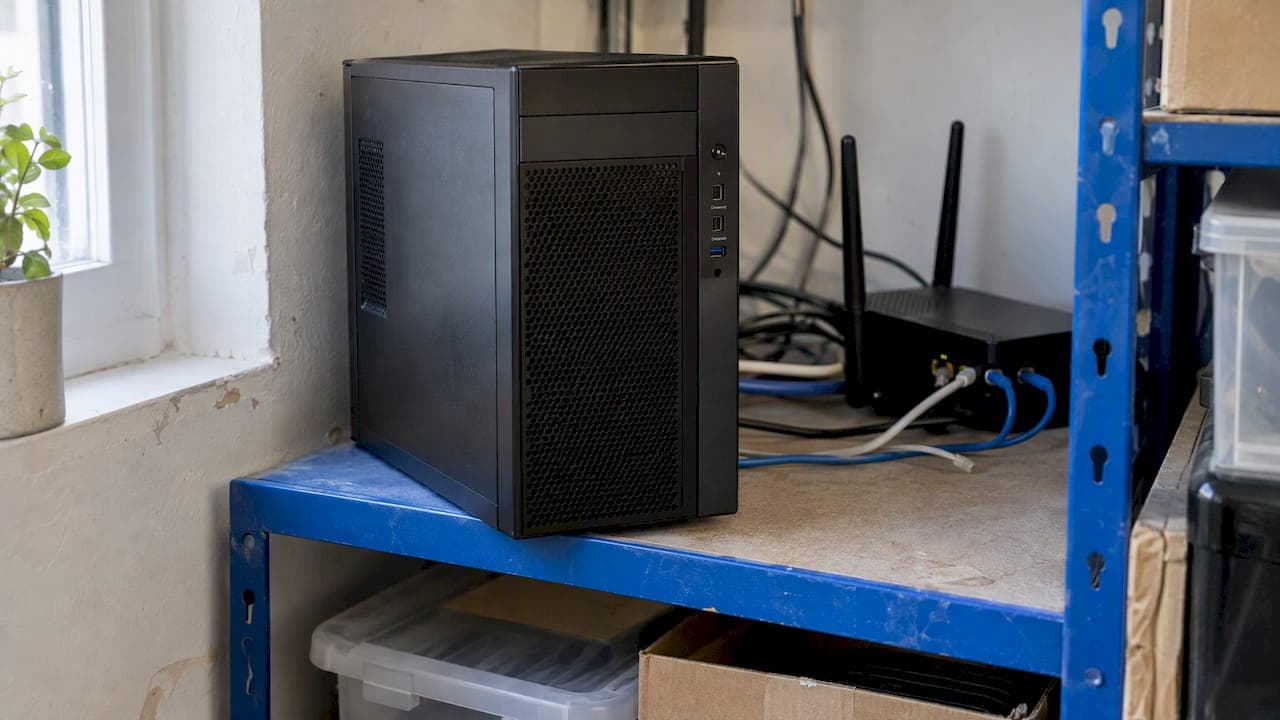
To set up a Valheim server, install the free "Valheim Dedicated Server" tool through Steam (or SteamCMD on Linux), copy the start script, set a server name, world name and password in the copy, open the right ports, and launch it. The whole job takes about 20 minutes on a machine you already own. The harder part is keeping that machine on, updated and fast for your friends, which is why many groups move the server to a hosted box. This guide covers both routes.
TL;DR
- Valheim's dedicated server is a separate free download. You edit a copy of the start script, not the original, and the password needs at least five characters.
- A realistic baseline for a small group is a modern quad-core CPU, 8 GB RAM, SSD or NVMe storage and a stable connection. Iron Gate's own minimums are lower.
- The default Steam backend needs UDP ports 2456 to 2458 reachable. The
-crossplayoption uses a relay and skips port forwarding. - Self-hosting is free but ties the world to your PC and home internet. A hosted server stays online when you log off.
Table of Contents
- Self-host or rent: pick your path first
- What hardware and network a Valheim server needs
- Step by step: install and launch the server
- Ports, firewall and crossplay
- Admins, bans and the permission lists
- Updates, backups and keeping it online
- Perspective: what we see running game servers
- What to compare when choosing a Valheim host
- Common problems and quick fixes
- FAQ
- Sources
Self-host or rent: pick your path first
Both paths run the same dedicated server software. What differs is who owns the machine and the uptime.
| Your own PC or spare machine | Hosted game server | |
|---|---|---|
| Cost | No extra fee, but power and a machine that stays on | Monthly subscription |
| Uptime | World is offline when the PC sleeps, reboots or you game on it | Runs around the clock |
| Network | Router changes, port forwarding, your upload speed | Data center connection, ports preconfigured |
| Performance | Shares CPU with whatever else you run | Dedicated resources for the server |
| Maintenance | You update, back up and restart | Panel with one-click restart, backups and updates |
Self-hosting is a good fit if you play a few evenings a week with two or three friends and have a desktop that can idle in a corner. A hosted server makes sense once friends in different time zones want to log in when you are not around, or once the world has grown large enough to make a home connection struggle.
If you would rather skip the setup, we run Valheim game servers with the ports and start parameters already handled. The rest of this guide shows you what that setup actually involves, so you can judge either route.
What hardware and network a Valheim server needs
Iron Gate's published minimums are a quad-core CPU, 2 GB of RAM and 2 GB of free storage, as summarized by ServerScout. That is enough to boot an empty world. For a real group, the same page suggests a modern quad-core at 3.2 GHz or higher, 8 GB of RAM, and SSD or NVMe storage, with about 5 GB of disk for the server and saves.
A few practical notes on those numbers:
- CPU speed matters more than core count. The server leans heavily on single-thread speed, so a fast older quad-core often beats a slow many-core chip. Lag in busy bases usually points to the CPU first.
- RAM grows with the world. Exploration, builds and player count push memory use up over time. The 8 GB figure leaves room for the operating system and a restart without swapping.
- Bandwidth is rarely the first bottleneck. ServerScout gives 100 Mbit/s as a practical minimum and notes most hosts recommend 1 Gbit/s. At home, your upload speed is the number to check, not your download.
- Linux has library requirements. Iron Gate states that Linux servers need GLIBC 2.29 and GLIBCXX 3.4.26 or newer, per its official dedicated server guide. A current Ubuntu LTS release meets this; very old distributions may not.
If you plan to run other things on the same machine (a Discord bot, a web panel, a second game), add headroom. Sizing logic for game servers carries across titles, and our Minecraft server sizing guide shows how we think about RAM and CPU for a given player count.
Step by step: install and launch the server
The steps below follow Iron Gate's official guide.
1. Install the Valheim Dedicated Server tool
On Windows, open Steam, switch the library filter to Tools, find "Valheim Dedicated Server" and click Install. On a Linux box without a desktop, use SteamCMD to download the same tool with an anonymous login. You do not need to own the game on the server machine for the dedicated tool.
2. Copy the start script
Right-click the tool in your library and choose Manage, then Browse local files. You will find start_headless_server.bat on Windows and start_server.sh on Linux. Make a copy and edit the copy. Updates can overwrite the original file, and your settings would disappear with it.
3. Set name, world and password
Open the copy in a text editor and fill in these parameters on the launch line:
-name: what appears in the server list.-port: defaults to 2456.-world: the save file name. A new name creates a new world; an existing name loads that world.-password: at least five characters, and it cannot be contained in the server name.-savedir(optional): where saves are stored, useful if you want them on a separate drive.
Keep the password out of Discord screenshots. Anyone with the address and password can join.
4. Launch and wait for the world to load
Run your edited script. The first start generates the world, which takes a minute or two. The console should report that the server is ready, and the world files land in the save directory (on Windows, under the LocalLow folder in your user profile by default).
On Linux, run it inside screen, tmux or a systemd service so it keeps running after you close your SSH session. A systemd unit also lets the machine bring the server back after a reboot.
Ports, firewall and crossplay
This is where most home setups fail. Valheim uses the port you chose (2456 by default) and the next one up, as the official guide describes. The ServerScout reference lists UDP 2456 to 2458 as the range to allow, and one 2026 setup guide advises forwarding 2456 and 2457 on both TCP and UDP for the Steam backend. Opening 2456 to 2458 on UDP covers the documented cases.
There are two networking backends:
- Steam backend (default). Players connect by IP and port, or find you in the server list. You must forward the ports on your router to the server's local IP and allow them in the operating system firewall.
- Crossplay backend (
-crossplay). The server connects through a Microsoft PlayFab relay, so manual port forwarding is not needed. Players join with a join code shown in the console instead of an IP address.
Checklist when friends cannot connect:
- Give the server machine a fixed local IP, or a DHCP reservation on your router.
- Forward the ports to that local IP, not to your main PC.
- Allow the same ports in Windows Defender Firewall or
ufwon Linux. - Share your public IP, not your local one. It can change, so a dynamic DNS name saves repeat messages.
- If your internet provider puts you behind carrier-grade NAT, port forwarding will not work at all. Use
-crossplayor a hosted server.
From the game, choose Join, then Add server, and enter your-ip:2456. The query port is the one after the game port, so if you change -port, friends use that number in the address.
Admins, bans and the permission lists
The server reads three plain text files from the save directory: adminlist.txt, bannedlist.txt and permittedlist.txt. According to the community Valheim wiki, you add each player's ID on its own line. Admins can use console commands in game, and the permitted list turns the server into a whitelist when it has entries.
Both Steam and Xbox IDs go in these files, so use the ID format shown in the server log when a player connects. Restart the server after editing so it reloads the lists. Keep the admin list short. Anyone on it can spawn items and change the world.
Updates, backups and keeping it online
Updates. When the game updates, the server must match or players get a version mismatch. Per the wiki, in recent patches updating the Valheim Dedicated Server tool in Steam is sufficient. On Linux, re-run SteamCMD's update for the same app. Do it on patch day, before friends open the game.
Backups. Your world is a .db file plus a .fwl file in the worlds folder. Copy both to another drive or cloud storage on a schedule, and always before a major update or a mod change. A corrupted save on a single disk with no copy is the most common way a long-running world dies.

Restarts. Valheim servers benefit from a scheduled nightly or weekly restart at a quiet hour. Pair that with a script or service that starts the server again automatically.
Mods. If you use mods, every player needs the matching versions, and the server needs them too. Test a mod set on a copy of the world first.
Perspective: what we see running game servers
We run game servers on managed infrastructure, with engineers in the EU and US watching the machines, so we see the same pattern in Valheim over and over. Setup is not what hurts people. A first launch really does take under half an hour. What hurts is month three, when the host PC is also someone's gaming rig, a router update wipes the port forward, and half the group cannot join on the night everyone cleared their schedule.

Our advice is simple. Start on your own hardware if you want to learn how the server works, because understanding the start script, ports and save files makes you better at any host. Move to a hosted server when the world matters more than the setup. At that point you are paying for uptime, daily backups, a connection that does not depend on your household, and someone else restarting the box at 2 a.m.
One more thing we tell people: judge any provider on renewal price, not just the first month, and on how easy it is to download your world files and leave. Your save belongs to you.
— Ihor
What to compare when choosing a Valheim host
You will see a long list of providers when you search for hosting. The things that actually differ:
- CPU generation and clock speed. Ask what the processor is. A fast modern core beats "unlimited" marketing.
- RAM per slot or per plan. Make sure it matches the 8 GB practical baseline above if you expect a grown world and several players.
- Storage type. SSD or NVMe, with enough room for backups.
- File access. You should be able to upload an existing world, download saves and edit the admin lists.
- Startup control. Look for custom launch parameters, crossplay support and mod support if you need them.
- Backups and restarts. Automatic daily backups and scheduled restarts save real pain.
- Location. Pick a data center near most of your players. Distance adds latency that no hardware fixes.
- Renewal price and refund terms. Check what the plan costs after the intro period and whether there is a money-back window.
A hosted plan makes sense for anyone running Valheim for a standing group. We offer a dedicated Valheim server with a 30-day money-back guarantee, free migration for your existing world, and daily backups. If you also host other games for your community, browse our wider game server lineup. Bigger communities that need full control of the hardware can look at dedicated servers.
Common problems and quick fixes
- Server does not show in the list. Community listing can take several minutes, and it relies on the ports being reachable. Try direct connect with IP and port first.
- Wrong password errors. Check for the five-character minimum and that the password is not part of the server name.
- Version mismatch. Update the server tool and make sure all players are on the same game version.
- World resets. You probably changed
-worldor-savedir, so the server created a fresh world. Point it back at the old name or folder. - Rubber-banding in big bases. Check the server CPU load during play. If one core is pinned, you need a faster processor rather than more RAM.
- Server stops when you close the terminal. Run it as a service, or inside
screenortmux.
If you manage several game servers, the same discipline applies to all of them. Our ARK server setup guide walks through a similar process for another survival game.
FAQ
How much RAM does a Valheim server need?
Iron Gate's listed minimum is 2 GB, but a practical target for a group with a developed world is 8 GB, according to ServerScout's requirements page. Memory use climbs as the world fills with builds, so leave headroom for restarts.
Do I need to forward ports to host Valheim?
With the default Steam backend, yes: forward the game port (2456 by default) and the next port up to the server's local IP. If you start the server with -crossplay, it uses a relay and does not require manual forwarding. Players then join with a code.
Can I run the server on the same PC I play on?
Yes, and many groups start that way. The world is only online while that PC is on and the server is running, and the server competes with the game for CPU, so a separate machine or a hosted server plays better.
Is a dedicated server better than hosting from the game menu?
A dedicated server keeps the world running without anyone needing to be in it, and it does not tie the world to one player's session. The tradeoff is the setup work and a machine that stays powered. A hosted server removes that tradeoff.
Can I move my existing world to a new server?
Yes. Copy the .db and .fwl files for your world into the new server's worlds folder and start the server with -world set to the same name. Back up both files before you start so you can roll back.
Sources
- A Guide to Dedicated Servers, Valheim (Iron Gate)
- Valheim Server Requirements, ServerScout
- Valheim Dedicated Server Guide (2026), TimeSaver
- Dedicated servers, Valheim Wiki